








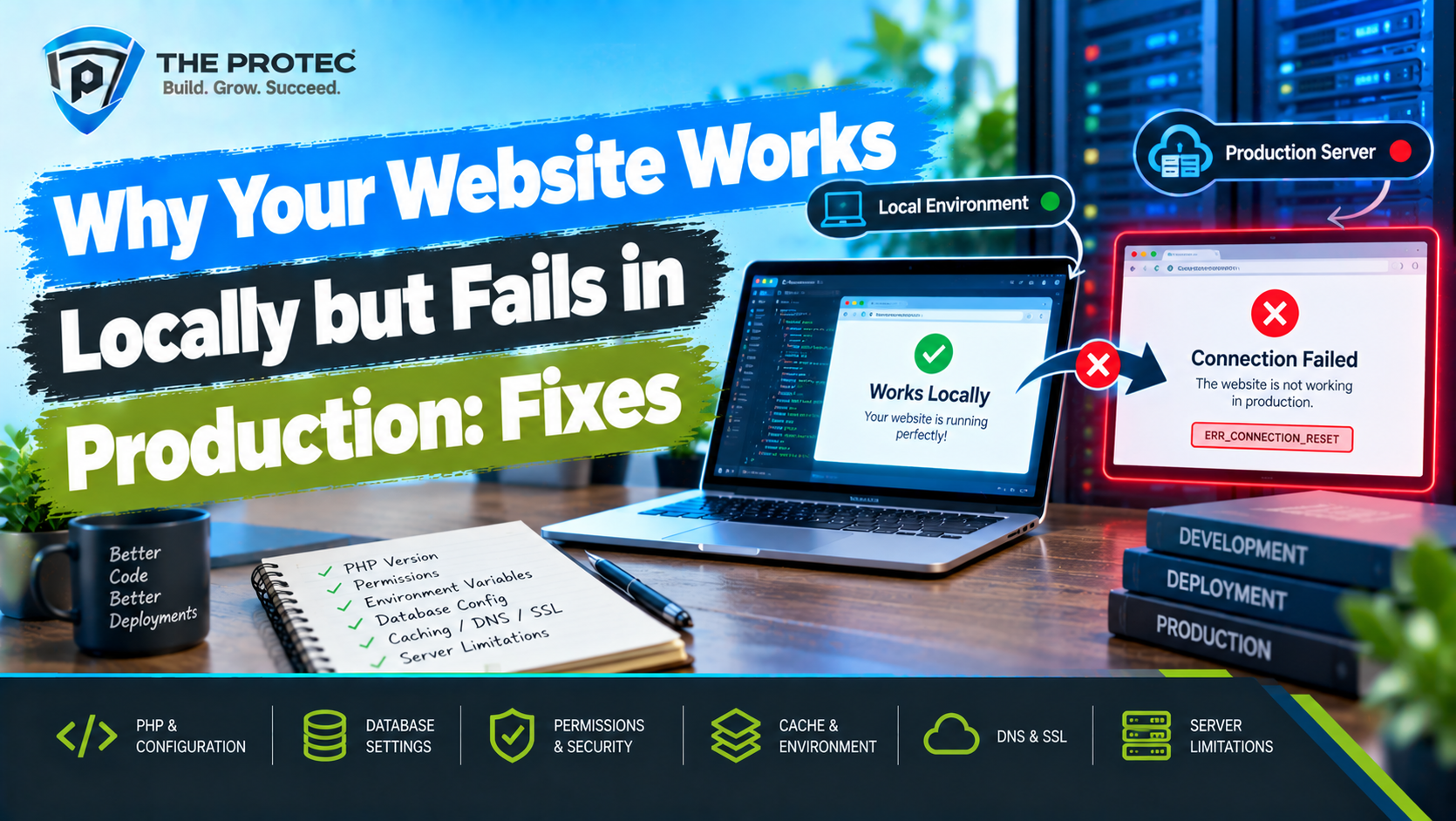
Your website works flawlessly on your laptop locally. Tests pass, pages load quickly and the database responds. Then you deploy it—and users see a blank page, a 500 error, broken assets or a database connection failure.
When a website works locally but not in production, the code is not always the culprit. Local development environments are often permissive, predictable and preconfigured. Production introduces different PHP versions, restricted file access, cached configuration, reverse proxies, network policies, SSL termination and resource limits. Even a small mismatch can stop an otherwise healthy application.
Effective website deployment troubleshooting requires a systematic approach. Instead of changing code randomly, compare the two environments and determine whether the failure belongs to the code, configuration, infrastructure or deployment process.
Start With the Production Symptom
The visible symptom often narrows the search. A generic 500 response usually points to an application exception, missing dependency, invalid configuration or file permission problem. A 502 or 504 error more often indicates that the web server cannot reach PHP-FPM or that an upstream process timed out.
- Blank page: PHP display errors are disabled, but a fatal error is being logged.
- Database connection refused: The host, port, credentials, TLS settings or network allowlist may be wrong.
- CSS or JavaScript missing: Asset paths, build manifests, CDN configuration or document roots may differ.
- Redirect loop: HTTPS or proxy headers are not being interpreted correctly.
- Old behavior after deployment: OPcache, application cache, workers or CDN content still contains the previous release.
- Works for small requests only: Memory, upload size, execution time or request body limits may be too low.
Record the exact URL, response status, deployment revision and timestamp before troubleshooting. That information makes it easier to correlate the request with application, web server and infrastructure logs.
PHP Version and Dependency Mismatches
PHP deployment issues frequently begin with version drift. A developer may use a newer PHP release while production runs an older one that does not support the same syntax, framework version or library APIs. The reverse can also happen: stricter behavior in a newer production runtime exposes deprecated or invalid code that went unnoticed locally.
Compare the PHP version used by the command line, web server and queue workers. They can point to different installations. Also verify required extensions such as mbstring, intl, PDO, OpenSSL, cURL and fileinfo. The official PHP supported versions page is a useful reference when selecting a maintained runtime.
Dependencies should be installed from a committed Composer lock file rather than resolved independently on the server. Run Composer’s platform requirement check during the build. If production uses composer install –no-dev, confirm that runtime code does not accidentally import a package listed only as a development dependency.
Environment Variables and Cached Configuration
Environment configuration is another major difference between a local vs production environment. A local .env file may contain every expected value, while production receives secrets through a hosting dashboard, container platform or deployment service. Missing variables can silently become empty strings or trigger errors only when a specific feature is used.
Check variable names, values and availability to the actual PHP-FPM or container process. Shell variables visible over SSH are not necessarily available to the web application. Values containing spaces, dollar signs, hashes or line breaks may also be altered by incorrect quoting.
Laravel adds an important complication: configuration caching. After php artisan config:cache runs, the framework no longer loads the .env file during requests. Calling env() directly outside configuration files can therefore return null in production. Keep environment access inside configuration files, use config() throughout the application and rebuild the cache after changing settings. Laravel’s deployment documentation provides additional production guidance.
Never enable detailed error pages publicly. APP_DEBUG should remain false in production because exceptions can reveal credentials, tokens, paths and request data.
File Permissions and Case-Sensitive Paths
Local machines often allow broad file access, while Linux production servers enforce ownership and permission boundaries. PHP must be able to write only where necessary, such as Laravel’s storage and bootstrap/cache directories. The web server still needs read access to application files and public assets.
Avoid solving file permissions on a web server with unrestricted 777 access. Assign files to the appropriate deployment and web-service users, use group permissions where needed and keep executable or sensitive files restricted.
Case sensitivity is another common trap. A reference to views/Home.php may work on a case-insensitive local filesystem even though the deployed file is views/home.php. The same problem affects class names, imports, images and frontend assets. Git can also miss case-only renames unless they are performed explicitly.
Database Credentials, Networking and Schema Drift
Database connection errors are not limited to incorrect passwords. In production, localhost refers to the application server or container itself—not a managed database on another host. Confirm the database hostname, port, database name, username and required SSL mode.
Next, test connectivity from the same runtime network as the application. Cloud databases may require firewall rules, security groups, private DNS, virtual network peering or IP allowlisting. A successful connection from a developer’s laptop does not prove that production has network access.
If the connection succeeds but requests fail, check whether migrations ran against the correct database. Missing columns, stale indexes and incompatible column types can create PHP production errors that look like code defects. Deploy backward-compatible schema changes before code that depends on them, especially when old and new application instances overlap during rolling deployments.
Web Server and Runtime Configuration
Apache, Nginx, PHP-FPM and managed hosting platforms do not behave identically to a built-in development server. For Laravel, the document root must point to the public directory rather than the project root. Rewrite rules must forward application routes to the front controller without exposing private files.
Check the virtual host, PHP-FPM socket, index file, rewrite configuration and upstream timeout. Behind a load balancer or CDN, configure trusted proxies so the application recognizes the original host, client address and HTTPS scheme. Incorrect forwarded-header handling can produce insecure URLs, redirect loops and invalid cookies.
Background components also matter. Queue workers, schedulers and long-running processes do not automatically reload changed code or environment variables. Restart them gracefully after deployment and confirm that cron jobs or platform schedulers use the intended PHP binary and working directory.
Caching and Stale Build Artifacts
Website caching issues can make a successful deployment appear broken. PHP OPcache may retain old bytecode, Laravel may hold stale configuration or routes, and a CDN may continue serving an outdated HTML page or asset manifest.
Use a deliberate cache strategy rather than clearing everything blindly. Rebuild framework caches for the new release, reload PHP-FPM when required, restart workers and purge only affected CDN paths. Frontend assets should use content hashes so browsers request new files after each build. Ensure the compiled asset manifest is created during deployment and included in the release.
DNS and SSL Troubleshooting
If some users reach the site while others cannot, inspect DNS. Confirm A, AAAA and CNAME records, authoritative nameservers and proxy settings. An incorrect AAAA record can break users on IPv6 even when IPv4 works. DNS propagation can also expose traffic to both old and new servers during a migration.
For SSL failures, verify the certificate hostname, expiration date, intermediate certificate chain and server name indication configuration. Make sure every production hostname is covered, including redirects from the www or non-www variant. Automated renewal is not enough unless the renewed certificate is also loaded by the active proxy or web server.
Resource Limits That Only Appear Under Real Traffic
Production traffic exposes limits that rarely matter locally. Review PHP memory_limit, max_execution_time, post_max_size and upload_max_filesize alongside web server, proxy and platform limits. Also monitor disk capacity, inode usage, database connection pools, PHP-FPM workers and queue backlogs.
A server can look healthy during a manual test yet fail under concurrency. Slow database queries may occupy every worker, causing unrelated requests to time out. Use metrics to investigate saturation rather than simply increasing timeouts, which can delay failure without removing the bottleneck.
A Step-by-Step Production Debugging Workflow
A repeatable workflow reduces guesswork and prevents one fix from introducing another problem.
- Confirm the scope: Determine whether every page fails, only one feature fails or only certain users, regions or protocols are affected.
- Verify the release: Check the deployed commit, build timestamp, dependency lock file and asset version. Do not assume the intended release reached every instance.
- Inspect response and logs: Match the request timestamp with application, PHP-FPM, web server, load balancer and database logs. Start with the earliest meaningful error rather than later cascading failures.
- Compare runtime facts: Record PHP and extension versions, environment variable presence, effective configuration, document root and writable paths. Compare them with a known-good local or staging environment.
- Test dependencies independently: From the production runtime, test DNS resolution, database connectivity, cache access, object storage and external APIs. This separates application logic from infrastructure access.
- Check recent changes: Review migrations, secret rotations, certificate changes, firewall rules, package updates and server configuration—not just application commits.
- Reproduce safely: Use staging or an isolated production instance with sanitized data. Avoid experimenting on all live servers simultaneously.
- Fix, validate and observe: Deploy one controlled change, run smoke tests and watch error rates, latency, logs and resource metrics before closing the incident.
Production debugging should rely on structured logs, request correlation IDs, health checks and distributed traces where appropriate. Log enough context to identify the failing operation, but redact passwords, tokens, cookies and personal data. A generic 500 page for users can coexist with detailed private telemetry for developers.
Production-Readiness Checklist
- Pin PHP, Composer dependencies and frontend build tooling.
- Validate required PHP extensions and Composer platform requirements.
- Store secrets securely and verify required environment variables during startup.
- Keep production debugging disabled while centralizing application and server logs.
- Set the correct document root, rewrite rules and trusted proxy configuration.
- Apply least-privilege file ownership and test writable directories.
- Test database connectivity, migrations and rollback compatibility.
- Build assets and application caches as controlled deployment steps.
- Restart queue workers and long-running processes after releases.
- Automate DNS, SSL, health, disk, memory and error-rate monitoring.
- Run post-deployment smoke tests from outside the production network.
- Maintain rollback procedures and keep previous immutable releases available.
Frequently Asked Questions
Why does PHP show a blank page only in production?
A blank page usually means a fatal PHP error occurred while display_errors was disabled. This is appropriate for production, but the error should appear in PHP-FPM, web server or application logs. Check missing extensions, incompatible PHP syntax, autoload failures, permissions and memory exhaustion. Do not expose detailed errors to visitors.
Why does Laravel work locally but return a 500 error after deployment?
Common causes include a missing APP_KEY, invalid environment variables, unwritable storage directories, stale configuration cache, absent vendor dependencies, an incorrect public document root or unapplied database migrations. Review storage/logs, verify the effective configuration and confirm that the web and CLI processes use the same PHP version.
Why can production not connect to the database with valid credentials?
Valid credentials do not guarantee network access. The database may reject the production IP, require TLS, listen on a private endpoint or use a different port. The application may also interpret localhost as its own container. Test hostname resolution and port connectivity from inside the application runtime.
Should production match the local environment exactly?
The environments do not need identical hardware, but their important runtime characteristics should be reproducible: PHP version, extensions, dependencies, configuration structure and service interfaces. Containers, version-managed build images and infrastructure as code reduce drift, while staging provides a realistic place to test deployment behavior.
Turn Deployment Failures Into Repeatable Fixes
When a website is not working after deployment, treat production as a distinct system rather than a larger version of a laptop. Compare runtime facts, follow the request across each service and classify the failure before changing anything. Version pinning, configuration validation, observable infrastructure and automated readiness checks transform recurring production server errors into preventable deployment issues.