







You start a local server and immediately see an address already in use error. Laravel cannot bind to port 8000, a Node.js application says port 3000 is unavailable, Docker refuses to publish 8080, or MySQL cannot start on 3306. The message identifies the conflict, but it rarely tells you which program owns the port.
The safest solution is a two-stage process: find the process listening on the port, then verify what that process is before stopping it. Guessing or force-killing an unfamiliar PID can interrupt databases, system services, containers, or another developer’s workload. This guide provides copy-and-paste commands for Windows Command Prompt, PowerShell, Linux, and macOS, along with troubleshooting steps for Docker mappings, permission errors, multiple listeners, and services that restart automatically.
Understand What a Port Conflict Means
A server binds to an IP address and port so it can accept connections. In most configurations, a second server cannot bind to the same address and port combination. That produces errors such as EADDRINUSE, Failed to listen, port is already allocated, or Address already in use.
Before terminating anything, confirm that the result represents a listening socket. Network inspection tools also display outbound connections where the same number appears as a remote port. Focus on the local address and a state such as LISTENING on Windows or LISTEN on Linux.
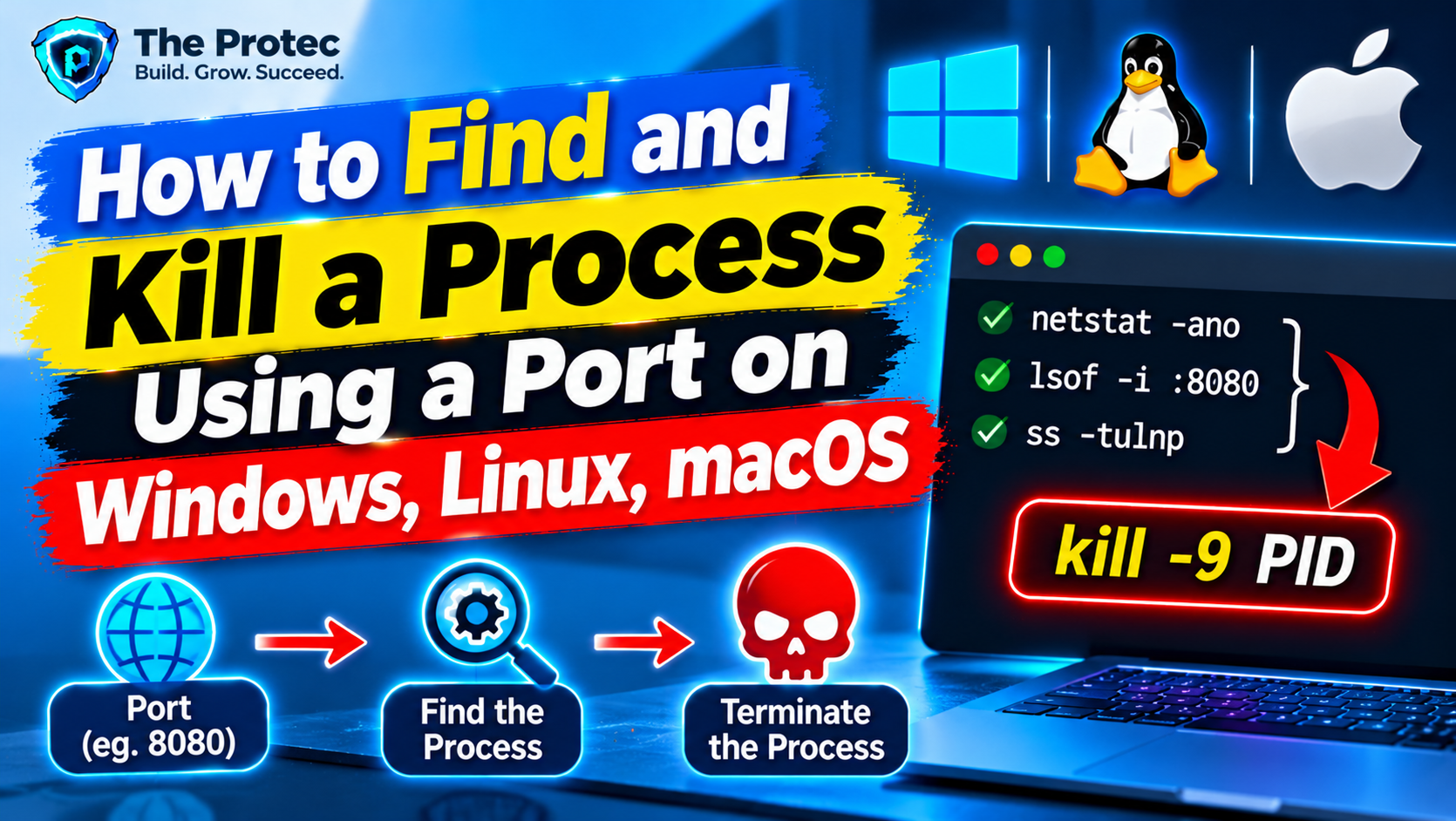
- Inspect: Determine which PID owns the listening port.
- Verify: Resolve the PID to an application, service, command, or container.
- Stop gracefully: Use the application’s shutdown method when possible.
- Force termination only if necessary: Use it when a confirmed process is unresponsive.
- Recheck: Run the inspection command again before restarting your server.
Windows: Find a Port PID with Command Prompt
Open Command Prompt and use netstat to find process IDs associated with a port. For port 3000, run:
netstat -ano | findstr LISTENING | findstr :3000
The -a option displays active connections and listening ports, -n keeps addresses and ports numeric, and -o includes the owning PID. Microsoft documents these options in its netstat command reference.
Typical output looks like this:
TCP 0.0.0.0:3000 0.0.0.0:0 LISTENING 18472
The final value, 18472, is the PID. Verify the executable before ending it:
tasklist /FI "PID eq 18472"
If the result is node.exe and you recognize the project, first return to its terminal and press Ctrl+C. If that is impossible, request normal termination:
taskkill /PID 18472
If the process is frozen, force it to terminate:
taskkill /F /PID 18472
Add /T only when you also intend to terminate child processes. For example, taskkill /F /T /PID 18472 can stop an entire development process tree, so use it carefully.
Check Other Ports with netstat
Change only the port number when troubleshooting another service:
netstat -ano | findstr LISTENING | findstr :8000for Laravel or another local HTTP server.netstat -ano | findstr LISTENING | findstr :8080for application servers, proxies, and containers.netstat -ano | findstr LISTENING | findstr :3306for MySQL or MariaDB.
When a PID belongs to a Windows service, identify its service association with tasklist /svc /FI "PID eq 18472". Stop the named service through Services or its supported management command rather than killing the service host.
PowerShell: Find and Stop the Process on a Port
Modern Windows environments can use Get-NetTCPConnection, which returns structured objects instead of text that must be filtered. To find the process listening on port 3000:
$connection = Get-NetTCPConnection -LocalPort 3000 -State Listen
$connection | Select-Object LocalAddress, LocalPort, State, OwningProcess
Use the OwningProcess value to inspect the application:
Get-Process -Id $connection.OwningProcess
If more than one socket is returned, collect the unique PIDs:
$connection | Select-Object -ExpandProperty OwningProcess -Unique
After confirming the process, stop a specific example PID normally:
Stop-Process -Id 18472
Use the force switch only if normal termination fails:
Stop-Process -Id 18472 -Force
If PowerShell reports access denied, reopen it with Run as administrator. Elevated access does not make every process safe to stop; it only grants additional permission.
Linux: Find a Process Using lsof or ss
On Linux, lsof is a clear way to find a process listening on a TCP port. For a Laravel port already in use on 8000, run:
sudo lsof -nP -iTCP:8000 -sTCP:LISTEN
The output includes fields such as COMMAND, PID, USER, and NAME. The -nP options avoid hostname and service-name lookups, making the result faster and ensuring the numeric port remains visible.
Verify an example PID and its full command line:
ps -p 18472 -o pid,user,comm,args
Ask the process to shut down with the default TERM signal:
kill -TERM 18472
Wait briefly, then rerun the lsof command. If a verified process is unresponsive, use KILL as a last resort:
kill -KILL 18472
The ss utility is commonly installed by default on current Linux distributions and is especially useful on minimal servers or containers. To inspect port 8080:
sudo ss -ltnp 'sport = :8080'
Here, -l selects listening sockets, -t selects TCP, -n displays numeric values, and -p displays process information. For UDP, use sudo ss -lunp 'sport = :8080'. The ss command inspects sockets; it does not terminate them. Use the reported PID with the appropriate service manager or kill.
macOS: Find and Kill a Process on a Port
On macOS, lsof is the most practical option because the system’s netstat output does not provide the same convenient PID mapping as Windows. To find a process listening on port 3000:
sudo lsof -nP -iTCP:3000 -sTCP:LISTEN
Verify the PID shown in the output:
ps -p 18472 -o pid,user,comm,args
If it is your development server, stop it from its terminal with Ctrl+C. Otherwise, send a graceful signal:
kill -TERM 18472
If the confirmed process refuses to exit, force termination with:
kill -KILL 18472
Do not add sudo</code automatically. Use it only when the process belongs to another user and you understand why it is running. A process managed by launchd may return immediately after being killed; in that case, disable or stop the responsible service instead.
Common Development Port Conflicts
- Port 3000: Commonly used by Node.js frameworks, React development servers, and local APIs. A previous server may still be running in another terminal or background task.
- Port 8000: Frequently used by
php artisan serve. If Laravel reports the port already in use, stop the old PHP process or temporarily run php artisan serve --port=8001.
- Port 8080: Often claimed by Java servers, reverse proxies, Docker containers, local emulators, and admin interfaces.
- Port 3306: Normally belongs to MySQL or MariaDB. Prefer stopping the database through Windows Services, Homebrew services, systemd, or its database tooling rather than killing it.
Changing ports can restore productivity, but it may only hide a stale process. Find the listener first so you know whether the conflict is expected.
Graceful Shutdown vs. Force-Killing
A graceful shutdown gives an application time to close connections, finish requests, flush logs, remove lock files, and commit buffered data. Use Ctrl+C for foreground development servers, docker stop for containers, or the operating system’s service manager for managed services.
Force-killing immediately removes the process. Windows taskkill /F, PowerShell Stop-Process -Force, and Unix kill -KILL should be last resorts. They can cause incomplete writes, corrupted development databases, orphaned child processes, or inconsistent container state. Never terminate an unfamiliar system or production process solely because its PID appears beside a port.
Resolve a Docker Port Conflict
Docker reports port is already allocated when a container tries to publish a host port that another container or host process already owns. First, check running containers publishing port 8080:
docker ps --filter publish=8080 --format "{{.ID}} {{.Names}} {{.Ports}}"
If the listed container is no longer needed, stop it gracefully:
docker stop api-container
For a Docker Compose project, run docker compose down from the project directory. If no container appears, use the operating system commands above because a native process may own the host port.
Review the mapping in Compose configuration. In 8081:8080, 8081 is the host port and 8080 is the container port. Changing the left side avoids the host conflict. Docker’s official guide explains how published ports map container services to the host.
Troubleshoot Ports That Will Not Stay Free
Permission or Access Errors
Run Command Prompt or PowerShell as administrator on Windows, or use sudo</code for inspection on Linux and macOS. If termination remains blocked, the process may be protected, owned by another account, or controlled by a service manager. Identify its purpose instead of repeatedly escalating commands.
Multiple Processes Appear
Multiple entries can represent IPv4 and IPv6 listeners, worker processes, or applications using socket-sharing features. Inspect every unique PID. Do not kill only the first result and assume the port is free. Also confirm that the port appears in the local address column rather than only as a remote endpoint.
The Process Immediately Returns
An automatic supervisor may restart it. Common examples include systemd, launchd, Windows Services, PM2, Docker restart policies, Kubernetes development environments, and IDE-managed tasks. On Linux, inspect the process and associated unit, then use systemctl stop</code on the correct service. On Windows, check tasklist /svc</code or Services. For PM2, use pm2 list</code and pm2 stop</code. For Docker, inspect the container’s restart policy before stopping it.
No Listener Appears, but Binding Still Fails
Check whether the application is binding to a different interface, such as IPv6, or whether another runtime starts only during your launch attempt. Run the inspection command immediately after the error. Sockets in TIME_WAIT are usually not active listeners, although application socket settings can affect rapid restarts. Rebooting should be a final diagnostic step, not the default solution.
Frequently Asked Questions
How do I kill the process using port 3000?
First identify and verify it. On Windows, use netstat -ano | findstr LISTENING | findstr :3000, then confirm the PID with tasklist. On Linux or macOS, use sudo lsof -nP -iTCP:3000 -sTCP:LISTEN and verify it with ps. Prefer Ctrl+C or a TERM signal before force-killing.
Why is my port still in use after I kill the process?
A service manager, container restart policy, IDE, or process supervisor may be recreating the process. Rerun the inspection command and compare the new PID. If it changed, stop the parent service or disable its restart behavior rather than repeatedly killing child processes.
Can netstat terminate a process?
No. netstat is an inspection tool. It shows connections, listening ports, and PIDs when supported. Use taskkill</code on Windows, Stop-Process</code in PowerShell, or kill</code on Linux and macOS after verifying the process.
Is it safe to force-kill a process using a port?
Only when you have positively identified the process and a graceful shutdown has failed. Force-killing a database, system service, production application, or unfamiliar container can interrupt users and damage data. Confirm the command line, owner, service, and environment before acting.