








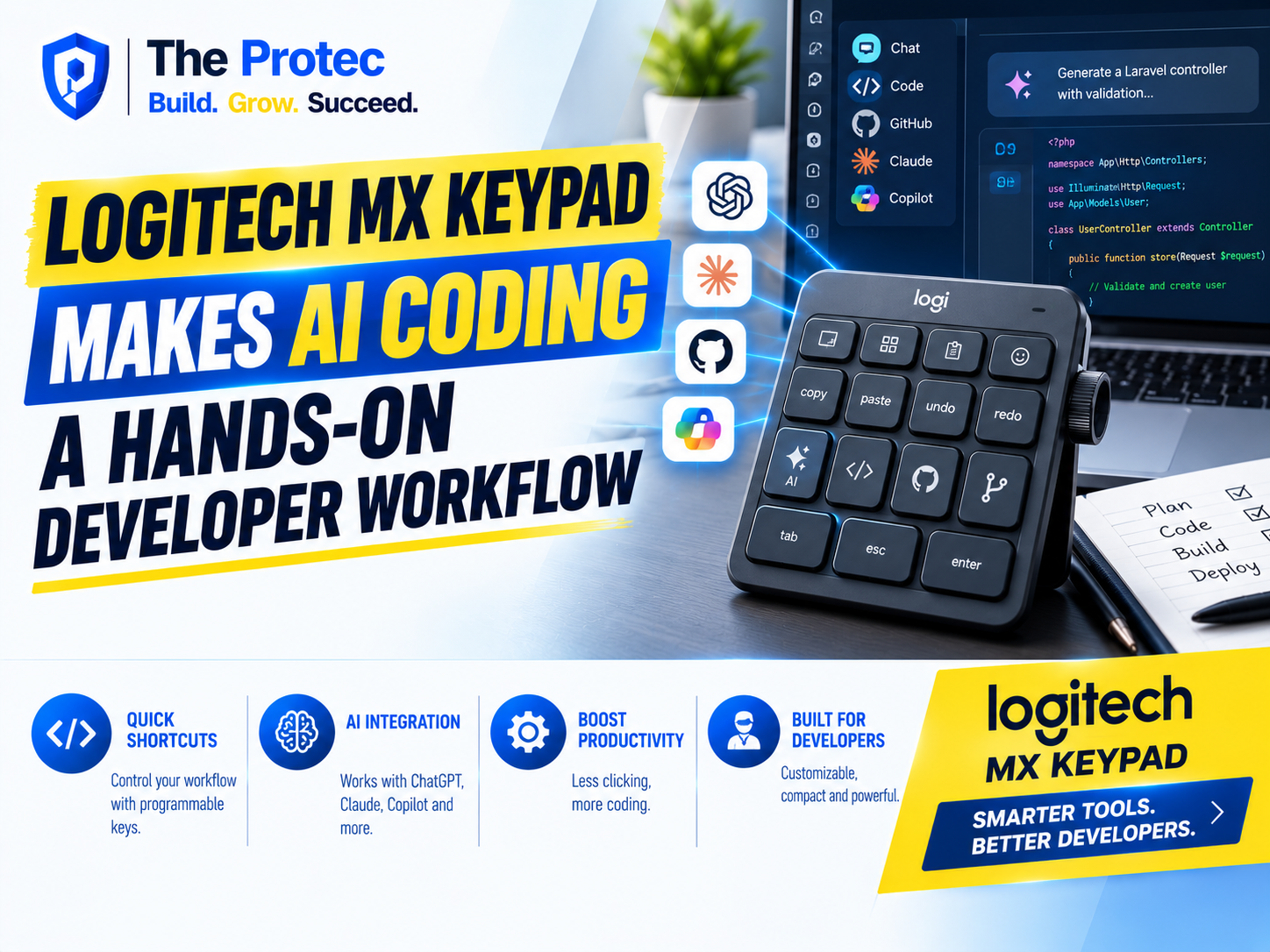
AI-assisted programming has largely lived inside text boxes, command palettes, terminal windows, and browser tabs. Developers type a prompt, wait for a response, review a diff, and then reach for another software control to accept, reject, test, or revise the result. The Logitech MX Keypad proposes a more tactile approach: move the most common parts of that AI workflow onto programmable physical keys.
That idea is more significant than simply adding an “AI button” to a keyboard. Properly configured, the MX Keypad can become a compact control center for GitHub Copilot, Claude Code, OpenAI Codex, integrated development environments, terminals, local scripts, and AI agents for developers. A key could open an assistant, insert a reusable prompt, launch a test suite, switch repository contexts, approve a safe action, or display a project dashboard.
The central question is whether this specialized AI coding hardware removes meaningful friction or merely adds another device to a workflow already governed by software. The answer depends less on the keypad itself and more on how carefully developers map it to repeatable, high-value actions.
What the Logitech MX Keypad Adds to AI Programming
The Logitech MX Keypad is best understood as a programmable interface rather than an AI computer. It does not replace a model, understand a codebase on its own, or make an AI agent more accurate. Its value comes from translating physical input into shortcuts, application commands, macros, scripts, and workflow triggers.
That distinction matters. Many products described as AI coding hardware offer little more than a dedicated key that opens a chatbot. An effective programmable keypad goes further by supporting context-specific controls. The same key might perform one action in an IDE and another in a terminal, while separate profiles can serve frontend work, backend debugging, code review, or infrastructure operations.
Logitech’s broader MX ecosystem is aimed at advanced productivity users, making software customization central to the concept. For developers, the useful feature is not a particular printed icon. It is the ability to reduce a multi-step sequence to one deliberate press.
Why AI Coding Tools Need Better Physical Controls
AI programming has shifted from simple autocomplete toward agentic work. Modern AI developer tools can inspect repositories, edit multiple files, run terminal commands, generate tests, explain failures, and prepare pull requests. Developers increasingly supervise a chain of actions rather than request a single code snippet.
This creates a new kind of interface burden. A developer may need to move between an editor, terminal, source-control panel, agent conversation, documentation, and browser-based task view. Each tool has its own commands and approval prompts. Keyboard shortcuts help, but they become difficult to remember when every application uses a different vocabulary.
The Logitech AI keypad addresses that coordination problem by creating a stable physical layer above changing software. Instead of memorizing several shortcuts, a developer can assign recognizable keys to intentions such as “ask about selection,” “review changes,” “run tests,” or “open agent status.” The underlying command can change without forcing the user to relearn the physical layout.
Using the MX Keypad With Popular AI Coding Tools
GitHub Copilot in the IDE
GitHub Copilot spans code completion, chat, editing, review, and increasingly agent-oriented development. A useful MX Keypad profile could dedicate controls to opening Copilot Chat, explaining selected code, generating tests, proposing a fix, accepting a suggestion, and showing the current diff.
The strongest assignments are not destructive one-click automations. They are navigation and review actions that keep the developer in control. For example, one key can send selected code into a chat context, while another opens source control so the proposed changes can be inspected. Developers can consult the official GitHub Copilot documentation when mapping supported commands in their editor.
Claude Code in the Terminal
Claude Code makes the terminal an important AI workspace. A programmable keypad can open a dedicated terminal pane, move to the relevant repository, start a session, paste a carefully written task template, or run a post-edit validation script.
Physical controls are particularly helpful when terminal-based AI tools sit beside an IDE. A key can focus the terminal without hunting for the correct window, and another can return to the editor’s changed-files view. However, credentials, confirmations, and high-risk shell commands should remain protected. Convenience should not turn broad system access into an accidental keypress.
OpenAI Codex and Asynchronous Coding Tasks
OpenAI Codex-style workflows increasingly involve delegating bounded tasks and reviewing completed work later. The MX Keypad can act as a dispatcher and status console: open the task interface, create a new assignment from a template, view running jobs, inspect a generated patch, or launch local verification.
This is where physical controls become more than glorified shortcuts. An illuminated or labeled key layout can represent workflow states, helping a developer remember whether the next step is delegation, review, testing, or merge preparation. The keypad does not monitor the agent independently, but it can make the relevant software state easier to reach.
IDEs, Terminals, and Local Automation
Not every valuable action needs an AI model. AI programming still relies on deterministic tools: formatters, linters, compilers, test runners, containers, and version control. The best Logitech MX Keypad configuration combines AI commands with these traditional safeguards.
A developer might reserve one row for assistants, one for navigation, and one for validation. Keys could launch unit tests, run a type check, format changed files, open a Git diff, or execute a trusted local script. This design places AI generation beside the controls needed to verify its output.
Can AI Coding Hardware Improve Developer Productivity?
The MX Keypad can improve developer productivity, but the benefit is unlikely to come from saving a fraction of a second on one shortcut. Its real advantage is reducing context switching and decision overhead across actions repeated dozens of times each day.
- Faster tool access: Dedicated controls reduce time spent searching command palettes, tabs, and menus.
- Consistent muscle memory: A stable physical location can represent the same intention across multiple applications.
- Visible workflow structure: Grouped keys make an AI workflow easier to understand and repeat.
- Better review habits: Test, diff, and approval controls can be placed beside generation commands.
- Improved accessibility: Physical keys may be easier for some users than complex shortcut combinations.
The gains will vary. Developers who already operate almost entirely through a customized editor and command-line aliases may find a separate programmable keypad slower than established muscle memory. The device is more compelling for people who cross several tools, use multiple AI agents, or regularly switch between coding, review, testing, and project coordination.
Where the Logitech AI Keypad Can Add Friction
Every abstraction layer requires maintenance. Shortcuts change, plugins update, window focus behaves unpredictably, and team workflows evolve. A key labeled for one action can become misleading if its underlying command no longer works. Configuration can also become a form of procrastination, with more time spent perfecting profiles than writing code.
Macros introduce security and reliability concerns as well. A sequence that assumes the correct terminal or repository is active could execute in the wrong context. Keys that approve agent operations, publish packages, deploy infrastructure, or merge code deserve safeguards rather than one-touch convenience.
There is also a portability problem. Software shortcuts can travel with dotfiles and editor settings, while physical workflows depend on having the device available. Developers working from several locations need a fallback path for every essential command.
How to Build a Practical MX Keypad AI Workflow
A good setup begins with observation, not customization. Developers should identify actions they repeat frequently and then choose those that are safe, stable, and annoying enough to justify a dedicated control.
- Start with navigation: Map keys to the IDE, AI chat, terminal, source control, test output, and documentation.
- Add high-frequency prompts: Use concise templates for explaining selected code, drafting tests, reviewing errors, or summarizing a diff.
- Pair generation with verification: Place lint, test, build, and diff controls close to AI actions.
- Create application profiles: Keep editor commands separate from terminal and browser actions to avoid collisions.
- Preserve confirmation steps: Do not automate irreversible shell commands, deployments, merges, or permission changes.
- Review the layout regularly: Remove controls that are rarely used and update mappings when tools change.
A simple layout is usually better than a dense one. Developers should be able to remember each key without consulting a diagram. Color, icons, or grouping can distinguish actions that generate code from those that inspect or validate it. That visual separation reinforces an important principle: AI output is a proposal until it has been reviewed and tested.
Physical Controls for Multi-Agent Development
The strongest long-term case for the Logitech MX Keypad is the growth of multi-agent workflows. A developer may use one assistant for inline completion, another for repository-scale changes, and a third for research or debugging. Physical controls can provide a common interface across those systems even when their software experiences differ.
Future integrations could make key states more informative, showing whether an agent is idle, running, waiting for approval, or ready for review. Yet the keypad should remain a supervision surface, not an automatic permission system. As AI agents gain access to repositories, terminals, issue trackers, and cloud services, clear boundaries become more valuable than faster approvals.
Is the Logitech MX Keypad Worth It for Developers?
The Logitech MX Keypad makes the most sense for developers whose AI workflow spans many applications and repeated commands. It can turn scattered interactions with GitHub Copilot, Claude Code, OpenAI Codex, IDEs, and terminals into a coherent physical routine.
It is not a universal productivity upgrade. Minimalist keyboard users may prefer native shortcuts, and poorly designed macros can create more friction than they remove. But when configured around navigation, reusable prompts, testing, and review, the MX Keypad offers something software alone often lacks: a visible, tactile structure for supervising AI-assisted development.
Frequently Asked Questions
Does the Logitech MX Keypad run AI models locally?
No. The MX Keypad is an input and workflow-control device, not an AI accelerator. It triggers configured commands, shortcuts, scripts, or application actions while the connected software or cloud service performs the AI processing.
Can the MX Keypad work with GitHub Copilot and Claude Code?
Yes, it can support workflows around both tools by mapping available IDE shortcuts, terminal actions, scripts, and navigation commands. The exact configuration depends on the operating system, editor, terminal, and current software integrations.
Is a programmable keypad better than standard keyboard shortcuts?
It depends on the developer. A keypad offers visible controls, easier recall, and application-specific profiles. Standard shortcuts may be faster for users who already have strong muscle memory and prefer a minimal desk setup.
What actions should developers avoid assigning to one key?
Developers should avoid one-touch mappings for production deployments, destructive shell commands, package publishing, code merges, credential operations, or unrestricted agent approvals. High-impact actions should retain clear confirmation and review steps.