








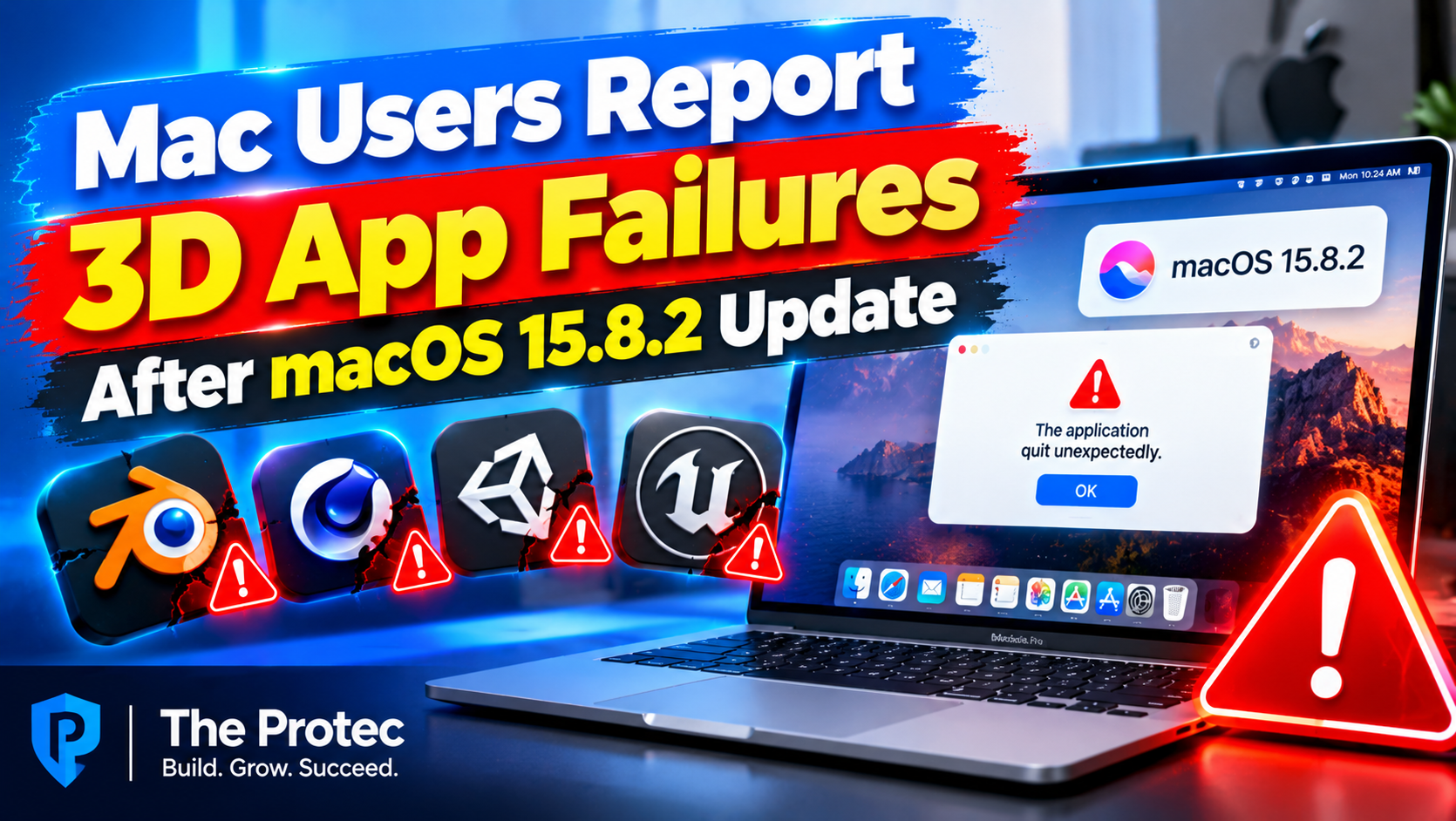
Some Mac users say 3D applications stopped rendering correctly after installing macOS Sequoia 15.8.2. The reported symptoms are unusually confusing: an application’s menus, toolbars, dialogs, and file controls may continue working, while the central 3D canvas turns blank, fails to refresh, displays corrupted graphics, or triggers a crash.
OpenGL framebuffer messages have also been associated with the reports, prompting speculation about a macOS 15.8.2 OpenGL bug. KiCad is among the applications mentioned in discussions of the problem, particularly where its 3D viewer or hardware-accelerated canvas is involved. However, the evidence requires careful handling. Individual reports do not establish that macOS 15.8.2 breaks OpenGL across every Mac, nor do they prove Apple intentionally removed compatibility with older graphics software.
As of October 18, 2026, the responsible conclusion is narrower: users have described symptoms consistent with a Mac OpenGL rendering problem after an operating-system update, but a complete, independently verified matrix of affected builds, Mac models, GPUs, and application versions has not been established publicly. Here is what is known, what remains unverified, and what affected users can do without putting important work at unnecessary risk.
What Is Confirmed About OpenGL on macOS?
Several facts provide important context for the macOS 15.8.2 graphics bug reports.
- Apple deprecated OpenGL and OpenCL beginning with macOS Mojave. Deprecation means developers are encouraged to adopt newer technology; it does not mean every OpenGL function was immediately removed.
- OpenGL support remains available in macOS for compatibility with existing applications, although Apple is no longer developing the API as its preferred graphics platform.
- Metal is Apple’s modern graphics and compute API. It provides lower-level access to Apple GPUs and is the preferred option for current Mac software.
- A macOS update can expose an application bug, framework regression, driver issue, or unsupported assumption without affecting every application or hardware configuration.
Apple’s archived OpenGL developer documentation confirms the API’s deprecated status. Apple’s current Metal documentation describes the platform Apple expects developers to use for modern graphics workloads.
What is not confirmed merely by those documents is that macOS 15.8.2 deliberately disables OpenGL or that deprecation explains every reported failure. The timing of a problem after an update is meaningful diagnostic evidence, but it is not proof of the underlying cause.
User-Reported macOS Sequoia 15.8.2 Issues
The reports center on applications that use OpenGL to draw an accelerated viewport. Commonly described symptoms include a blank 3D viewport, a canvas that stops updating, missing geometry, graphics artifacts, application termination, and errors referring to an incomplete framebuffer.
A framebuffer is a collection of graphics buffers used to produce an image. An application may render color, depth, and other data into framebuffer attachments before the result appears in its window. If macOS or the application considers that framebuffer incomplete, rendering cannot proceed normally. Logs may use phrases such as framebuffer incomplete or identify a failed framebuffer status check. The exact text and hexadecimal error value matter; users should preserve the original message rather than paraphrasing it.
The apparent contradiction—working controls surrounding a dead canvas—is technically plausible. Menus and dialogs can be managed through standard macOS interface frameworks and CPU-side application code. The 3D canvas follows a separate path involving an OpenGL context, shaders, textures, framebuffer objects, and GPU acceleration. The interface can therefore remain responsive even when the rendering context fails. In other cases, an unhandled graphics failure can crash the entire process.
Is KiCad Affected by the macOS 15.8.2 OpenGL Bug?
KiCad has been named in user discussions because parts of its interface, including accelerated design views and the 3D Viewer, have historically depended on graphics APIs that can expose driver or OpenGL compatibility problems. Reports describing a KiCad OpenGL rendering issue after the update are relevant, but they should be classified as user-reported rather than officially confirmed unless they are tied to a reproducible developer ticket.
At publication, the reports available for discussion do not provide a sufficiently consistent set of exact Mac models, GPU identifiers, KiCad versions, macOS build numbers, and sample projects to claim that all KiCad installations are affected. A report saying only that KiCad stopped working after macOS 15.8.2 omits essential variables. Stable and development builds may use different rendering code, while a particular board, 3D model, plug-in, or display arrangement may trigger behavior that a new empty project does not.
A useful KiCad report should identify the full application version and build, whether the failure occurs in the PCB editor, 3D Viewer, or both, and whether a new project reproduces it. Until a KiCad developer acknowledgment or tracked fix identifies a root cause, it is more accurate to describe this as a possible macOS OpenGL compatibility issue affecting some configurations.
OpenGL vs. Metal on macOS
OpenGL is a cross-platform graphics API with a long history in CAD, scientific visualization, game engines, and 3D modeling tools. On the Mac, applications send OpenGL commands through Apple’s implementation, which translates the application’s rendering work for supported hardware.
Metal is Apple-specific and designed around modern Apple platforms. It gives developers more direct control over command submission, memory, shaders, and synchronization. Metal can offer better performance and a clearer long-term path on Apple silicon, but moving a mature application from OpenGL to Metal is not a preference users can enable universally. The developer must implement a Metal renderer directly or use a framework that provides one.
Switching to Metal may solve the issue only when the affected application already offers Metal as a supported rendering backend. Renaming files, entering undocumented terminal commands, or assuming macOS can automatically convert every OpenGL application to Metal is not a safe solution. Applications with only an OpenGL renderer must be updated by their developers, run through a supported alternative mode, or receive an operating-system fix if the fault is ultimately within macOS.
What Could Cause the Mac OpenGL Rendering Problem?
Several explanations remain possible. A change in macOS framebuffer validation could reject an attachment combination that previously worked. A graphics framework regression could affect a limited group of GPUs, display formats, or context settings. An application might also rely on undefined behavior that an earlier macOS release happened to tolerate.
External displays, high-dynamic-range modes, display scaling, multiple GPUs on older Intel Macs, anti-aliasing settings, plug-ins, and project-specific 3D assets can alter the rendering path. Damaged preferences or shader caches may create similar symptoms. That is why an error appearing after the update is not enough to isolate responsibility.
Claims that Apple intentionally broke OpenGL are unverified. So are broad claims that every 3D application is affected. Conversely, deprecation should not be used to dismiss legitimate regressions. If previously working, supported software fails reproducibly on the same hardware immediately after one system build is installed, that is a valid issue for Apple and the developer to investigate.
How to Fix OpenGL Errors on a Mac Safely
1. Restart the application and the Mac
Save recoverable work, quit the application fully, and reopen it. If the problem remains, restart the Mac. A restart can clear a stuck graphics process or damaged temporary state, although it will not repair a persistent compatibility bug.
2. Record the exact macOS build
Do not report only macOS 15.8.2. Open the system information window and record the full build number, Mac model, chip or GPU, memory, and connected displays. Two systems showing the same marketing version may differ in hardware and configuration.
3. Install supported application updates
Check the application’s official release channel for a maintenance update. Developers may already have changed framebuffer handling or disabled a problematic rendering path. Avoid replacing a production installation with an experimental build unless its risks are understood and important files are backed up.
4. Test a new project and another rendering mode
Create a small, empty project and open its 3D view. If that works, the failure may involve a model, texture, plug-in, or project setting. If the application offers software rendering, reduced anti-aliasing, a compatibility canvas, or a supported Metal backend, test it and document the result. Do not assume every application offers these choices.
5. Compare other OpenGL applications
Testing another trusted OpenGL program can help determine whether the issue is application-specific. If several unrelated applications fail in comparable ways, a shared system component becomes more plausible. If only one application fails, its renderer, preferences, or project data deserve closer examination.
6. Capture logs and exact errors
Record the time of the failure, take a screenshot of the blank viewport, and copy relevant crash reports or console messages. Look for the application name, OpenGL context failures, framebuffer status, and the crashing thread. Remove personal paths or document names before posting logs publicly, but do not omit technical error codes.
7. Contact official support channels
Search the application’s issue tracker or support forum for reports matching the exact application version and macOS build. Add details to an existing report when appropriate instead of fragmenting evidence across duplicate threads. Apple feedback should include a minimal reproduction and system diagnostics when available.
8. Treat rollback as a last resort
Changing macOS versions can interrupt work, invalidate newer backups, or require erasing the startup disk. Back up projects and verify that the backup can be restored before attempting any rollback. Users should first consult the application’s official support team and Apple’s supported recovery guidance. A system downgrade should never be presented as a quick graphics setting.
How to Separate Facts From Speculation
A credible macOS 15.8.2 known-issues report needs more than screenshots of a blank canvas. It should include the original forum or issue-tracker post, full macOS build, hardware, application build, rendering mode, exact error, reproduction steps, and the result on an earlier system version using the same project.
- Confirmed facts: Apple deprecated OpenGL, Metal is Apple’s preferred graphics API, and a 3D canvas can fail independently of ordinary interface controls.
- User-reported symptoms: blank viewports, rendering failures, crashes, and framebuffer errors after installing macOS 15.8.2.
- Unverified explanations: a system-wide Apple OpenGL bug, intentional breakage, universal impact on KiCad, or failure across all Mac hardware.
No Apple acknowledgment or application-developer notice should be inferred unless it explicitly references the affected macOS build and reproducible failure. Reposts and screenshots without links to an original report are leads, not confirmation.
Frequently Asked Questions
Does macOS 15.8.2 break every OpenGL application?
No evidence supports that conclusion. Reports concern some applications and configurations. Hardware, application version, project data, display setup, and rendering settings may determine whether the problem appears.
Why is the application responsive if its 3D viewport is blank?
The interface and 3D canvas use different software paths. Menus can continue processing input while the OpenGL context, framebuffer, shader pipeline, or GPU operation required for the canvas has failed.
Can I force an OpenGL application to use Metal?
Only if the application includes a supported Metal renderer or uses a framework offering that option. macOS does not provide a universal user-controlled switch that converts any OpenGL program into a native Metal application.
Should I downgrade macOS immediately?
Usually not. Restart, update the application, test another project or renderer, gather logs, and consult official support first. If a rollback becomes necessary for production work, create and verify a complete backup before changing system versions.
What information should I include in a bug report?
Include the Mac model, chip or GPU, complete macOS version and build, application version, display configuration, exact error text, crash report, reproduction steps, and whether the same file works in another rendering mode or on an earlier macOS installation.
The Bottom Line
The reported macOS 15.8.2 update problems deserve investigation, especially where multiple users can reproduce an OpenGL framebuffer incomplete error on documented configurations. For now, the strongest description is a possible compatibility regression affecting certain 3D workflows—not a confirmed collapse of OpenGL support across macOS.
Users should preserve evidence, install supported application fixes, and avoid disruptive changes until the responsible component is identified. Developers and Apple can act much faster when reports contain exact builds, hardware details, logs, and minimal test cases rather than assumptions based solely on the timing of an update.