








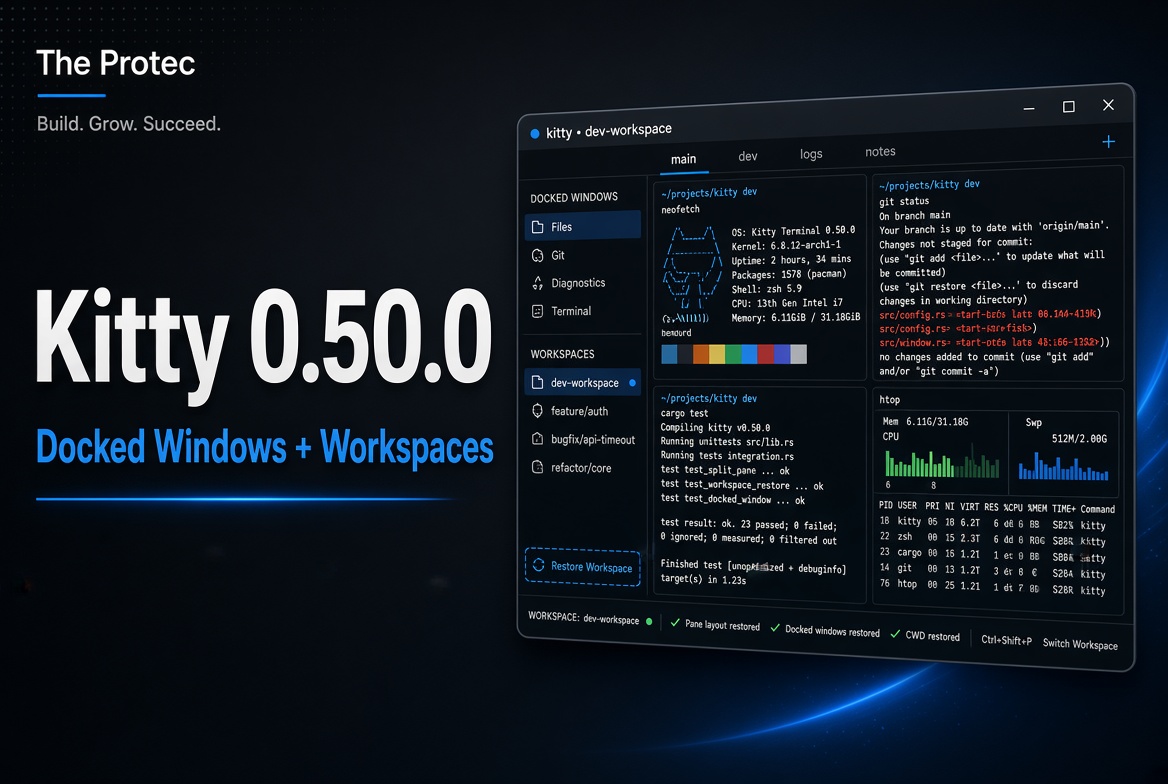
Terminal setups become frustrating when carefully arranged tools disappear after a restart or supporting panes compete with the shell for space. Kitty 0.50.0 addresses both problems while adding a clearer way to organize related work. The Kitty terminal update introduces docked terminal windows, persistent session restoration that can include scrollback, and the ability to treat named tabs as project-oriented workspaces.
These additions are especially relevant to developers and sysadmins who keep several terminals open at once. A file tree can remain anchored beside an editing shell, a system monitor can occupy a predictable edge of the screen, and a saved debugging workspace can return with the terminal history needed to understand what happened before shutdown. The changes build on Kitty’s existing window, tab, and session model rather than replacing it.
What changed in Kitty 0.50.0?
The three headline improvements solve different parts of the same workflow problem:
- Docked terminal windows let selected Kitty OS windows occupy an edge-oriented role suitable for status displays, file browsers, monitors, and similar persistent tools.
- Terminal session restore preserves Kitty-managed session information, including saved scrollback, so useful context can survive logout, restart, or shutdown.
- Named tab workspaces make it easier to group and identify related project tasks inside a Kitty window.
According to the official Kitty changelog, these are version-specific additions rather than a general redesign of the terminal emulator. Existing configurations should therefore be reviewed selectively: users can adopt the new capabilities without rebuilding every key mapping or layout.
Terminal window docking creates a stable place for supporting tools
A normal Kitty split belongs to a tab’s internal layout. Resize the parent window, switch tabs, or close that layout and the split moves or disappears with it. Terminal window docking serves a different purpose. It allows an OS-level Kitty window to be positioned as a persistent edge element, which is better suited to information that should remain visible while other windows change.
Consider a developer who alternates between an editor, test runner, and shell. A file browser such as a terminal-based tree can be docked along the left edge instead of consuming a split in every project tab. The central Kitty window can then change layouts without displacing the browser. Similarly, a sysadmin can keep a resource monitor docked at the top or side while opening independent shells for log inspection and maintenance.
Docking is not the same as tiling or splitting
The distinction matters when planning a layout. A split is managed by Kitty inside one tab. A tiled OS window is managed by the desktop’s window manager. A docked window asks the surrounding desktop environment to treat the window more like a panel anchored to an edge.
That last behavior depends on the window system and compositor. Kitty can request the appropriate dock or panel behavior, but the desktop ultimately determines placement, reserved space, focus handling, and whether another maximized window may overlap it. Users of unusual or highly customized compositors should test the feature before depending on it for a permanent status bar.
Docking also has to be requested for the relevant window; installing Kitty 0.50.0 does not automatically dock existing terminals. The release documentation describes the supported invocation and panel controls. This deliberate configuration prevents ordinary shells from unexpectedly becoming desktop panels.
A practical docked file-tree layout
- Choose a terminal file manager or tree viewer that can run comfortably in a narrow column.
- Launch it in a Kitty window configured for the desired screen edge.
- Set a practical width and verify how the desktop handles reserved screen space.
- Keep the main shell and editor in a conventional Kitty window, where tabs and splits remain flexible.
The same pattern works for a compact process monitor, build-status display, log tail, or network dashboard. Interactive programs that frequently open prompts may be less comfortable in a narrow dock, so the best candidates are tools with predictable dimensions and limited modal interaction.
Session restore now preserves more of the terminal’s working context
The most consequential change for long-running work is expanded session restoration. Kitty sessions already describe terminal windows, tabs, layouts, working directories, and commands. Kitty 0.50.0 extends the persistence story by allowing restored sessions to include scrollback, preserving information that would otherwise vanish when the desktop session ends.
This is useful during debugging. Imagine tracing an intermittent service failure across a test runner, an application log, and an interactive debugger. The relevant error may have appeared hundreds of lines earlier. After saving the Kitty session and restarting the machine, restoring that workspace can bring back its terminal arrangement and recorded scrollback, allowing the investigation to resume with its visible evidence intact.
The official Kitty session documentation should be treated as the source of truth for the current save and startup-session syntax. A saved session can be loaded through Kitty’s session mechanism, while automatic restoration after desktop logout or shutdown depends on using the supported session-restoration path and on the host environment participating correctly.
What session restoration does—and does not—save
Restoring a terminal session is not equivalent to checkpointing a running operating-system process. Kitty can preserve state that the terminal owns or can describe, such as its window and tab organization, titles, layouts, working context, launch instructions, and captured scrollback. It cannot serialize arbitrary process memory or guarantee that a remote SSH connection, debugger target, container, authentication token, or kernel-level task will continue from the exact instruction where it stopped.
After a full shutdown, the original processes no longer exist. A restored workspace may recreate terminals and relaunch configured commands, but an application must support its own persistence if its internal state is expected to return. A remote shell will normally require a new connection, while a debugger may need to reattach to a restarted target.
For genuinely long-lived remote jobs, tools such as a remote multiplexer or service manager remain appropriate. Kitty’s terminal session restore complements those tools by preserving the local presentation and scrollback around them.
Scrollback persistence needs sensible security controls
Saved scrollback can contain source code, internal hostnames, command output, database records, or credentials accidentally printed by a program. A restorable Kitty session should therefore be handled as potentially sensitive data.
- Store session files in a location protected by appropriate filesystem permissions.
- Avoid syncing saved terminal state to a public or broadly shared directory.
- Remove obsolete sessions when their diagnostic value has expired.
- Do not assume clearing the live terminal also removes information already written to a saved session.
Scrollback size also affects the amount of data that can be saved. Very large histories across numerous panes may increase storage use and restoration time, so retaining only useful context is preferable to treating every terminal as a permanent archive.
Tabs can function as named workspaces
The third major improvement gives Kitty tabs a more explicit organizational role. Instead of thinking of a tab as an anonymous container for a few splits, users can assign meaningful names and use those tabs as workspaces for distinct projects or operational responsibilities.
A developer might create workspaces named “API,” “Web,” and “Infrastructure.” The API tab could contain a server shell, test runner, and log stream. The Web tab could hold the frontend development server and package commands. Infrastructure could group deployment output, cloud tooling, and configuration checks. The tab names provide stable destinations even when individual panes are opened, closed, or rearranged.
For sysadmins, names such as “Production Logs,” “Database,” and “Incident Notes” reduce the risk of issuing a command in the wrong context. Names are particularly helpful when combined with session restoration because the recovered interface communicates its structure immediately rather than presenting a row of indistinguishable shells.
Named tabs are Kitty workspaces, not desktop workspaces
The term “workspace” can be ambiguous. In this context, the workspace is a named Kitty tab containing one or more Kitty windows. It does not replace the virtual desktops supplied by a window manager, and it is not a global container for unrelated graphical applications.
This narrower scope is an advantage for terminal-heavy projects. Tabs retain Kitty’s layout controls and can be saved as part of a session, while OS-level docked windows can hold tools that should remain visible across those tab workspaces.
How the three features fit into one workflow
The strongest use case appears when docking, restoration, and named workspaces are combined. A software engineer could keep a file tree docked on the left side of the display and use a main Kitty window with tabs named “Code,” “Tests,” and “Debug.” The Debug workspace might include application output, a debugger console, and a pane following structured logs.
Before logging out, the session can be saved through Kitty’s supported session workflow. On return, the named tabs and terminal arrangement provide the same navigational model, while restored scrollback retains the earlier error messages and debugger output. The underlying application or debugger may need to be restarted or reattached, but the investigative record remains available.
A sysadmin can apply the same design differently: dock a system monitor, maintain named tabs for separate hosts or services, and preserve scrollback from an incident. The result is not merely a prettier terminal. It reduces the time spent reconstructing where information lived and what occurred before an interruption.
What to check before upgrading a critical setup
- Desktop compatibility: Confirm that the compositor or window manager honors the docking behavior and reserved edge space you expect.
- Restore boundaries: Identify which processes can be relaunched safely and which require external persistence or manual reconnection.
- Session privacy: Decide where scrollback-bearing session files will be stored and who can read them.
- Workspace naming: Use short, distinctive tab names that remain understandable after restoration.
- Configuration validation: Check the 0.50.0 documentation rather than copying commands written for an earlier development build.
Testing with a noncritical session is prudent. Create a small layout, generate recognizable scrollback, save or trigger the supported restoration process, restart Kitty, and verify what returns. Then test a docked window separately under the actual desktop environment.
FAQ about Kitty 0.50.0
Does Kitty 0.50.0 restore running processes after a reboot?
No. It can restore Kitty-managed session structure and saved terminal context, including scrollback, but it cannot preserve arbitrary process memory through a shutdown. Commands may be relaunched where configured, and remote sessions or debuggers generally need to reconnect or reattach.
Will every docked terminal reserve screen space?
Not necessarily. Kitty requests dock or panel behavior, but the compositor or window manager controls the final result. Placement, overlap prevention, focus behavior, and reserved space can vary by environment.
Can restored scrollback contain sensitive information?
Yes. Scrollback may include commands, logs, paths, source code, host details, or secrets printed by applications. Protect saved sessions with suitable permissions and delete them when they are no longer needed.
Are named tab workspaces separate desktop virtual desktops?
No. They are named organizational containers within Kitty. Each tab can hold multiple terminal windows and layouts, while the operating system’s virtual desktops remain separate.
Do existing Kitty layouts need to be rewritten?
Usually not. The new capabilities are additive. Users can introduce docked windows, session persistence, or named tab workspaces gradually while retaining existing layouts and key mappings, subject to any configuration notes in the 0.50.0 documentation.
A focused update for persistent terminal work
Kitty 0.50.0 is notable because its three main additions reinforce one another. Terminal window docking gives supporting tools a stable place, terminal session restore protects valuable layout and scrollback context, and named tabs turn complex multi-pane arrangements into recognizable workspaces.
The update does not eliminate desktop compatibility differences or magically keep processes alive through a shutdown. Instead, it preserves the parts of a terminal environment that Kitty can reliably manage and makes them easier to organize. For developers, sysadmins, and other users who live in multi-pane terminals, that is a practical improvement with an immediate effect on everyday work.