








An 8GB PC can feel perfectly capable until several browser tabs, a video call, and a large document compete for memory. Microsoft is trying to make that point arrive later. Its latest work on Windows 11 8GB RAM performance combines operating-system memory changes with lower background use in Microsoft Edge and Microsoft 365, potentially making everyday PCs more responsive without a hardware upgrade.
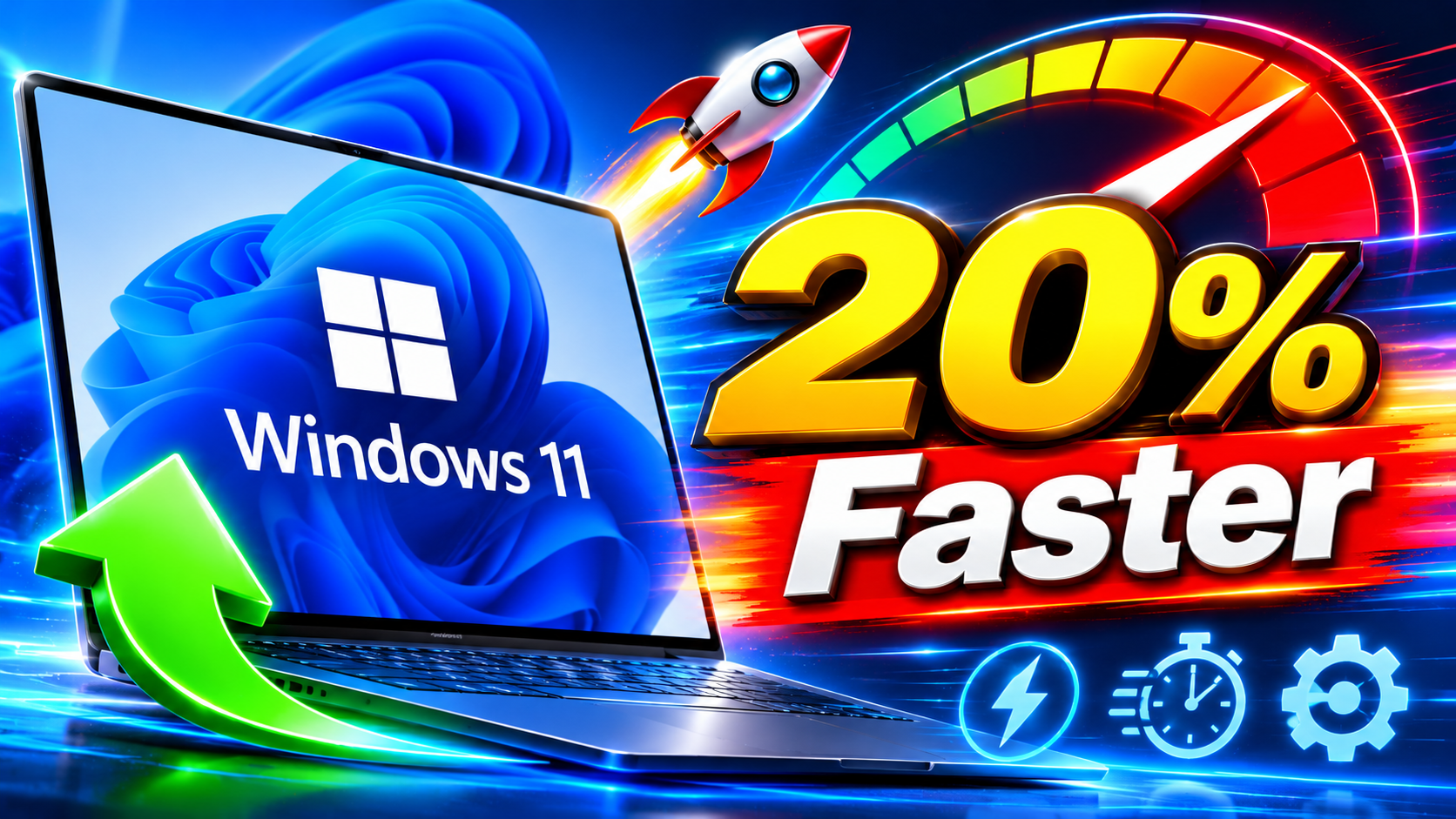
Microsoft reports gains of up to 20% in responsiveness and up to 40% in multitasking during its lab testing. Those are encouraging figures, but the words up to matter: they describe selected test results under controlled conditions, not a promise for every computer. The practical improvement depends on the processor, storage, installed software, workload, Windows build, application versions, and how close the system already is to exhausting its physical memory.
What Microsoft says has improved
The changes are intended to reduce the delays that occur when an 8GB RAM PC is under memory pressure. Rather than treating one component as a complete fix, Microsoft has addressed several parts of the software stack:
- Windows 11 memory compression has been refined to use physical memory more efficiently.
- Background Windows activity is being managed more carefully so inactive work consumes less memory.
- Microsoft Edge has received efficiency features that reduce the cost of idle tabs and background processes.
- Microsoft 365 applications have been optimized to place less pressure on constrained systems.
- Memory can be reclaimed and reassigned more effectively when users switch between active applications.
This is not a new minimum-memory requirement, nor is it a special mode that users turn on. It is a collection of platform and application improvements delivered through Windows servicing and separate app updates.
Understanding Microsoft’s 20% and 40% claims
Microsoft says its lab tests showed up to 20% better system responsiveness and as much as 40% faster multitasking on PCs equipped with 8GB of RAM. In practical terms, responsiveness can include how quickly the system reacts when a user returns to an application, opens an interface, or starts work while other software remains active. Multitasking measurements focus on scenarios in which several applications are competing for limited memory.
The published percentages should not be read as a universal average. Microsoft’s announcement presents them as controlled internal test results involving particular hardware, software versions, and workloads. The public methodology does not provide enough raw, device-by-device data to conclude that a typical PC will always become exactly 20% more responsive or complete every multitasking task 40% faster.
Contemporaneous coverage from The Verge and Tom’s Hardware also highlighted the potential gains while preserving that distinction. These are reported best-case improvements from Microsoft, not independent guarantees. A clean system running common productivity software may behave differently from an older laptop filled with startup utilities, security agents, game launchers, and manufacturer services.
How Windows 11 memory compression helps
When physical RAM fills up, Windows must decide what to keep immediately available. Some less-active data can be moved to a page file on the SSD, but retrieving it from storage is slower than reading it from memory. Even a fast NVMe drive has much higher latency than RAM.
Memory compression offers an intermediate option. Windows can compress less-used memory pages and retain them in RAM, allowing more information to fit into the same physical capacity. If an application needs that data again, the processor decompresses it instead of forcing Windows to retrieve the page from storage.
Windows has used memory compression for years, so Microsoft has not suddenly invented or enabled the feature. The relevant change is how Windows manages compression, memory reclamation, and competing workloads. Better decisions about which pages to compress, retain, or release can reduce storage paging and make switching between programs feel smoother.
Compression is not free. It uses some processor time, and data that is already compressed may not shrink substantially. Its value therefore depends on system conditions. A modern processor with limited RAM may benefit noticeably, while a workload dominated by large, incompressible assets could see less improvement. If demand greatly exceeds 8GB, Windows will still need the page file, and pauses can still occur.
Lower background memory use matters too
Improving Windows 11 multitasking is not only about handling memory after it becomes scarce. Preventing unnecessary allocations can be just as important. Every background service, updater, tray utility, browser process, and synchronization client consumes part of the available capacity, even when it is not the user’s immediate focus.
Microsoft’s changes aim to reduce that baseline pressure and reclaim resources from inactive work more effectively. On an 8GB system, saving a few hundred megabytes across Windows and commonly used applications can leave a more useful buffer for the active task. That can mean fewer transitions into heavy paging and less delay when moving between a browser, spreadsheet, presentation, and meeting application.
The effect will vary because third-party software remains outside Microsoft’s direct control. A vendor utility with a memory leak or a large collection of startup programs can erase much of the benefit.
Microsoft Edge and Microsoft 365 are part of the equation
Browsers are frequent sources of memory pressure because each tab, extension, and site process may require its own resources. Microsoft Edge already includes features such as sleeping tabs and Efficiency mode, which can reduce activity from tabs that have not been used recently. Continued work to lower background use complements the Windows memory changes, especially on machines where Edge is the largest consumer of RAM.
Microsoft 365 applications also matter because productivity multitasking often involves Word, Excel, PowerPoint, Outlook, Teams, and a browser running together. Reducing background allocations, unnecessary initialization, or inactive application overhead gives Windows more room to keep the foreground experience responsive.
These app-level gains require current application builds. Installing a Windows 11 update alone does not necessarily update every Microsoft 365 component, and Edge follows its own update mechanism.
Rollout status and what users should expect
As of November 2026, Microsoft’s performance work is best understood as a continuing rollout across supported Windows 11 builds and current Microsoft applications, rather than one downloadable patch labeled as an 8GB performance upgrade. Applicable operating-system changes arrive through cumulative Windows updates, while Edge and Microsoft 365 improvements follow their respective servicing channels.
Availability can differ on managed business PCs, where administrators may delay updates or use long-term deployment schedules. Features may also depend on the installed Windows release, app channel, hardware drivers, and Microsoft-controlled rollout policies. Microsoft’s Windows Experience Blog remains the primary source for platform announcements and rollout notes.
How to get the relevant updates
- Check Windows Update. Open Settings > Windows Update, select Check for updates, and install available cumulative updates for your supported Windows 11 release.
- Restart the PC. Some servicing changes do not become active until Windows completes a restart.
- Update Microsoft Edge. In Edge, open Settings > About Microsoft Edge. The browser checks for and applies available updates automatically.
- Update Microsoft 365. Open a Microsoft 365 desktop app, go to File > Account > Update Options, and choose Update Now if that option is available.
- Review optional driver updates carefully. Current chipset, graphics, and storage drivers can affect responsiveness, but drivers should come from Windows Update or the PC manufacturer’s support service.
- Confirm the installed build. Press Windows key + R, enter winver, and compare the displayed release with the support information for your device.
For general servicing guidance, Microsoft maintains an official Windows Update FAQ. Business users should check with their IT department before changing update settings.
Ways to improve an 8GB RAM PC today
Software improvements work best when the system is not burdened by avoidable background activity. Open Task Manager with Ctrl + Shift + Esc, then examine the Processes, Performance, and Startup apps pages. Consistently high memory use at idle may indicate an unnecessary startup application, an excessive number of browser extensions, or software that is not releasing memory correctly.
Keep the Windows page file enabled unless there is a specific, professionally validated reason to change it. Disabling virtual memory on an 8GB machine can cause application failures and make memory shortages more disruptive. Maintaining adequate free SSD space is also important because Windows needs room for updates, temporary files, and paging.
In Edge, consider enabling sleeping tabs and reviewing extensions. Close applications that are genuinely no longer needed, but avoid installing third-party “RAM cleaner” utilities. Such tools often force data out of memory only for Windows to load it again, creating more work without increasing physical capacity.
Why 8GB still has real limits
More efficient memory management does not make 8GB equivalent to 16GB. Compression can fit more data into RAM, and lower background use can preserve additional headroom, but neither creates physical memory. When a workload’s active data set is too large, Windows must still rely on storage or close processes.
Eight gigabytes may remain adequate for web browsing, documents, email, streaming, and moderate productivity use. It is far more restrictive for large photo projects, video editing, software development with virtual machines or containers, complex engineering tools, large datasets, and modern games. Heavy browser use combined with Teams, Outlook, and several Microsoft 365 applications can also exceed the comfortable range.
If Task Manager regularly shows memory near full capacity and the system frequently pauses while disk activity spikes, adding RAM—where the hardware permits it—remains the most direct solution. On devices with soldered memory, users may need to reduce workload intensity or consider more memory when buying their next PC.
FAQ
Will every 8GB Windows 11 PC become 20% faster?
No. Microsoft reports up to 20% better responsiveness in its lab testing. The result depends on the device, workload, software versions, background activity, and whether memory pressure was the original bottleneck. Some users may notice a substantial change, while others may see little difference.
What does 40% faster multitasking mean?
It refers to Microsoft’s reported best-case improvement in tested multitasking scenarios on 8GB systems. It does not mean a PC can run 40% more applications, nor does it guarantee that every task finishes 40% sooner. The figure reflects selected controlled tests rather than a universal average.
Should I disable the page file because memory compression is better?
No. Memory compression and the page file perform complementary roles. Compression can keep more information in RAM, but Windows may still need virtual memory when demand exceeds available capacity. Letting Windows manage the page file is generally the safest choice.
Do these changes remove the need for 16GB of RAM?
No. They can improve efficiency and responsiveness on constrained systems, but demanding creative applications, games, development tools, and intensive multitasking still benefit from 16GB or more. The update improves how 8GB is used; it does not turn 8GB into a larger physical memory pool.
The practical takeaway
Microsoft’s work could make many mainstream Windows 11 PCs feel less constrained, particularly when common Microsoft applications compete for a limited 8GB memory pool. Smarter compression, lower background use, and app-level optimizations address genuine sources of everyday delay.
The sensible expectation is a smoother experience in the right conditions—not a transformation of entry-level hardware. Keep Windows, Edge, Microsoft 365, and device drivers current, reduce unnecessary startup activity, and watch actual memory use in Task Manager. If demanding workloads still push the system into sustained paging, additional physical RAM remains the more meaningful upgrade.