








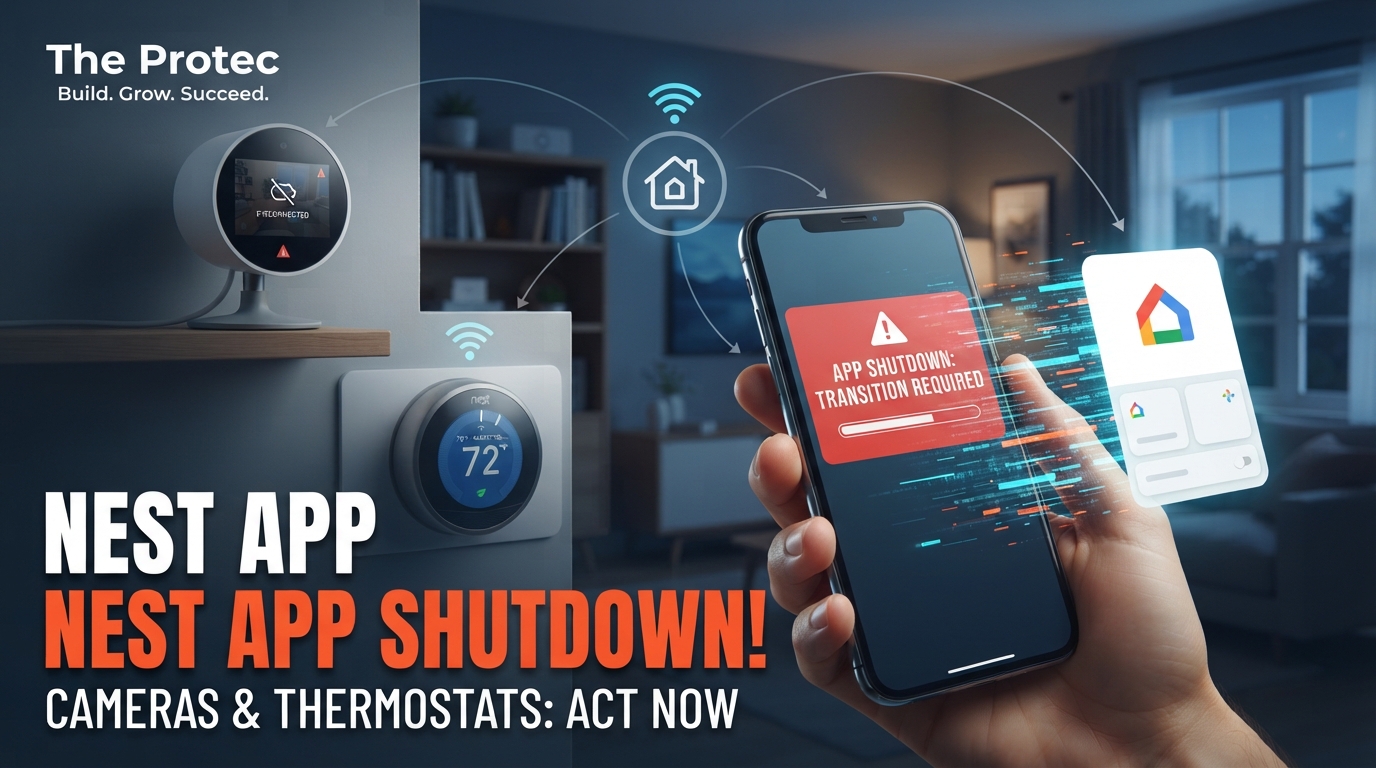
Google’s smart-home platform is approaching an important deadline: the Nest app shutdown is scheduled for January 25, 2027. After that date, owners will manage supported Nest cameras, doorbells, thermostats, smoke alarms and locks through the Google Home app rather than the original Nest app. Most supported hardware is not being switched off, but users should prepare now—especially anyone with an old Nest account or saved camera clips.
As of November 2026, Google says supported devices and eligible camera history will move into Google Home. However, saved clips in the Nest web app will not transfer automatically, and people who still use an unmigrated Nest account face a second deadline on March 25, 2027. Here is what is changing, what should move automatically and what every owner needs to check.
The Nest app retirement dates you need to know
There are three separate dates in Google’s transition plan:
- January 25, 2027: Google retires the Nest app and moves supported device management to the Google Home app.
- March 25, 2027: The deadline for users of old Nest accounts to migrate to Google Accounts. After this date, Google says it will begin processing deletion of data associated with Nest accounts that were not migrated.
- August 2027: A separate transition from Google Assistant to Gemini for Home begins affecting eligible speakers and displays. This is not part of the Nest app retirement.
Google’s official Nest app retirement support notice should be treated as the primary source for deadline or compatibility changes.
Is Google discontinuing Nest devices?
No. Google is retiring the app, not every product carrying the Nest name. Supported Nest hardware will continue operating through the Google Home app after the Nest app retirement date.
The word supported matters. A change of apps does not restore support to hardware that has already reached its end-of-support date, and compatibility can vary by model and region. Owners of older Nest Learning Thermostats, cameras, smoke alarms or other legacy products should confirm their exact model rather than assuming that every generation will remain eligible.
Do not remove a working device from your home merely because the Nest app is shutting down. Removing and resetting hardware can erase settings or create unnecessary setup problems. First sign in to Google Home with the correct account and check whether the device is already listed.
What transfers to Google Home—and what does not?
Supported devices and eligible video history
Supported Nest cameras, doorbells, thermostats, Nest Protect smoke and carbon monoxide alarms, and compatible locks are being brought under Google Home management. When the same migrated Google Account and home structure are used, eligible devices and available camera video history should carry into Google Home.
Camera history is not the same as a saved clip. Subscription-based event history or continuous video history associated with an eligible camera can remain available in Google Home according to the owner’s Nest Aware plan and retention window. Users should open each camera in Google Home and confirm that recent events or timeline footage are visible.
Nest saved clips require action
Clips created and stored in the Nest web app will not transfer automatically. These may include recordings of deliveries, property damage, wildlife or other events that users intentionally saved outside the normal rolling history.
If a clip matters, download it before January 25, 2027. Do not assume that paying for Nest Aware preserves manually saved clips after the Nest web experience is retired. The safest approach is to save important files locally and maintain a backup on another drive or trusted cloud-storage service.
Settings and automations need verification
Device access does not guarantee that every routine, notification, household permission or presence-based behavior will work exactly as it did in Nest. Google Home organizes automations and household access differently. Review camera notifications, thermostat schedules, Home and Away behavior, lock access, and emergency alerts after migration.
Step-by-step Google Home app migration checklist
1. Check whether your Nest account is already migrated
- Open the Nest app while it remains available.
- Review the account or sign-in section in Settings.
- If you sign in using a Google Account, your account has generally already been migrated.
- If you still use a Nest-specific email address and password or see an option to migrate to Google, complete the Nest account migration process.
- Use the same Google Account in Google Home. Choosing a different account can make devices appear to be missing.
Users who have not migrated by March 25, 2027, risk losing associated Nest account data when Google begins processing deletions. That makes account migration more urgent than simply installing a replacement app.
2. Download Nest camera videos and saved clips
- Sign in to the Nest web app before the shutdown date.
- Open each camera or doorbell that may contain saved material.
- Find the saved clips section and review clips individually.
- Use the available download control to save every clip you want to retain.
- Open several downloaded files to confirm that they play correctly, then create a second backup.
Downloading saved clips is different from trying to archive an entire rolling video history. History remains subject to the limits of the applicable Nest Aware subscription, while downloaded files can be retained independently.
3. Install and update Google Home
Install the latest Google Home app from the official app store for your phone or tablet. Sign in with the Google Account connected to the Nest household, then select the correct home if your account belongs to more than one.
Household managers should also confirm that family members have appropriate access. Each person should use an individual Google Account rather than sharing the owner’s password.
4. Check every device for compatibility and visibility
Create a simple inventory covering the product name, model or generation, room and current status. Then check each item in Google Home:
- Cameras and doorbells: Confirm live video, event notifications, microphone settings and video history.
- Thermostats: Test temperature controls, schedules, Eco settings and sensor assignments where supported.
- Nest Protect: Verify that each supported alarm appears online and that alert preferences are correct. Never rely solely on an app to test life-safety equipment; use the product’s physical test procedure.
- Locks: Check remote lock status, household access and guest entry settings for supported models such as compatible Nest x Yale configurations.
If a supported device is absent, first verify the account, selected home, Wi-Fi connection and app version. Follow Google Nest support instructions before factory-resetting anything.
5. Verify camera history and Nest Aware
Open each camera in Google Home and inspect the history or events view. Confirm that the expected retention type is present and that the app shows the correct Nest Aware coverage for the home. Test playback rather than relying only on thumbnails.
Google is not describing the app change as a cancellation of Nest Aware. Eligible subscriptions and their supported camera-history features are expected to continue with Google Home. Nevertheless, owners should review billing, the covered home and subscription status—particularly if they have moved devices between homes or use multiple Google Accounts.
6. Test automations, alerts and household permissions
Run each important automation manually where possible. Check thermostat schedules, camera notification zones, doorbell announcements, presence sensing and routines triggered when people arrive or leave. Also confirm that household members can control only the devices they are intended to access.
What happens to web access?
The old Nest web experience should not be treated as a permanent fallback after January 25, 2027. Google Home for web provides browser access to supported camera features, but its controls may not match either the mobile Google Home app or the former Nest website.
Anyone who regularly uses a desktop browser should test Google Home’s web experience before the deadline. Thermostat configuration, automation editing and other advanced controls may still require the mobile app, depending on the device and feature.
The Gemini for Home transition is a different change
The August 2027 move from Google Assistant toward Gemini for Home on speakers and displays is separate from the Google Home app migration. The January deadline concerns where owners manage Nest devices. The later transition concerns the voice assistant and intelligence available on eligible speakers and displays.
A Nest camera or thermostat moving into Google Home does not mean its voice controls change on January 25. Google may provide model-specific eligibility and rollout information for Gemini separately.
FAQ: Preparing for the Nest app shutdown
Will my Nest camera stop working when the app closes?
A supported Nest camera should continue working through Google Home. Before the deadline, confirm that live video and history are visible there. Cameras that have already reached end of support are a separate matter and should be checked against Google’s current compatibility guidance.
Will Nest video history transfer automatically?
Eligible camera history associated with supported devices, the correct home and an applicable Nest Aware plan should remain accessible through Google Home. Manually created Nest saved clips are different and must be downloaded from the Nest web app before it is retired.
What happens if I never migrate my old Nest account?
Google has set March 25, 2027, as the migration deadline for remaining Nest accounts. After that date, it says it will begin processing deletion of associated data. Migrate to a Google Account before the deadline and verify that your devices appear under that account.
Do I need to cancel or repurchase Nest Aware?
The app retirement does not, by itself, require owners to cancel or repurchase an eligible Nest Aware subscription. Check that the subscription is active, assigned to the correct home and reflected in Google Home. Contact Google Nest support if billing exists but camera history is unavailable.
Should I factory-reset devices before migrating?
Usually not. Start by signing in to Google Home with the correct migrated account. A factory reset can erase configuration and complicate recovery, so it should be a troubleshooting step used only when model-specific Google instructions call for it.
Act before the deadlines
The Nest app replacement is not simply a new icon for the same experience. Owners need to protect saved recordings, move old accounts, confirm hardware support and test the features they depend on. Complete those tasks before January 25, 2027, and do not let an unmigrated Nest account remain unresolved past March 25.
Most supported Nest hardware will continue doing its job in Google Home. The users most likely to encounter problems are those who wait until the Nest app has disappeared to check their account, clips, subscriptions and automations.