








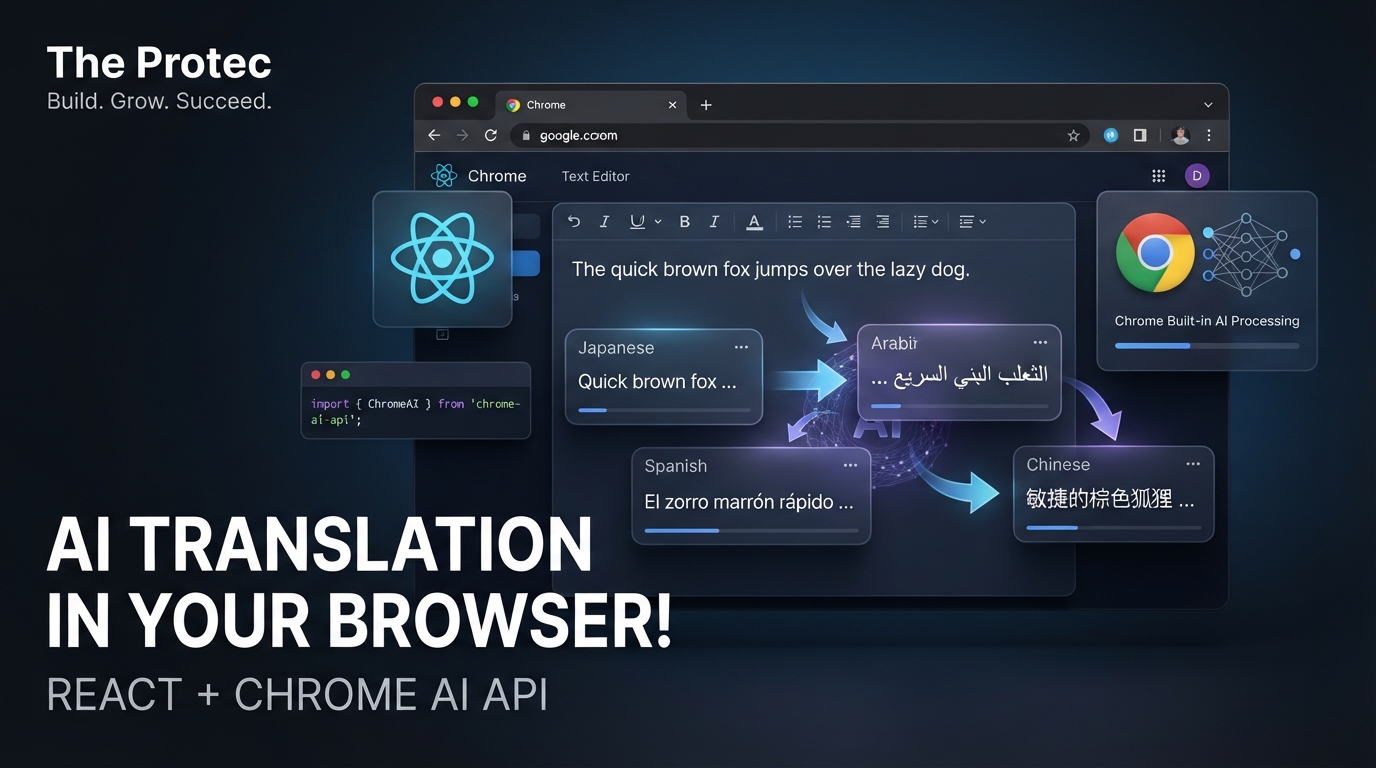
A multilingual editor no longer has to send every draft to a remote translation provider. The Chrome built-in AI API gives compatible desktop browsers access to language detection and translation capabilities that can run locally after the required models are downloaded. In this tutorial, we will build a practical React multilingual editor with automatic language detection, target-language selection, translated output, progress feedback, error handling, and a cloud fallback.
The key qualification is compatibility: Chrome’s built-in AI features are not a single universal API, and availability varies by browser version, device, operating system, model status, and language pair. Production applications must detect support at runtime rather than assuming that every Chrome user can access the same capabilities.
What the React translation app will do
Our editor includes the workflow users expect from a polished translation tool:
- A source text area with automatic language detection
- A target-language selector
- A Translate button with disabled and loading states
- Progress information when Chrome must download a model
- A read-only translated output area
- Messages for empty input, unsupported pairs, and interrupted downloads
- Cleanup of browser AI sessions when they are replaced or unmounted
- A path to a conventional translation service when local translation is unavailable
The implementation uses the Language Detector API to identify likely source languages and the Chrome Translator API to translate between a checked source-target pair. Consult Chrome’s built-in AI getting-started documentation before deployment because availability requirements can change.
Translator, Language Detector, and Prompt APIs are different
The Language Detector API analyzes text and returns ranked language candidates with confidence values. It does not translate or generate text. The Translator API creates a session for a specific source and target language, then translates submitted text using the necessary language model or pack.
The Prompt API is a separate generative interface associated with Gemini Nano. It supports open-ended prompting where available, but it should not be treated as a substitute for the specialized translation APIs. Likewise, it is inaccurate to label every Chrome built-in AI feature as Gemini Nano: the Translator and Language Detector APIs can rely on specialized models and have their own eligibility and download requirements.
As of November 2026, the Translator and Language Detector APIs have been available in stable desktop Chrome since Chrome 138 on eligible devices. That version number is only a baseline. Mobile support, managed-browser policies, hardware eligibility, operating-system requirements, storage, model availability, and supported language pairs may still limit access. Verify the current official Translator API documentation before shipping.
Build the React multilingual editor
The current interfaces are exposed as LanguageDetector and Translator. Older experimental examples may use different names, so avoid copying code written for obsolete origin trials.
The complete React component
import { useCallback, useEffect, useRef, useState } from 'react';

const TARGETS = [
  { code: 'en', label: 'English' },
  { code: 'es', label: 'Spanish' },
  { code: 'fr', label: 'French' },
  { code: 'de', label: 'German' },
  { code: 'ja', label: 'Japanese' }
];

export default function MultilingualEditor({ cloudTranslate }) {
  const [source, setSource] = useState('');
  const [sourceLanguage, setSourceLanguage] = useState('');
  const [targetLanguage, setTargetLanguage] = useState('es');
  const [output, setOutput] = useState('');
  const [status, setStatus] = useState('Checking browser support…');
  const [progress, setProgress] = useState(null);
  const [busy, setBusy] = useState(false);
  const [localSupported, setLocalSupported] = useState(false);

  const detectorRef = useRef(null);
  const translatorRef = useRef(null);
  const detectionRunRef = useRef(0);

  const createDetector = useCallback(async () => {
    if (!('LanguageDetector' in globalThis)) {
      throw new Error('Language detection is not supported in this browser.');
    }

    const availability = await LanguageDetector.availability();
    if (availability === 'unavailable') {
      throw new Error('The language detection model is unavailable.');
    }

    if (!detectorRef.current) {
      detectorRef.current = await LanguageDetector.create({
        monitor(monitor) {
          monitor.addEventListener('downloadprogress', event => {
            setStatus('Downloading language detection model…');
            setProgress(Math.round(event.loaded * 100));
          });
        }
      });
    }

    return detectorRef.current;
  }, []);

  useEffect(() => {
    const supported =
      'LanguageDetector' in globalThis && 'Translator' in globalThis;
    setLocalSupported(supported);
    setStatus(supported
      ? 'Local browser AI is available.'
      : 'Local AI is unavailable; cloud fallback may be used.');
  }, []);

  useEffect(() => {
    if (!source.trim()) {
      setSourceLanguage('');
      return;
    }

    const run = ++detectionRunRef.current;
    const timer = setTimeout(async () => {
      try {
        const detector = await createDetector();
        const results = await detector.detect(source.trim());
        if (run === detectionRunRef.current) {
          setSourceLanguage(results[0]?.detectedLanguage || '');
          setProgress(null);
        }
      } catch (error) {
        if (run === detectionRunRef.current) setStatus(error.message);
      }
    }, 400);

    return () => clearTimeout(timer);
  }, [source, createDetector]);

  async function translateLocally(text, from, to) {
    if (!('Translator' in globalThis)) {
      throw new Error('The Translator API is not supported.');
    }

    const options = { sourceLanguage: from, targetLanguage: to };
    const availability = await Translator.availability(options);

    if (availability === 'unavailable') {
      throw new Error(`Local translation from ${from} to ${to} is unavailable.`);
    }

    translatorRef.current?.destroy();
    translatorRef.current = await Translator.create({
      ...options,
      monitor(monitor) {
        monitor.addEventListener('downloadprogress', event => {
          setStatus('Downloading translation model…');
          setProgress(Math.round(event.loaded * 100));
        });
      }
    });

    setStatus('Translating on device…');
    return translatorRef.current.translate(text);
  }

  async function handleTranslate() {
    const text = source.trim();
    if (!text) {
      setStatus('Enter text before translating.');
      return;
    }

    setBusy(true);
    setOutput('');
    setProgress(null);

    try {
      const detector = await createDetector();
      const candidates = await detector.detect(text);
      const from = candidates[0]?.detectedLanguage;
      if (!from) throw new Error('The source language could not be detected.');

      setSourceLanguage(from);
      if (from === targetLanguage) {
        setOutput(text);
        setStatus('Source and target languages are the same.');
        return;
      }

      const translated = await translateLocally(text, from, targetLanguage);
      setOutput(translated);
      setStatus('Translation complete.');
    } catch (localError) {
      if (typeof cloudTranslate === 'function') {
        try {
          setStatus('Using secure cloud translation fallback…');
          const translated = await cloudTranslate({
            text,
            sourceLanguage: sourceLanguage || 'auto',
            targetLanguage
          });
          setOutput(translated);
          setStatus('Translation complete using the fallback service.');
        } catch {
          setStatus('Translation failed locally and through the fallback.');
        }
      } else {
        setStatus(localError.message || 'Translation failed.');
      }
    } finally {
      setBusy(false);
      setProgress(null);
    }
  }

  useEffect(() => () => {
    detectorRef.current?.destroy();
    translatorRef.current?.destroy();
  }, []);

  return (
    <main className="editor" aria-busy={busy}>
      <h1>Multilingual Editor</h1>
      <label htmlFor="source">Source text</label>
      <textarea
        id="source"
        rows="10"
        value={source}
        onChange={event => setSource(event.target.value)}
      />

      <p>Detected language: <strong>{sourceLanguage || 'Waiting…'}</strong></p>

      <label htmlFor="target">Translate to</label>
      <select
        id="target"
        value={targetLanguage}
        onChange={event => setTargetLanguage(event.target.value)}
      >
        {TARGETS.map(language => (
          <option key={language.code} value={language.code}>
            {language.label}
          </option>
        ))}
      </select>

      <button onClick={handleTranslate} disabled={busy || !source.trim()}>
        {busy ? 'Translating…' : 'Translate'}
      </button>

      {progress !== null && (
        <progress value={progress} max="100" aria-label="Model download" />
      )}
      <p role="status" aria-live="polite">{status}</p>

      <label htmlFor="output">Translation</label>
      <textarea id="output" rows="10" value={output} readOnly />

      {!localSupported && <p>This browser requires the fallback service.</p>}
    </main>
  );
}
How initialization and availability checks work
Feature detection answers whether the JavaScript interface exists. The asynchronous availability() call answers a different question: whether the feature or requested language pair is ready, downloadable, currently downloading, or unavailable.
A downloadable result is not an error. Calling create() can begin the first-use model download, while the monitor reports progress. Creation resolves only when the session is ready. Downloads can fail because of connectivity, storage, policy, or device eligibility, so the UI must remain usable and offer a retry or fallback.
The app debounces JavaScript language detection to avoid analyzing every keystroke. Before translation, it detects again using the final input. The highest-ranked result becomes the source language, although a production editor may show multiple candidates or allow users to override low-confidence detection.
Handle the failure cases deliberately
- Empty input: Disable translation and provide a direct instruction instead of creating a session.
- Unsupported pair: Call
Translator.availability()with both language codes. Do not infer support from the target-language menu. - Unavailable browser: Test for both globals. Chromium-based branding alone does not guarantee API support.
- Interrupted download: Catch session-creation errors, preserve the user’s text, and expose a retry action or cloud fallback.
- Ambiguous detection: Consider confidence thresholds and a manual source-language selector for short names, codes, or mixed-language text.
- Stale sessions: Destroy a translator before replacing it and destroy all sessions when React unmounts the component.
Graceful cloud translation fallback
Pass a cloudTranslate function into the component rather than embedding a provider key in client-side JavaScript. That function should call your authenticated backend, where you can enforce quotas, validate text size, select a provider, and avoid exposing credentials.
Trigger the fallback when the interfaces are missing, a model is unavailable, a language pair is unsupported, or local initialization fails. Inform users when their text will leave the device and obtain any consent required by your privacy policy. A local failure should never silently change the application’s data-handling behavior.
Local translation versus cloud translation
- Privacy: On-device translation keeps source text local after model acquisition. Cloud translation sends content to another system and requires appropriate disclosure and controls.
- Latency: Local sessions can respond quickly after initialization, but the first model download may delay the initial request. Cloud latency depends on the network and provider.
- Operating cost: Browser AI can reduce per-request API charges. Cloud services commonly charge by usage but remove client model requirements.
- Coverage: Cloud platforms generally offer broader language coverage. Chrome AI APIs support only available model combinations on eligible devices.
- Experience: Local translation can continue without a network after required assets are present. A hybrid approach provides more consistent reach across browsers.
Accessibility and production-readiness checklist
Translation controls must remain understandable while models initialize. Associate every field with a visible label, retain keyboard focus, and announce status changes through a polite live region. Use a native progress element, avoid relying on color alone, and respect bidirectional text. Set the output field’s dir dynamically or use dir="auto" when supporting right-to-left languages.
- Verify current desktop Chrome versions and device requirements.
- Check every language pair at runtime rather than maintaining assumptions.
- Test fresh profiles where first-use models have not been downloaded.
- Test offline use, interrupted downloads, low storage, and managed devices.
- Limit input length and prevent overlapping translation requests.
- Allow users to correct automatic language detection.
- Destroy sessions and monitor memory use with long documents.
- Keep cloud credentials on the server and disclose fallback data transfer.
- Test screen readers, keyboard navigation, RTL content, and zoom.
- Monitor both local and fallback failures without logging sensitive text.
Frequently asked questions
Does the Chrome Translator API always work offline?
No. Required models may need a first-use download, which requires connectivity and sufficient resources. After successful installation, translation can run on device, but applications should still handle missing or removed models.
Is the Translator API powered by Gemini Nano?
Do not assume so. Gemini Nano is closely associated with Chrome’s generative Prompt API, while translation and language detection are specialized APIs with separate models, availability checks, and supported tasks.
Can this React text editor run in every Chromium browser?
No. API presence depends on browser implementation, version, platform, policy, and device eligibility. Always use feature detection and provide a conventional translation fallback.
Should language detection run after every keystroke?
Usually not. Debounce detection, ignore empty or extremely short input, and prevent stale asynchronous results from replacing newer ones. Detect once more immediately before translation for accuracy.
Why check availability before creating a translator?
The check reveals whether a specific language pair is ready, downloadable, downloading, or unavailable. It lets the interface explain downloads and route unsupported combinations to a fallback before presenting a generic failure.
A hybrid editor is the practical choice
Chrome’s browser AI translation can improve privacy, responsiveness, and operating costs, but it should be treated as a capability enhancement rather than a universal dependency. With runtime checks, visible model states, careful session cleanup, accessible feedback, and an explicit cloud fallback, a React translation app can deliver local-first behavior without excluding users on unsupported browsers or devices.