








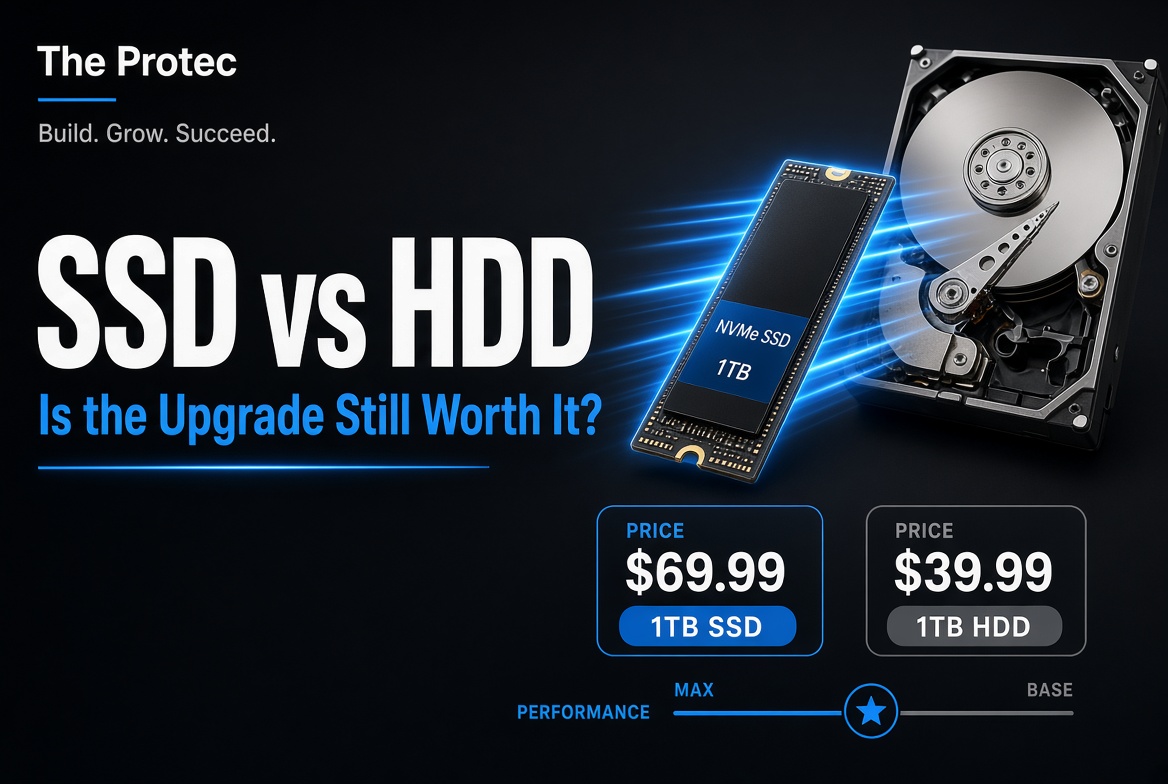
A computer that takes minutes to start, hesitates while opening programs, or becomes unresponsive during updates may not need to be replaced. In the SSD vs HDD debate, moving the operating system from a mechanical hard drive to even an affordable solid-state drive remains one of the most noticeable upgrades available. SSDs cost more per terabyte at many capacities, but their responsiveness, durability, silence, and efficiency usually justify the premium for primary storage.
That does not make hard disk drives obsolete. HDDs continue to offer economical high-capacity storage for media collections, surveillance archives, desktop secondary storage, and certain backup systems. The right choice depends on how the drive will be used—not simply which specification looks fastest.
Hard Drive vs Solid State Drive: How Each Stores Data
An HDD stores data magnetically on rapidly spinning platters. A mechanical actuator moves read/write heads across those platters to locate information. This proven design supports very high capacities, but every request involves physical movement. Seek time, rotational delay, vibration, and mechanical wear therefore affect performance and reliability.
An SSD stores information in NAND flash memory and has no moving parts. A controller maps data across memory cells, performs error correction, manages spare capacity, and distributes writes through a process called wear leveling. Because the controller can access many locations electronically, an SSD responds much more quickly to scattered, small-file requests.
| Factor | SSD | HDD |
|---|---|---|
| Access method | NAND flash memory | Spinning magnetic platters |
| Responsiveness | Very low latency and fast random access | Limited by head movement and rotation |
| Noise | Silent | Audible spinning and seeking |
| Power and heat | Generally lower, especially when idle | Generally higher due to the motor |
| Shock resistance | No moving parts; better for mobile devices | Vulnerable while operating |
| Capacity economics | Competitive at common consumer capacities | Often cheaper for bulk, multi-terabyte storage |
| Best uses | Operating systems, applications, games, laptops | Archives, media libraries, backups, surveillance |
SSD vs HDD Speed in Real-World Use
The greatest SSD advantage is not its headline sequential transfer rate. It is the combination of low latency and high random-input/output performance. Operating systems constantly request small files from different locations. An HDD must reposition its heads repeatedly, whereas an SSD can retrieve those blocks electronically.
As a result, an SSD can dramatically reduce boot time, application-launch delays, update installation time, and pauses caused by background disk activity. Multitasking also feels smoother because antivirus scans, synchronization software, and system services are less likely to monopolize storage access.
Typical desktop HDDs may sustain roughly 100–250 MB/s during favorable sequential transfers, depending on the model, platter location, workload, and file size. A SATA SSD commonly reaches about 500–560 MB/s in sequential reads under suitable conditions, but its vastly better random access is often more important. These are representative ranges, not guarantees.
Performance can fall when an SSD is nearly full, overheats, exhausts its fast write cache, or handles sustained writes. HDD speed also varies across the platter and can collapse during fragmented or highly random workloads. Advertised maximums should never be treated as speeds every computer, file transfer, or application will achieve.
SATA SSD vs NVMe SSD
SATA was designed for older storage technology and has a 6 Gb/s interface ceiling. After protocol overhead, SATA SSDs generally top out near 550 MB/s. They remain excellent replacements for 2.5-inch laptop and desktop hard drives because they deliver most of the responsiveness users associate with solid-state storage.
NVMe is a storage protocol built for low-latency flash connected through PCI Express. A four-lane PCIe 3.0 drive may approach 3.5 GB/s in ideal sequential work, while high-end PCIe 4.0 drives can exceed 7 GB/s. PCIe 5.0 models can go higher still, although heat, controller design, NAND type, cache behavior, workload, and platform support all affect sustained results. The NVM Express specifications document how the protocol evolves independently of any one manufacturer.
Large video projects, virtual machines, software builds, scientific data, and repeated transfers can benefit from NVMe throughput. Everyday users may see a much smaller difference between SATA and NVMe when browsing, opening office documents, or launching lightweight programs. The leap from an HDD to either SSD is normally far more apparent.
Also remember that M.2 describes a physical form factor, not a performance standard. An M.2 drive can use SATA or NVMe, and a slot may support one protocol, both, or neither in a given configuration.
SSD vs HDD Lifespan and Failure Risks
NAND cells tolerate a finite number of program-and-erase cycles, so manufacturers specify write endurance, often as TBW, or terabytes written. A 600 TBW rating means the warranty covers a stated amount of host writes under its terms; it does not mean the drive automatically stops functioning at 600 TB. Warranty periods are similarly not expiration dates.
Actual SSD lifespan depends on write volume, free space, temperature, NAND quality, firmware, controller design, write amplification, and workload. Modern drives use wear leveling, error correction, overprovisioning, and spare blocks to extend usable life. SMART or vendor health tools can report percentage used, total writes, temperature, and media errors, although no health indicator predicts every sudden electronics failure.
HDDs do not have NAND write limits, but their motors, bearings, platters, and actuator assemblies are subject to mechanical wear. They can develop bad sectors or fail after shock, vibration, contamination, or head contact. Portable HDDs are especially vulnerable if dropped while operating. Large-scale field reports, such as Backblaze hard-drive test data, also show why reliability should be evaluated by specific model and workload rather than broad claims about one technology.
Neither drive type is inherently permanent. SSDs can fail because of controller, firmware, power, or memory problems; HDDs can fail mechanically or electronically. Keep important files on multiple devices, with at least one copy stored off-site or offline.
Data Recovery Is Different, Not Necessarily Easier
Specialists can sometimes recover HDD data after a motor, head, or circuit-board failure if the platters remain usable. Recovery is expensive and never assured. SSD recovery may be more difficult because data is distributed by the controller, frequently encrypted internally, and altered by wear leveling. TRIM allows deleted blocks to be cleared, reducing the chance of recovering deleted files. A failed controller can also make otherwise intact NAND inaccessible.
Cost per Terabyte: Where HDDs Still Win
Prices fluctuate by country, tax, promotion, NAND supply, and drive class. As an illustrative late-October 2026 snapshot, listings from major US retailers commonly placed mainstream 1TB SATA and PCIe 4.0 consumer SSDs around $50–$90, with many 2TB models around $90–$170. Premium, high-endurance, or PCIe 5.0 products could cost substantially more.
Internal consumer HDD listings commonly put 4TB models near $70–$110 and 8TB models around $120–$190, while selected larger drives delivered lower per-terabyte costs. Enterprise, NAS, and surveillance models carried different premiums. These ranges are dated US examples rather than universal prices; buyers should compare the same capacity, warranty, endurance class, and intended workload locally.
HDDs are not automatically cheaper at every capacity. Discounts can make a 1TB SSD similarly priced to a low-capacity HDD, and the SSD may offer much better value as a system drive. HDD economics become more compelling when one enclosure must hold 8TB, 12TB, 20TB, or more.
SSD Advantages and Disadvantages
Why Choose an SSD?
- Much faster random access, booting, application loading, and multitasking
- Silent operation with no mechanical vibration
- Lower power use in many client workloads, helping laptop battery life
- Better resistance to bumps and movement
- Compact M.2 options for thin laptops and small desktops
What Are the Trade-Offs?
- Higher cost per terabyte at large capacities
- Finite write endurance, particularly on budget or high-density NAND
- Performance may drop after the write cache fills
- Controller failure, encryption, and TRIM can complicate recovery
- High-performance NVMe drives may require cooling
HDD advantages are almost the reverse: inexpensive bulk capacity and mature archival use, balanced against noise, latency, higher power draw, and mechanical fragility.
Which Drive Fits Your Needs?
- Older laptop owners: A compatible SATA SSD upgrade can make startup and everyday work substantially faster while reducing noise and shock risk. It cannot fix inadequate RAM, a weak processor, thermal throttling, or a failing battery.
- Desktop users: Use an SSD for the operating system and applications, then add an HDD for media, completed projects, and other bulk data.
- Gamers: An SSD improves loading, installation, patching, and asset streaming. NVMe can help in storage-intensive games, but it will not increase frame rates when the CPU or GPU is the bottleneck.
- Creative professionals: NVMe is valuable for active video, photography, audio, scratch-disk, and large-file workflows. Move completed work to redundant bulk storage.
- Backup builders: HDDs remain cost-effective for large local backups and rotated offline copies. SSDs suit portable backup kits where speed and impact resistance matter, but neither replaces versioning and off-site redundancy.
Practical Laptop and Desktop Upgrade Checklist
- Check whether the computer accepts a 2.5-inch SATA drive, M.2 SATA drive, or M.2 NVMe drive.
- Confirm the M.2 length—such as 2242, 2260, or 2280—and whether the slot supports SATA, PCIe, or both.
- Verify the supported PCIe generation and lane configuration. A newer drive may work at the slot’s slower speed, but compatibility is platform-dependent.
- Check available slots, physical clearance, mounting hardware, cooling requirements, and any documented capacity limits.
- Confirm that the BIOS or UEFI can detect and boot from the chosen drive. Install firmware updates when the manufacturer recommends them.
- Back up important data before opening the device or changing partitions.
- Clone the existing drive with trusted software or perform a clean operating-system installation. After cloning, verify boot operation before erasing the original disk.
Final Verdict: Is an SSD Upgrade Worth It?
For a primary system drive, yes. The low latency and random performance of an SSD improve the tasks people notice most, and a modest SATA model can transform an HDD-based computer. NVMe is preferable when the device supports it and pricing is close, but paying for the fastest advertised drive is unnecessary for many everyday workloads.
HDDs still make financial sense for high-capacity desktop storage, media libraries, surveillance retention, archives, and selected backup duties. A hybrid setup—SSD for active software and HDDs for bulk data—often offers the best balance of speed and cost.
Frequently Asked Questions
Will an SSD make an old laptop faster?
It can greatly improve booting, application loading, updates, and responsiveness if storage is the bottleneck. It will not compensate for too little memory, a slow CPU, overheating, or unsupported software.
Is NVMe always better than SATA?
NVMe offers higher potential throughput and lower protocol overhead, but SATA SSDs already provide excellent everyday responsiveness. Compatibility, capacity, endurance, cooling, and price may matter more than peak speed.
How long does an SSD last?
There is no fixed lifespan. Consumer SSDs commonly outlast their practical service period under normal workloads, but longevity depends on writes, temperature, controller quality, NAND, and operating conditions. Monitor health and maintain backups.
Should backups be stored on an SSD or HDD?
Either can be used, but HDDs are usually more economical for large backup sets. SSDs offer portability and speed. The critical requirement is multiple verified copies, including an offline or off-site copy, rather than reliance on one drive type.