









Why Laptop Buying Mistakes Get So Expensive
Buying a laptop should feel straightforward: set a budget, compare a few models, and choose the one that looks best on paper. In reality, it is one of the easiest tech purchases to get wrong. A small misunderstanding about performance, storage, battery life, or build quality can lead to hundreds of dollars in wasted spending, early upgrades, or repairs.
The biggest problem is that many laptops look similar at first glance. Two models may both be labeled as “premium,” yet one is designed for light browsing while the other can handle creative work, multitasking, or AI-assisted productivity tools. Without a clear laptop buying guide, it is easy to pay for features you do not need, or worse, skip the features you will rely on every day.
This article breaks down the most common ways buyers overspend and explains how to avoid laptop mistakes before they happen. Whether you are shopping for work, school, travel, content creation, or everyday use, these best laptop tips will help you make a smarter purchase and keep more money in your pocket.
1. Buying Based on Price Alone
One of the most expensive mistakes is choosing the cheapest laptop that seems “good enough.” Low upfront pricing can hide weak processors, cramped storage, low-quality displays, and poor battery life. Those compromises often cost more later when the laptop feels slow, runs out of space, or needs replacing sooner than expected.
At the same time, the opposite mistake is also common: assuming the most expensive model is automatically the best value. Many premium laptops include features that are impressive but unnecessary for the buyer’s actual needs, such as high-refresh OLED panels, dedicated graphics, or top-tier mobile processors. If you only browse the web, write documents, or attend video calls, you may be paying a premium for power you will never use.
The right approach is to start with your workload. Ask what you do most often, then match the laptop to that use case. A practical laptop buying guide always begins with performance needs, not sticker price.
How to avoid this mistake
- Set a realistic budget range, not a hard minimum or maximum only.
- Compare laptops by features you will actually use every week.
- Pay attention to long-term value, not just the sale price.
2. Ignoring the Processor and Generational Differences
CPU names can be confusing, and that confusion costs buyers a lot of money. A laptop listing may show a familiar brand name, but the actual chip generation, power limits, and architecture matter far more than the label. Modern processors from Intel, AMD, and Apple have major differences in efficiency, AI acceleration, integrated graphics, and multitasking performance.
As laptop design continues to shift toward thinner, lighter systems and longer battery life, the processor has become even more important. For many buyers, a recent midrange chip is a better deal than an older high-end chip. In 2026, that matters more than ever because many laptops now include dedicated neural processing features for on-device AI tasks, improved video conferencing, and smarter power management. Buying the wrong chip can mean paying more for lower battery life or worse real-world performance.
Instead of focusing only on “i5,” “Ryzen 5,” or “M3/M4-class” branding, look at the exact model, generation, and benchmarks for the kind of work you do.
How to avoid this mistake
- Check processor generation and class, not just the brand name.
- Look for reviews that test real-world tasks, not only synthetic benchmarks.
- Choose efficient chips if battery life matters more than raw speed.
3. Underestimating RAM Needs
Not enough memory is one of the fastest ways to make a laptop feel outdated. If you buy a machine with too little RAM, simple tasks can become frustrating when you open multiple browser tabs, run video calls, sync cloud apps, or switch between work and entertainment. The result is lag, freezing, and a shorter useful lifespan.
This mistake is especially expensive because many modern laptops have soldered memory, which means you cannot upgrade later. Buying 8GB when you really need 16GB can force you into an early replacement. On the other hand, overspending on 32GB when you only need light productivity is also unnecessary.
For most buyers, 16GB is the sweet spot for a balanced laptop buying guide. It is the safer choice for multitasking, modern browsers, office work, and standard creative tools. Power users, developers, video editors, and people using large AI-assisted workflows may want more.
How to avoid this mistake
- Choose 16GB as a default if the laptop is not upgradeable.
- Go higher only if your software genuinely demands it.
- Do not assume cloud tools eliminate the need for local memory.
4. Paying for Storage You Don’t Need, or Not Buying Enough
Storage mistakes are costly in both directions. Some buyers overpay for a huge drive they will never fill, while others buy a small SSD and run out of space within months. Once storage gets tight, performance, usability, and file management all suffer. You may end up paying for external drives, cloud subscriptions, or a new laptop sooner than expected.
Modern laptops increasingly ship with fast NVMe SSDs, which is great for speed but means storage choices should be made carefully. For general users, 512GB is often the most practical starting point. If you work with large photo libraries, video files, or game installations, 1TB can save frustration later. For very light users, 256GB may be enough only if you are disciplined about cloud storage and cleanup.
Do not forget that some laptops have non-upgradable storage. If the internal SSD is soldered or difficult to replace, buying too little storage can become a permanent limitation.
How to avoid this mistake
- Estimate your real storage use before buying.
- Prefer 512GB or more if the laptop cannot be upgraded later.
- Check whether the SSD is replaceable or expandable.
5. Choosing the Wrong Display
The display is one of the most overlooked parts of a laptop purchase, and it affects your experience every single day. Buyers often focus on size and resolution while ignoring brightness, color accuracy, refresh rate, panel type, and finish. A beautiful spec sheet can still hide a dim, washed-out screen that is hard to use in bright rooms.
This mistake is especially expensive for people who buy a laptop for work, design, media, or travel. If you end up with a screen that strains your eyes, reflects light badly, or looks dull next to the devices you already own, you may feel forced to replace the laptop much earlier than expected.
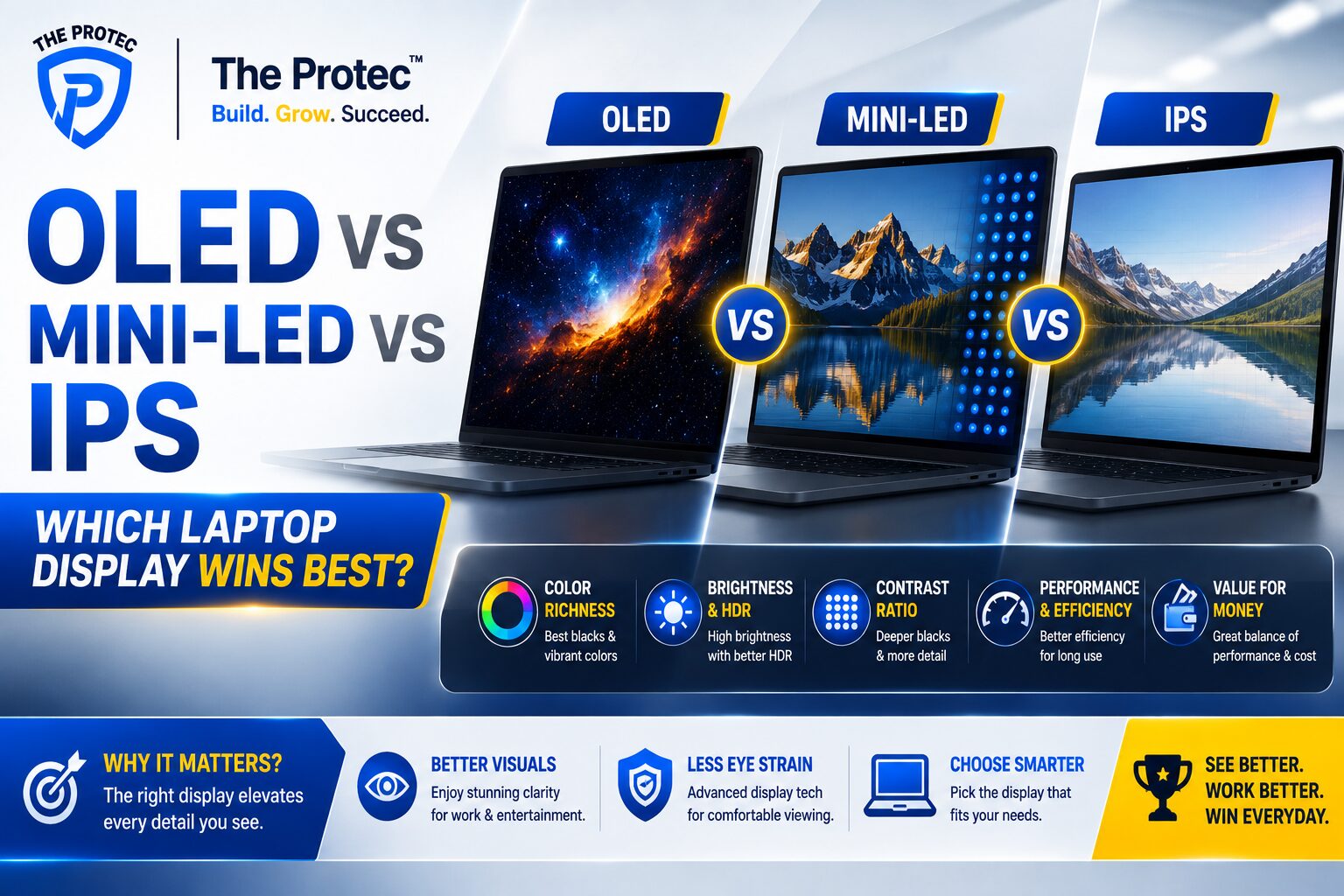
In today’s market, higher-quality panels are more common, including OLED and mini-LED on some models, but that does not mean every expensive screen is right for every buyer. OLED can offer excellent contrast and deep blacks, yet some users prefer IPS-style displays for mixed office use or specific longevity concerns. The best choice depends on your environment and usage.
How to avoid this mistake
- Check brightness, not only resolution.
- Look for good color coverage if you edit photos or video.
- Choose a matte finish if you work in bright spaces.
6. Overlooking Battery Life Claims
Battery life is one of the most misleading marketing areas in a laptop buying guide. Manufacturers often quote ideal conditions that do not reflect actual use. Streaming video, video conferencing, brightness levels, background syncing, and AI features can all change battery performance significantly.
Many buyers think they are saving money by choosing a cheaper laptop with average battery life, only to discover they need to keep a charger nearby all day. Others overspend on a premium ultrabook expecting all-day performance, then get disappointed when the real-world battery life drops under normal workload conditions.
If portability matters, focus on independent battery tests and reviews that match your use case. Also remember that efficient processors, lower-power displays, and larger batteries all play a role. A laptop with a smaller battery but an efficient chip may last longer than a larger, heavier machine with a power-hungry screen.
How to avoid this mistake
- Read battery tests from trusted reviewers.
- Compare real-world use, not only advertised hours.
- Consider weight and charger size if you travel often.
7. Forgetting About Ports, Wireless, and Accessories
A surprising number of buyers discover too late that their new laptop cannot connect to the devices they already own. Thin laptops often sacrifice ports to save space, which can force you into buying dongles, docks, adapters, and hubs. Those extra costs add up quickly.
Before buying, check for USB-C, USB-A, HDMI, headphone support, SD card slots, and charging options. Also review the wireless standards, especially if you care about fast local networking, stable conferencing, or future-proofing. Newer Wi-Fi standards and Bluetooth improvements can matter more than many people realize, especially in home offices and shared networks.
This is one of the easiest avoid laptop mistakes because it is entirely preventable. If you already know you need to connect an external monitor, transfer photos from a camera, or use wired peripherals, choose a laptop that supports those needs out of the box.
How to avoid this mistake
- Make a list of the ports you use today.
- Check whether adapters are included or must be bought separately.
- Consider the cost of docks and hubs before choosing a minimalist laptop.
8. Ignoring Build Quality and Cooling
Spec sheets rarely tell the full story of how a laptop feels after months of use. Cheap plastic hinges, flexy keyboards, weak cooling, and noisy fans can turn a seemingly good deal into an expensive regret. If a laptop overheats, it may throttle performance, wear down components faster, and become uncomfortable to use on your lap or desk.
Modern laptops are thinner than ever, and that makes cooling design more important. A machine with excellent specs can still perform poorly if the thermal system is weak. This is especially true for creators, gamers, and professionals who run demanding applications for long periods.
Build quality also affects repair costs. A sturdier laptop may survive transport better, while a flimsy one may develop hinge issues, keyboard wear, or chassis damage sooner. Those repairs can easily exceed the savings from buying a cheaper model.
How to avoid this mistake
- Read reviews that discuss thermals, fan noise, and keyboard feel.
- Look for aluminum or reinforced chassis if durability matters.
- Avoid ultra-thin designs if you plan to push the laptop hard.
9. Skipping Warranty and Return Policy Details
Many people compare hardware features carefully but ignore the protection that comes after purchase. That is a costly oversight. A laptop with a weak return policy or limited warranty can become a financial headache if the screen fails, the battery degrades quickly, or a component arrives defective.
Extended warranties are not always worth buying, but understanding the standard coverage absolutely is. Some brands offer better support, faster repair turnaround, or easier accidental damage protection. Others make service expensive and inconvenient. If you are buying a premium device, business laptop, or machine you depend on daily, support quality matters just as much as hardware.
Before you buy, check the warranty length, accidental damage options, service process, and return window. A little research here can save you hundreds if something goes wrong early.
How to avoid this mistake
- Read the return policy before checkout.
- Check whether accidental damage is covered.
- Compare support reputation, not only the brand name.
10. Not Matching the Laptop to the Real Use Case
The most expensive mistake of all is buying for the wrong category of laptop. A student, remote worker, gamer, designer, and frequent traveler all need different balances of battery life, portability, performance, and screen quality. When the use case is wrong, the entire purchase becomes inefficient.
For example, a heavy gaming laptop may offer strong performance but terrible battery life and portability for someone who mainly takes notes in class. A thin ultraportable might look elegant but struggle with editing, programming, or heavy multitasking. A powerful workstation may be overkill for browsing and email.
The best laptop tips always come back to usage. Once you know your priorities, it becomes much easier to avoid overbuying or underbuying.
Use-case matching examples
- Students: prioritize battery life, portability, and reliable typing.
- Office users: focus on comfort, webcam quality, and multitasking performance.
- Creators: emphasize display quality, RAM, storage, and cooling.
- Gamers: look at graphics performance, thermals, and refresh rate.
Best Laptop Tips Before You Buy
If you want a simple checklist to avoid laptop mistakes, use this one before you make a final decision:
- Define your main tasks and the software you use most.
- Choose the right processor generation for performance and efficiency.
- Prefer enough RAM for long-term usability, especially if it cannot be upgraded.
- Pick storage based on actual needs, not vague assumptions.
- Evaluate the display in real-world terms: brightness, color, and finish.
- Check battery tests from reliable sources.
- Review ports, wireless features, and accessory costs.
- Inspect build quality, thermals, and support policies.
A disciplined laptop buying guide is less about chasing the latest headline feature and more about avoiding the expensive mistakes that lead to regret. The right purchase should feel balanced, dependable, and appropriate for how you actually live and work.
FAQ
What is the biggest laptop buying mistake?
The biggest mistake is buying a laptop that does not match your actual use case. People often overspend on features they do not need or save money on specs that become limiting too quickly.
How much RAM should I get in a new laptop?
For most buyers, 16GB is the safest choice. It offers smoother multitasking and better longevity than 8GB, especially on laptops that cannot be upgraded later.
Is it worth paying extra for a better display?
Yes, if you spend many hours on the laptop or do creative work. A better display can improve comfort, color accuracy, and long-term satisfaction more than many people expect.
Should I buy the cheapest laptop that meets my minimum needs?
Usually not. The cheapest option may save money today but cost more later through poor performance, weak battery life, or an earlier replacement cycle.
What should I check before clicking buy?
Check the processor, RAM, storage, display, battery reviews, ports, warranty, and return policy. Those details help you avoid the most common and costly mistakes.