






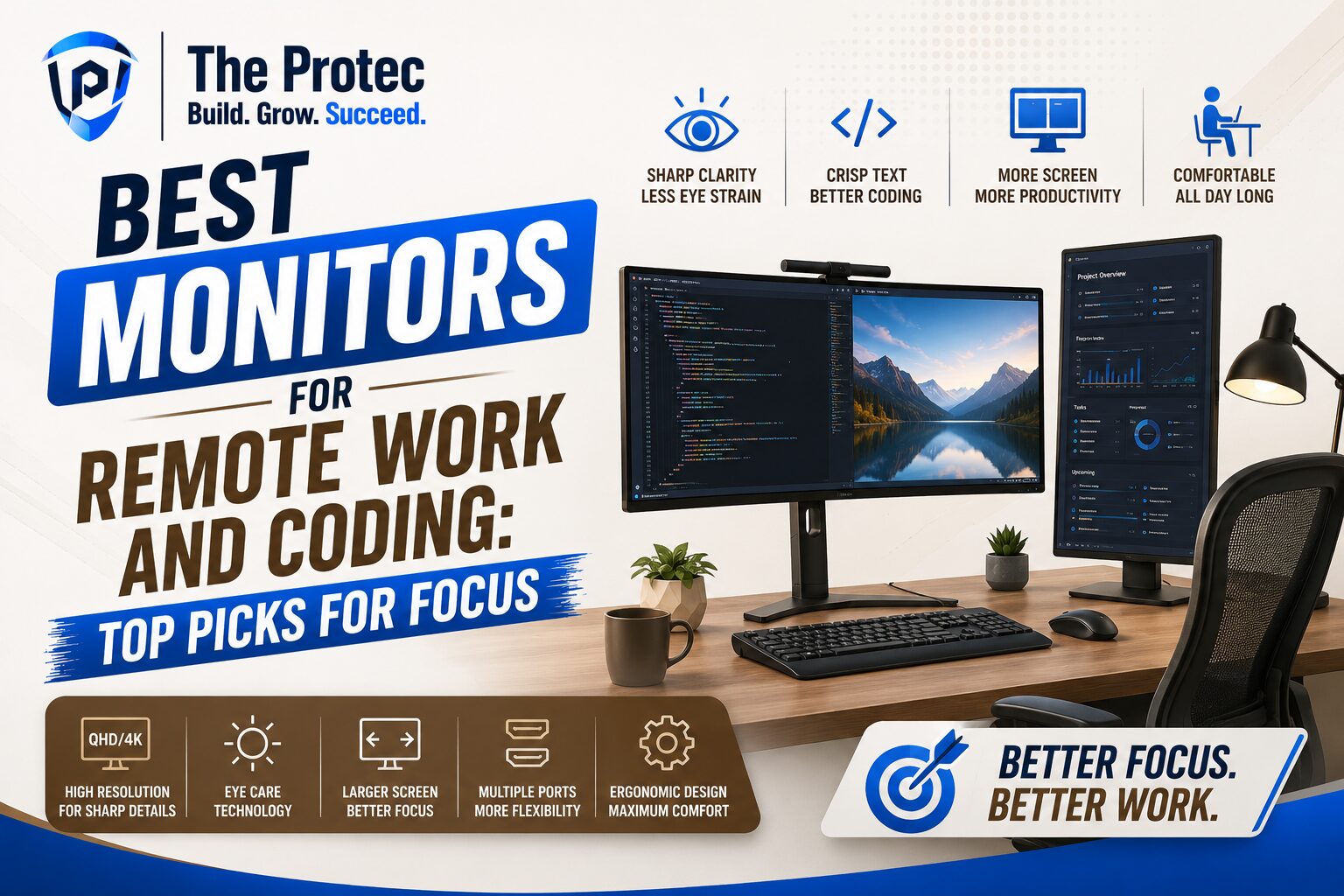
Why the Right Monitor Matters for Remote Work and Coding
The monitor you use for remote work or coding affects far more than just screen space. It shapes how comfortably you read text, how quickly you switch between apps, and how tired you feel after a long day. If you spend hours in VS Code, browser tabs, spreadsheets, design tools, or video calls, the right display can make your desk feel more efficient and less draining.
In 2026, the best coding monitor is not just about resolution. It is about sharp text rendering, consistent color, reduced glare, strong ergonomics, and eye comfort features that support long sessions without fatigue. The best remote work monitor also needs to handle hybrid workflows well, since many professionals now split time between code, meetings, documents, dashboards, and creative tasks.
This guide compares the most important display types and features so you can choose a productivity display that fits how you actually work. Whether you want a simple 27-inch QHD panel or a premium ultrawide with USB-C docking, the best option is the one that helps you stay focused for longer with less strain.
What to Look for in a Best Coding Monitor
For coding, the most valuable monitor qualities are text clarity, screen size, resolution, and ergonomics. A display can look impressive on paper and still feel mediocre if small text looks soft or if the stand forces poor posture.
- Resolution: QHD (2560 x 1440) is still the sweet spot for many 27-inch monitors, while 4K is excellent for sharper text on 27- to 32-inch panels.
- Panel type: IPS remains the most balanced choice for coding and remote work because it offers strong viewing angles and good color consistency.
- Refresh rate: 60Hz is fine for office work, but 120Hz or higher can make scrolling, window movement, and general navigation feel smoother.
- Ergonomics: Height, tilt, swivel, and pivot adjustments matter more than many buyers realize.
- Eye comfort: Flicker-free backlighting, low blue light modes, and anti-glare coatings help reduce fatigue during long sessions.
- Connectivity: USB-C with power delivery is especially useful for laptop-first workflows.
When comparing the best coding monitor options, prioritize text clarity and posture support before chasing flashy extras. A monitor that improves your daily comfort will usually deliver more value than one with a headline-grabbing feature you rarely use.
Best Monitor Sizes and Resolutions for Productivity
Screen size and resolution work together. A large panel with low resolution may feel cramped or blurry, while a very high-resolution monitor without proper scaling can make text too small. The goal is to find a balance that keeps code readable and multitasking easy.
27-inch QHD
This is one of the most popular productivity setups because it offers enough workspace without overwhelming a compact desk. At 27 inches, QHD gives sharp text and comfortable scaling for everyday use. It is often the best remote work monitor choice for users who want a clean, balanced setup.
27-inch or 32-inch 4K
4K monitors are excellent if you value crisp text and plan to use scaling properly. They are especially appealing for developers who want more detail in code editors, terminal windows, and documentation. A 32-inch 4K display can feel particularly comfortable because it combines high sharpness with a larger physical workspace.
Ultrawide Displays
Ultrawide monitors are ideal for split-screen productivity. They work well when you need code on one side and documentation, tickets, or communication tools on the other. Many remote professionals like them because they reduce the need for multiple monitors while keeping the desk uncluttered.
For most people, the best coding monitor is either a 27-inch QHD or a 27- to 32-inch 4K display. Ultrawide models are excellent if your workflow depends on side-by-side multitasking.
Best Monitors for Remote Work and Coding: Display Types Compared
Below is a practical comparison of the display categories that matter most for modern productivity. Rather than chasing a single “best” model for everyone, think about which monitor style matches your work habits.
1. 27-inch QHD IPS Monitors
This category remains the safest recommendation for most professionals. It is affordable, easy to run from any laptop or desktop, and comfortable for long sessions. QHD on 27 inches delivers a dense enough image for text work without requiring aggressive scaling.
- Best for: Developers, writers, analysts, and general remote workers
- Pros: Great balance of size, sharpness, and price
- Cons: Not as sharp as 4K; less workspace than ultrawide options
If you want a dependable remote work monitor that is easy to recommend broadly, this is the category to start with.
2. 27- to 32-inch 4K IPS Monitors
These monitors are increasingly popular with coders who value precision and a premium reading experience. The extra pixel density makes fonts look smoother, diagrams cleaner, and interface elements more refined. In 2026, 4K productivity displays are also easier to use thanks to better operating system scaling and stronger support across modern apps.
- Best for: Developers, designers, power users, and anyone who reads text all day
- Pros: Extremely sharp text, excellent for detailed work, future-proof
- Cons: Can require scaling adjustments; usually costs more
If you are looking for the best coding monitor and want the cleanest text experience, 4K deserves serious attention.
3. Ultrawide Productivity Displays
Ultrawide monitors create a wide canvas that is excellent for split workflows. Developers can keep a code editor open beside a browser or terminal, while remote workers can manage meetings, documents, and messaging with less window swapping. Many of the newer models also support better HDR performance, higher refresh rates, and USB-C docking.
- Best for: Multitaskers, spreadsheet-heavy roles, project managers, and developers who like side-by-side windows
- Pros: Fewer distractions from app switching, excellent multitasking, immersive feel
- Cons: Takes more desk space, can be awkward for some layouts
For people who treat their monitor as a command center, ultrawide is often the most efficient productivity display style.
4. Dual-Monitor Setups
Two monitors are still a strong solution for remote work, especially when you want maximum flexibility. A common setup is one main display for code or primary work and a secondary display for email, chat, documentation, or reference material. The main downside is desk clutter and the need to manage bezels between screens.
- Best for: Users who need separate spaces for communication and primary work
- Pros: Flexible, easy to organize, useful for research and collaboration
- Cons: More cables, more desk space, less seamless than a single ultrawide
Dual monitors can be excellent, but many people now prefer a large single productivity display because it feels cleaner and simpler.
Eye Comfort Features That Actually Matter
Eye comfort is one of the biggest reasons to choose carefully. A display that looks good in a showroom may still cause fatigue after a few hours if it has poor flicker control, too much glare, or harsh brightness levels.
The most useful comfort features include:
- Flicker-free technology: Helps minimize strain during long reading and coding sessions.
- Low blue light modes: Can make evening work easier on the eyes, especially in dim rooms.
- Matte or anti-glare coatings: Reduce reflections from windows and desk lights.
- Good brightness control: A monitor should dim smoothly enough for different lighting conditions.
- High pixel density: Sharp text is easier to read and generally feels more comfortable.
For many remote workers, comfort matters more than raw specs. If you work at night, read a lot of documentation, or spend hours debugging, a monitor with strong eye comfort features can make a bigger difference than a faster panel or extra gaming features.
Connectivity and Workflow Features for Modern Remote Work
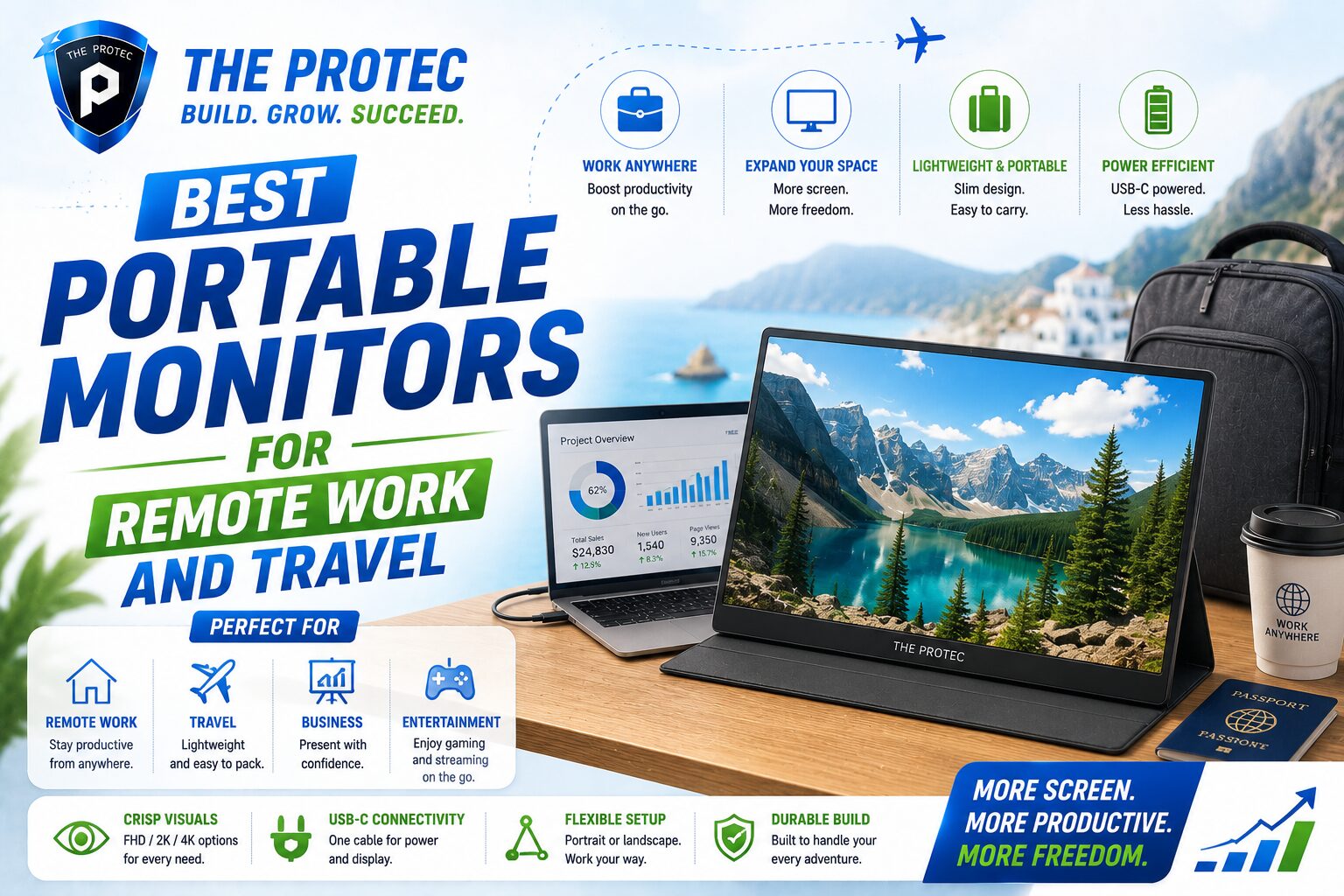
The best remote work monitor should simplify your desk, not complicate it. Today’s productivity displays increasingly include USB-C, integrated KVM switches, Ethernet on some dock-style monitors, and power delivery for laptops. These features are especially useful if you regularly move between home office and mobile work.
USB-C with power delivery is one of the most practical upgrades because it lets you connect video, data, and charging through a single cable. That is a major quality-of-life improvement for MacBook, Windows ultrabook, and tablet users. If you often switch between a work laptop and a personal device, a monitor with a built-in KVM can also reduce cable swapping.
Another useful feature is picture-by-picture or picture-in-picture support, which can help with testing, monitoring, or comparing content side by side. For remote workers, these extras can improve flow without adding clutter.
Recommended Monitor Profiles by User Type
Instead of focusing only on individual model names, it helps to match monitor profiles to real work patterns.
For Software Developers
Choose a 27-inch QHD or 32-inch 4K IPS display with excellent text clarity and adjustable ergonomics. Developers often benefit from a high-quality productivity display that reduces eye movement and keeps code readable. If you use a lot of side-by-side windows, consider ultrawide.
For Remote Office Workers
A 27-inch QHD monitor with USB-C is often the most practical choice. It is compact, comfortable, and easy to integrate into hybrid setups. If your work includes lots of spreadsheets, meetings, and document review, a 32-inch 4K monitor may be even better.
For Analysts and Multitaskers
Ultrawide monitors shine here. They provide room for dashboards, spreadsheets, browser tabs, and collaboration tools without forcing constant window switching. If you live in charts and tabs, this monitor style can feel transformative.
For Creative Professionals Who Also Code
A high-quality 4K IPS display offers a strong blend of sharpness, accurate color, and productivity. This is useful if your work mixes editing, code, and content production.
How to Choose the Best Coding Monitor for Your Desk
The best coding monitor is the one that fits your space, your budget, and your daily tasks. Before buying, ask yourself a few practical questions:
- Do I prefer a single large canvas or multiple separate windows?
- Will I be using a laptop, desktop, or both?
- How much desk depth do I have?
- Do I work in bright rooms where glare will be a problem?
- Is text sharpness more important to me than color accuracy or gaming speed?
If you answer yes to long reading sessions and text-heavy work, prioritize sharpness and comfort. If you constantly juggle apps, a larger screen or ultrawide may be more useful than a standard monitor. The right decision often comes down to workflow, not just spec sheets.
External Resources Worth Checking
For a deeper look at display basics and ergonomics, the following external resources are useful:
- RTINGS monitor reviews for detailed comparisons and lab testing
- Computer vision syndrome information from the U.S. National Center for Complementary and Integrative Health
These sources can help you compare comfort-focused features and understand how extended screen time affects productivity and eye strain.
FAQ: Best Monitors for Remote Work and Coding
What is the best coding monitor size?
For most people, 27 inches is the best starting point. It offers a comfortable balance of screen space and desk footprint. If you want more room for side-by-side windows or prefer sharper text, 32-inch 4K displays are also excellent.
Is 4K worth it for remote work?
Yes, if you read a lot of text, work with detailed interfaces, or want a premium productivity display. 4K is especially valuable on 27- to 32-inch monitors because it makes text look cleaner and more refined.
Are ultrawide monitors good for coding?
Absolutely. Ultrawide monitors are great for developers who like to keep code, documentation, and communication tools open at once. They are also popular with remote workers who want a clutter-free alternative to dual monitors.
What features reduce eye strain the most?
Flicker-free backlighting, anti-glare coatings, proper brightness adjustment, and a high-resolution panel tend to help most. Good ergonomics also matter because a monitor that sits at the right height is easier to use for long periods.
Should I choose one monitor or two?
If you multitask heavily, dual monitors can be very effective. If you want a cleaner desk and simpler setup, one large monitor or an ultrawide display may be the better remote work monitor choice.
Final Takeaway
The best monitors for remote work and coding are the ones that make your screen easier to read, your posture easier to maintain, and your workflow easier to manage. For many users, a 27-inch QHD IPS monitor remains the best all-around value. If you want sharper text and more premium comfort, a 27- or 32-inch 4K display is a strong upgrade. If multitasking is your priority, an ultrawide productivity display can transform how you work.
In the end, a great monitor is not just a piece of hardware. It is a daily productivity tool. Choosing the right one can help you focus longer, reduce eye strain, and make remote work feel smoother from the first login to the last tab you close.