








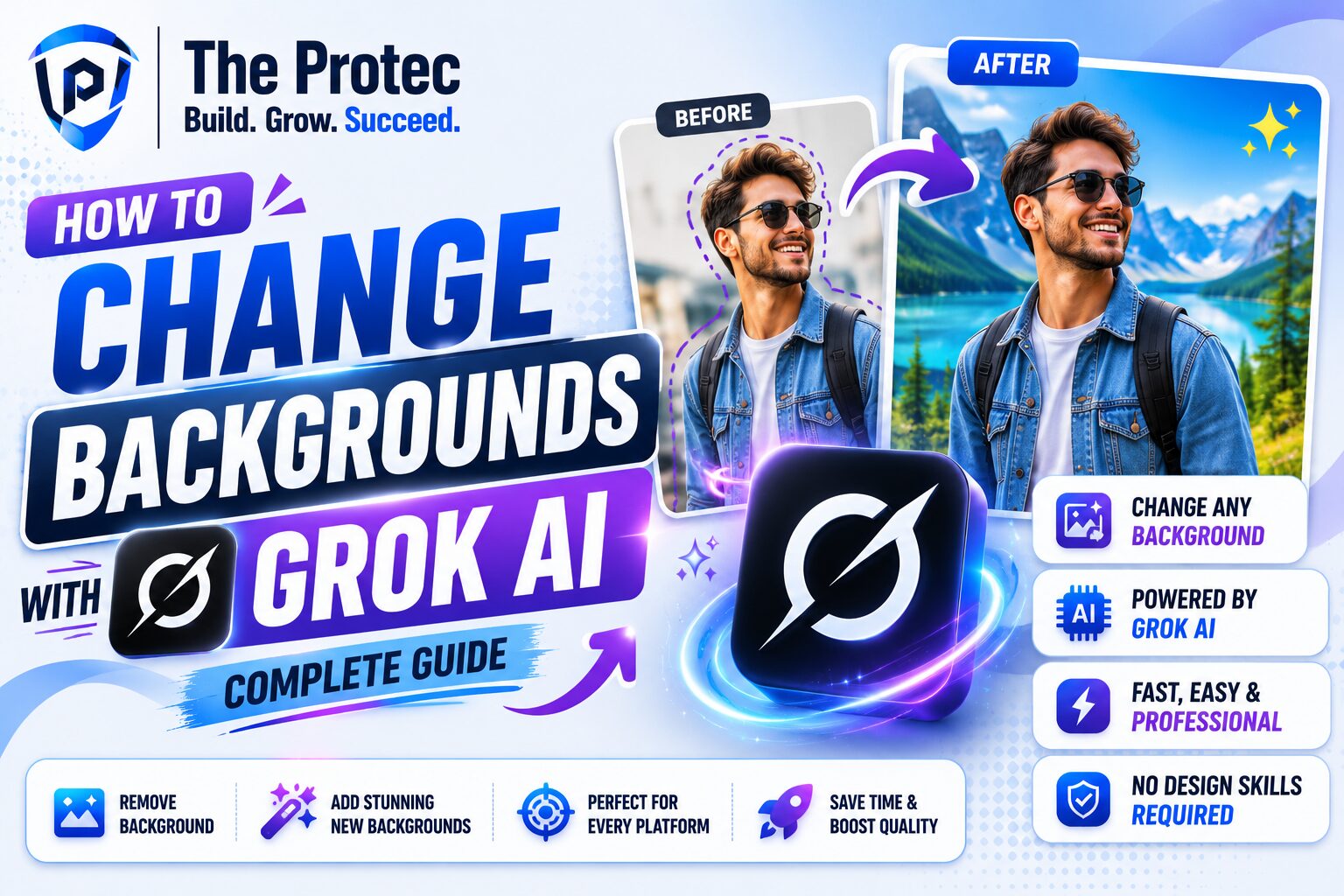
How to Change Backgrounds with Grok AI
Background editing has become one of the most useful parts of modern AI image tools, and Grok is quickly earning attention for how fast it can handle it. Whether you want to clean up a product photo, swap out a boring wall for a city skyline, or turn a casual portrait into a polished social media image, Grok image editing makes the process much easier than traditional design software.
If you have been searching for a practical way to change background Grok style, this guide walks you through the full workflow. You will learn how Grok AI image generation and editing can be used to remove backgrounds, replace them with better scenes, and enhance them for a more professional result. We will also cover prompt strategies, common mistakes, and examples you can use right away.
By the end, you will know how to get cleaner edits, keep the subject realistic, and make the background match the purpose of the image instead of distracting from it.
What Makes Grok Useful for Background Editing?
Grok is part of the newest wave of AI tools that combine conversational prompting with image generation and image editing. Instead of relying only on manual selections and masks, you can describe what you want in plain language. That makes background changes faster for creators, marketers, ecommerce sellers, and casual users who want results without a steep learning curve.
The biggest advantage is flexibility. You are not limited to removing a background. You can also ask Grok to replace it with a studio backdrop, a natural landscape, an urban scene, a branded color gradient, or a more polished environment that fits your image goal.
- Speed: Quick background changes without complex editing tools.
- Ease of use: Natural language prompts make the process accessible.
- Creative control: You can choose realism, stylization, or brand consistency.
- Versatility: Works for portraits, products, social content, and mockups.
Before You Start: What You Need for Better Results
Good background edits start with a good source image. Grok can do a lot, but the quality of the original photo still matters. A clear subject with decent lighting and a visible separation from the background will give you the best outcome.
Here are a few things to check before you begin:
- Use a sharp image: Blurry photos make subject edges harder to preserve.
- Keep the subject visible: Full-body or half-body photos usually work well.
- Avoid clutter: Busy backgrounds can confuse the edit if the subject blends in.
- Think about the final use: Product photos need clean, simple backgrounds, while portraits may benefit from depth and realism.
It also helps to decide whether you want a complete replacement or a subtle enhancement. Sometimes the best result is not a dramatic new scene but a cleaner, more attractive version of the original environment.
Step-by-Step: How to Change Backgrounds with Grok AI
Step 1: Open Grok’s image editing workflow
Start by uploading the image you want to edit. In Grok image editing, the interface is designed to let you describe changes directly rather than manually selecting every detail. If the platform offers both generation and editing options, choose the mode that supports image modification rather than creating a brand-new image from scratch.
The main goal is to keep your subject intact while directing the model to update the background only. This matters because the more clearly you define that instruction, the more likely Grok is to preserve facial features, clothing, product details, and overall composition.
Step 2: Tell Grok exactly what background change you want
The most important part of background editing is the prompt. A vague prompt like “change the background” usually leads to unpredictable results. A strong prompt should name the subject, the desired background, and the style of the final image.
Use prompts like these:
- “Replace the background with a bright modern office with soft daylight.”
- “Remove the background completely and place the subject on a clean white studio backdrop.”
- “Change the background to a sunset beach with realistic lighting that matches the subject.”
- “Enhance the background into a luxury interior with muted colors and soft depth of field.”
The more specific you are, the more useful the result will be. When working with Grok AI image generation, specificity is often the difference between a usable edit and one that needs several retries.
Step 3: Choose the right background style
Your background should support the purpose of the image. A profile photo needs something different from a sales banner. A product shot needs a different setting than a lifestyle portrait. Think first about the mood you want, then choose the scene.
- White or neutral backgrounds: Best for ecommerce, headshots, and professional portfolios.
- Natural scenes: Great for travel, wellness, outdoor brands, and lifestyle content.
- Indoor environments: Useful for business, education, and home-related visuals.
- Abstract or branded backgrounds: Ideal for marketing graphics and social posts.
When in doubt, keep the background simple. The subject should remain the focal point. A background that is too detailed can make the image feel crowded and reduce realism.
Step 4: Ask Grok to match lighting and perspective
One of the biggest giveaways of AI edits is mismatched lighting. If your subject is lit from the left but the new background suggests strong light from the right, the image may look unnatural. To avoid this, include lighting instructions in your prompt.
Examples:
- “Match the lighting to warm afternoon sunlight.”
- “Use soft studio lighting with even shadows.”
- “Keep the subject’s shadows consistent with the new outdoor background.”
- “Blend the perspective and depth so the subject appears naturally placed in the scene.”
This is especially important for Grok image editing when the subject has visible shadows, reflective surfaces, or strong color tones. Matching the environment to the original image helps the edit feel believable.
Step 5: Refine the result with follow-up prompts
Rarely is the first result perfect. The good news is that Grok-style editing is well suited to iterative refinement. If the first background is too busy, too dark, too blurry, or not realistic enough, give a follow-up instruction.
Examples of refinements:
- “Make the background cleaner and less distracting.”
- “Soften the background and reduce detail.”
- “Increase realism and match the subject lighting more closely.”
- “Replace the background with a more minimal version.”
This iterative workflow is one of the strongest advantages of modern AI editing. Instead of restarting from scratch, you can guide the image toward a better final version.
How to Remove Backgrounds with Grok AI
If your goal is to isolate the subject, start by asking Grok to remove the background entirely. This is useful for product listings, profile images, transparent-style compositions, and design assets that will be placed elsewhere later.
Try prompts like:
- “Remove the background and leave the subject isolated on a clean white backdrop.”
- “Cut out the person and place them on a transparent-style plain background.”
- “Delete the current background while preserving the subject’s outline and details.”
For best results, keep the request focused on preservation. You want Grok to remove the background, not alter the subject. If the tool supports transparent or plain backgrounds, use that terminology. If not, ask for a solid neutral backdrop that can later be reused in other designs.
A common use case is ecommerce imagery. Sellers often need a product isolated from a cluttered room or table. Grok can help create a much cleaner presentation that looks more professional and easier to adapt for ads, marketplaces, or catalogs.
How to Replace Backgrounds with Grok AI
Background replacement is where Grok image generation becomes especially powerful. Instead of simply deleting the backdrop, you can transform the entire setting around the subject.
Here are a few strong replacement patterns:
- Portraits: “Replace the background with a softly blurred urban street at golden hour.”
- Products: “Put the product on a clean marble surface with a premium studio environment.”
- Travel photos: “Change the background to a scenic mountain overlook with natural depth.”
- Brand content: “Use a minimal branded gradient background with modern tech aesthetics.”
To make replacements believable, focus on three things: subject scale, lighting, and color harmony. The new setting should not overpower the subject. It should frame it.
If the new background feels too artificial, simplify it. A subtle, realistic environment often works better than a dramatic scene. That is especially true for headshots, product photos, and ads where clarity matters more than visual drama.
How to Enhance Backgrounds Without Replacing Them
Sometimes you do not want a full replacement. Instead, you may want to improve the existing background while keeping the original location recognizable. This is useful for event photos, lifestyle posts, and brand storytelling.
You can ask Grok to enhance background quality in several ways:
- Increase blur to separate the subject from the scene.
- Reduce clutter and visual noise.
- Adjust brightness and contrast for a cleaner look.
- Improve colors so the background complements the subject.
Example prompts:
- “Keep the original background but make it softer and less distracting.”
- “Enhance the background with better lighting and improved color balance.”
- “Add subtle depth and blur to the background while preserving the original location.”
This is a smart approach when the original environment adds context. For example, a café, office, or outdoor scene may be useful because it tells part of the story. In those cases, enhancement can be more effective than replacement.
Prompt Formula for Better Grok Background Edits
If you want consistently better results, use a simple prompt structure. This helps Grok understand what to keep, what to change, and what style to aim for.
A useful formula is:
Subject + action + background type + style + lighting + realism level
Example:
“A woman in a red jacket, keep her pose unchanged, replace the background with a modern rooftop at sunset, cinematic style, soft warm lighting, realistic and natural.”
Another example:
“A skincare product bottle, remove the background, place it on a clean white studio surface, premium commercial look, soft shadow, high realism.”
This structure works because it minimizes ambiguity. It tells the model what the core subject is, what background to use, and what visual tone to apply.
Common Mistakes to Avoid
Even with a capable tool, background edits can go wrong if the request is too broad or the source image is weak. Here are the most common issues to watch for.
- Using vague prompts: “Make it better” is not enough.
- Overcomplicating the background: Too many details can make the image look busy.
- Ignoring lighting: Mismatched shadows break realism.
- Starting with poor image quality: Low-resolution images are harder to edit cleanly.
- Not checking subject edges: Hair, hands, and reflective objects often need extra attention.
If the result looks strange, simplify the request. Ask for a cleaner background, stronger realism, or softer details. In many cases, a smaller change creates a better image than a dramatic one.
Practical Examples of Change Background Grok Workflows
Example 1: Professional headshot
Goal: Turn a casual portrait into a professional LinkedIn-style image.
Prompt: “Keep the face and clothing unchanged, replace the background with a soft neutral studio backdrop, even lighting, natural skin tones, realistic headshot.”
Result: A cleaner image that looks suitable for business profiles and personal branding.
Example 2: Ecommerce product photo
Goal: Make a product look polished for an online store.
Prompt: “Remove the cluttered kitchen background, place the product on a bright white studio surface, add soft shadow, commercial product photography style.”
Result: A more focused image that highlights the product and improves conversion potential.
Example 3: Social media lifestyle image
Goal: Create a more eye-catching post for a travel or fashion account.
Prompt: “Replace the background with a vibrant city street at dusk, keep the subject centered, realistic depth, balanced lighting, editorial style.”
Result: A stronger visual story with more energy and shareability.
Goal: Build a clean background for marketing use.
Prompt: “Enhance the background into a minimal gradient environment with modern blue and silver tones, subtle texture, premium tech aesthetic.”
Result: A branded image that feels cohesive and professional.
Best Practices for Realistic Grok Image Editing
To get the most out of Grok image editing, focus on realism first and creativity second. The best AI edits are the ones that feel intentional rather than obviously generated.
- Use precise prompts with concrete visual details.
- Match the background to the subject’s pose and angle.
- Keep the background simpler than the subject.
- Adjust in small steps instead of trying to fix everything at once.
- Review edges, shadows, and color temperature before publishing.
It also helps to think like a photographer. Ask yourself where the light is coming from, how far the subject should appear from the background, and whether the environment supports the story. That mindset produces better results than treating the edit as a purely technical task.
FAQ
Can Grok change backgrounds in any image?
Grok can handle many images well, but the best results usually come from clear, high-quality photos with a visible subject and manageable lighting. Very cluttered or blurry images may be harder to edit cleanly.
What is the best prompt to change background Grok style?
The best prompt is specific. Include the subject, the new background, the style, and the lighting. For example: “Replace the background with a bright studio wall, soft daylight, realistic, keep the subject unchanged.”
How do I make the new background look natural?
Match the lighting, perspective, and color tones of the subject with the new scene. Keep the background simple and ask for realism in the prompt. If needed, refine the image with follow-up instructions.
Can I use Grok for product photos and marketing images?
Yes. Grok AI image generation and editing can be very effective for product shots, ad creative, brand visuals, and ecommerce images, especially when you want clean backgrounds or stylized environments.
Final Thoughts
Learning how to change backgrounds with Grok AI is less about one perfect prompt and more about understanding the editing process. Start with a strong source image, give Grok clear instructions, and refine the result until the background supports the subject instead of competing with it.
Whether you want to remove a background, replace it with a new scene, or enhance the original environment, Grok makes the workflow faster and more accessible. With the right prompts and a little iteration, you can create polished, realistic images for profiles, products, social media, and brand content.
As Grok image editing continues to improve, background changes are becoming one of the easiest ways to turn ordinary photos into polished visuals. The key is to be specific, keep realism in mind, and always edit with the final use in mind.
For more on image editing workflows and AI-powered visual tools, see xAI and OpenAI’s image generation overview.