






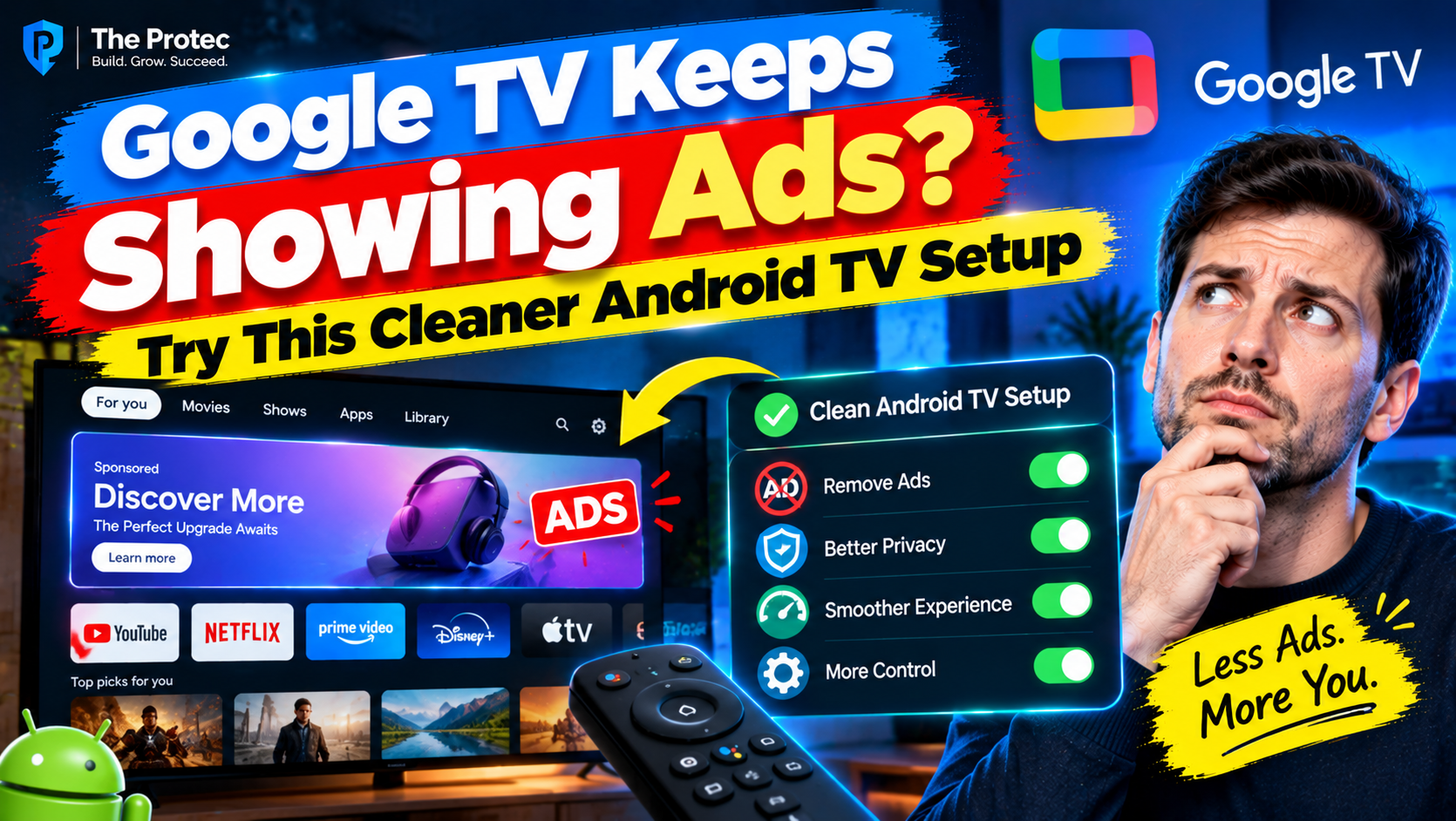
Android TV and Google TV may offer a convenient way to organize streaming services, but their home screens can increasingly feel like billboards. Recommendations, sponsored rows, autoplaying previews, ads, and promotional tiles often push the apps you actually use below content chosen by Google or its partners. Even when these promotions match your interests, they can clutter the interface and make navigation feel sluggish on older televisions and streaming devices. The good news is that tools like Projectivy Launcher, SmartTube, Button Mapper, and carefully selected ADB commands can help you create a cleaner, more customizable, and less ad-heavy TV experience.
Fortunately, you can create a cleaner Android TV home screen without buying new hardware. The practical setup combines Projectivy Launcher for the home interface, SmartTube as an optional YouTube client, and Button Mapper for compatible remote controls. Advanced users can also use Android Debug Bridge, or ADB, to select a home app or disable an unneeded launcher package.
This configuration does not guarantee a completely ad-free TV experience. It cannot remove commercials inserted by Netflix, Hulu, live television providers, or other streaming services. Device manufacturers also customize Android TV, so the exact options vary. The goal is narrower and more realistic: reduce Google TV promotional content, improve navigation, and give you more control over what appears when the television starts.
Why Google TV Apps Only Mode Does Not Remove Every Ad
Before replacing the launcher, try Google TV’s built-in Apps Only mode. On many devices, it appears under Settings, Accounts and Sign-In, your profile, and Apps Only mode. Menu names can vary by software version and manufacturer.
Apps Only mode reduces personalized recommendations and places more emphasis on installed applications. However, it may not disable Google TV home screen ads completely. Promotional banners, sponsored apps, system suggestions, and selected featured content can remain. It also limits features such as the personalized content library and some Google Assistant recommendations.
That makes Apps Only mode a useful first step, not a complete Google TV promotional content removal tool. If its remaining tiles still bother you, an Android TV custom launcher provides considerably more control.
Compatibility Checklist Before You Start
Check your hardware and software before following this Projectivy Launcher Android TV tutorial:
- Google TV devices: Projectivy generally works on certified Google TV streamers and televisions, although firmware can restrict the Home button or startup behavior.
- Chromecast with Google TV: launcher customization is possible, but updates may reset defaults or restore Google’s launcher behavior.
- Android TV televisions: Sony, TCL, Hisense, Philips, and other brands add their own services. Test the custom launcher before disabling anything.
- Streaming boxes: NVIDIA Shield TV and certified Android TV boxes usually offer good launcher support, but remote shortcuts differ.
- Operator boxes: cable and internet-provider hardware may lock the launcher, developer settings, or app installation.
- Wireless ADB: the pairing menu is normally available on newer Android and Google TV builds. Older devices may require an initial USB connection or may not expose network debugging.
Also confirm that you can install apps from Google Play or authorize a trusted file manager to install unknown apps. Work through the non-ADB options first; many people will not need command-line changes.
Projectivy Launcher Setup for a Cleaner Home Screen
Projectivy is one of the best Android TV launcher options for people who want a simple, remote-friendly interface. It can organize apps into channels, hide unwanted items, change backgrounds, and reduce recommendation-heavy rows. Its core setup is free, while some optional features may require an upgrade.
1. Install Projectivy from a trusted source
Search for Projectivy Launcher in the television’s Play Store. If it is unavailable for your device or region, consult the developer’s official Projectivy repository rather than downloading a repackaged APK from an unknown mirror.
2. Build your home screen
Open Projectivy and grant only the permissions required for the features you intend to use. Add categories for streaming, music, games, or utilities; move frequently used apps to the first row; hide apps you never launch; and reduce animation or background effects on slower hardware. This Android TV home screen customization can make Android TV faster because the launcher displays fewer media-heavy recommendations, although it cannot accelerate the streaming apps themselves.
3. Make Projectivy the preferred launcher
Press the remote’s Home button and select Projectivy if Android presents a launcher chooser. Choose Always only after confirming that navigation, settings, and app launching work properly. Some televisions never display this prompt because the manufacturer pins its own launcher.
Projectivy also offers accessibility-based launcher override and startup options on supported devices. These can open Projectivy after boot or intercept Home behavior, but they require broader permissions. Read the permission description, enable only the necessary service, and test wake-from-sleep behavior. A launcher that starts correctly after a full reboot may behave differently when the television resumes from standby.
SmartTube for an Alternative YouTube Experience
SmartTube is an independent, open-source YouTube client designed for Android TV devices. It can block many conventional YouTube ads and integrate sponsor-segment skipping, allowing community-marked sponsorships, intros, or reminders to be skipped. It also includes remote-friendly playback controls and resolution options.
SmartTube is not an official Google or YouTube app, and it does not remove advertisements from every streaming service. Features can stop working when YouTube changes its platform. Obtain installation instructions and releases only from the official SmartTube project. Because it is commonly sideloaded, you must install updates intentionally and verify that the download belongs to the genuine project.
A typical SmartTube installation guide involves downloading the official APK on the television or transferring it from a trusted computer, allowing the selected installer to install unknown apps, and then revoking that permission afterward. If you connect an account, review the displayed authorization method and never enter Google credentials directly into an unfamiliar APK or website.
Button Mapper Android TV Setup
Some remotes include a dedicated YouTube button that opens Google’s official app. Button Mapper can redirect that key to SmartTube or another supported application on compatible hardware. Install Button Mapper from Google Play, select Add Buttons, press the target key, and assign a single-tap action that launches your chosen app.
This method may require an accessibility service. It also does not work on every remote: manufacturers can reserve branded keys at the firmware level, and short, long, or double presses may behave differently. Test the change before purchasing premium mapping features. If remapping the YouTube button causes missed keypresses or accessibility conflicts, disable the mapping and use a normal app shortcut instead.
Android TV Wireless Debugging and ADB Commands
ADB offers more control, but it should be the last step. Never paste a large collection of Android TV ADB commands into your device without understanding each one.
1. Enable developer options and wireless debugging
Open Settings, System, About, and highlight Android TV OS build. Press the select button seven times until the developer confirmation appears. Return to System, open Developer options, and enable Wireless debugging. Keep the television and computer on the same trusted network.
On your computer, install Google’s current Platform Tools. In the TV’s Wireless debugging menu, choose Pair device with pairing code. Use the displayed pairing address:
adb pair TV-IP:PAIRING-PORT
Enter the pairing code, then use the separate IP address and port shown on the main Wireless debugging screen:
adb connect TV-IP:DEBUG-PORT
Confirm the connection with:
adb devices
Pairing and connection ports are often different and can change after a reboot. Do not expose ADB to the public internet.
2. Identify packages instead of guessing
List installed packages and look for Projectivy:
adb shell pm list packages
Projectivy commonly uses the package name com.spocky.projengmenu, but confirm it on your installation. Resolve its current Home activity with:
adb shell cmd package resolve-activity –brief -a android.intent.action.MAIN -c android.intent.category.HOME com.spocky.projengmenu
If the command returns a component, copy that exact package/activity result into:
adb shell cmd package set-home-activity PACKAGE/ACTIVITY
This is safer than copying an activity name that may have changed. If set-home-activity is unsupported or blocked, stop and use Projectivy’s normal startup or accessibility option.
3. Disable the stock launcher only when necessary
Google TV commonly uses com.google.android.apps.tv.launcherx, while older Android TV builds may use com.google.android.tvlauncher. Manufacturer launchers use other names. Confirm the package on your device before acting.
After testing Projectivy and recording the exact stock package, an advanced user can run:
adb shell pm disable-user –user 0 VERIFIED-STOCK-PACKAGE
Do not disable both possible package names, and do not remove packages with uninstall commands. Disabling the wrong system component can break Home navigation, settings shortcuts, recommendations, or boot behavior. In most cases, selecting Projectivy as Home is enough; disabling the stock launcher adds risk with little additional benefit.
Security, Privacy, and Maintenance
A custom launcher for Google TV changes which app can observe home-screen interactions. Review permissions for usage access, accessibility, files, microphone, and notifications. Projectivy does not need every permission for a basic app grid, while Button Mapper needs broader access only for certain key-handling features.
Keep Play Store apps updated and check official release notes before updating sideloaded software. System updates can restore the Google launcher, revoke accessibility access, change ADB behavior, or make an unofficial client temporarily incompatible. Avoid modified APK stores and unfamiliar websites offering one-click ad removal scripts.
How to Restore the Default Google TV Launcher
Keep a rollback plan before you replace the Google TV launcher. First, disable Projectivy’s launcher override, boot option, and accessibility service. Open Android settings and clear Projectivy’s default app preferences if that option is available.
If you disabled a stock package through ADB, reconnect and enable only the package you previously recorded:
adb shell pm enable –user 0 VERIFIED-STOCK-PACKAGE
Clear Projectivy’s preferred Home assignment with:
adb shell cmd package clear-preferred-activities com.spocky.projengmenu
Press Home and choose the original launcher. If necessary, resolve the stock package’s Home activity with the same resolve-activity command and pass its exact result to set-home-activity. Reboot, confirm that the original home screen loads, and only then uninstall Projectivy, SmartTube, or Button Mapper. A factory reset should be the final resort, not the first rollback method.
Frequently Asked Questions
Can I completely remove ads from Google TV?
You can substantially reduce home-screen promotions by using Apps Only mode or Projectivy, but no universal setup removes ads from every app, live channel, or streaming plan. Services control advertising inside their own players.
Is Projectivy better than Apps Only mode?
Projectivy offers more layout control, fewer promotional surfaces, and better app organization. Apps Only mode is easier and carries less risk because it remains part of Google’s interface. Try Apps Only mode first, then switch if you still want a cleaner design.
Do I need ADB to use Projectivy Launcher?
No. Many devices allow Projectivy to launch normally, become the default Home app, or start through its supported override feature. ADB is primarily for devices that restrict launcher selection or for advanced users who understand recovery steps.
Will disabling the stock launcher survive updates?
Not always. Firmware updates can re-enable packages, reset defaults, or change component names. They can also introduce navigation problems with third-party launchers. Recheck settings after each major update instead of automatically repeating old commands.
Does SmartTube make all Android TV viewing ad-free?
No. SmartTube affects its own YouTube viewing experience and may skip supported sponsor segments. It does not alter advertising in other applications, and its behavior can change as YouTube updates its services.