






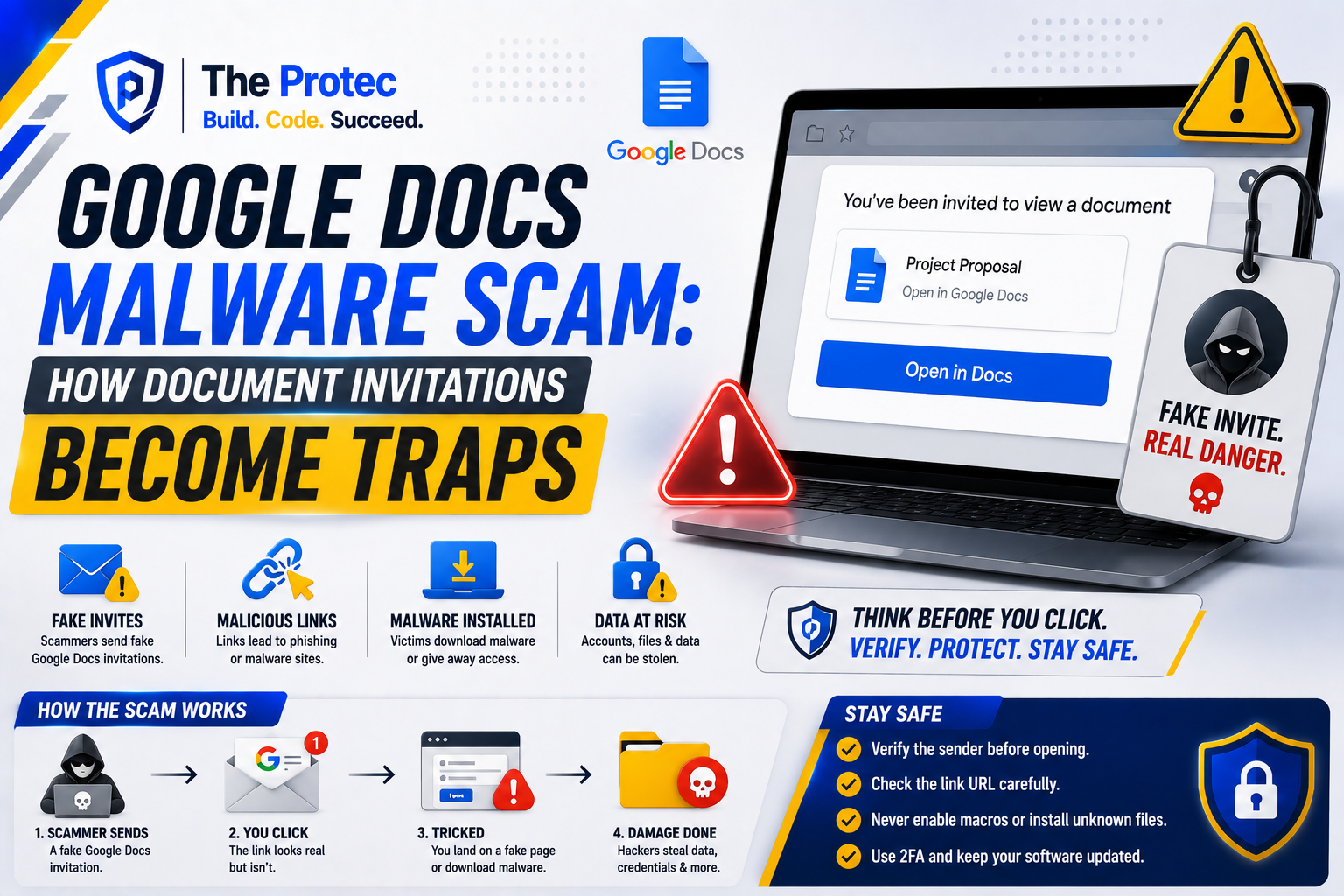
A Google Docs invitation can feel safer than an unexpected attachment. The email may carry familiar Google branding, name a real colleague, and appear to come from a legitimate notification service. The document itself may even be hosted on Google’s infrastructure. When attackers weaponize that familiarity to trick users into opening malicious content, the tactic becomes a Google Docs Malware Scam. That combination is exactly why attackers use document invitations to bypass skepticism and make phishing campaigns look routine.
In a Google Docs malware scam, the document is usually not the malware. It acts as a trusted-looking bridge to a credential-stealing page, malicious download, fraudulent support number, dangerous OAuth authorization request, or social-engineering instruction. Some campaigns also use compromised Google accounts, allowing malicious Google Docs invites to arrive from people the recipient already knows.
As of August 2026, these attacks remain relevant because modern email defenses are better at detecting conventional attachments and obviously forged domains. Attackers have responded by abusing legitimate collaboration platforms, automated sharing notifications, comment mentions, QR codes, and convincing AI-written messages. Understanding where Google’s legitimate service ends and the attacker’s content begins is essential.
What Is the Google Docs Malware Scam?
The Google Docs malware scam is a social-engineering campaign that uses a document invitation, sharing notification, comment, or access request to persuade someone to take a dangerous action. The attacker might create a real Google Doc and share it through Google, forge an invitation email, or take over an existing account and distribute documents to its contacts.
A typical invitation claims that the recipient needs to review an invoice, approve a contract, read an HR notice, examine a legal complaint, or view a confidential file. Opening the document reveals a button, shortened URL, QR code, or message stating that another login is required. The next step takes the victim outside Google’s protected environment.
The terms Google Docs phishing scam and Google Docs malware are often used interchangeably, but the outcomes differ. A phishing page steals passwords, passkeys, recovery codes, or session details. A malware campaign attempts to install software such as an information stealer, remote-access tool, or downloader. Other variations request OAuth permissions, redirect payments, or begin a business email compromise conversation without installing anything.
Why Malicious Google Docs Invites Look Legitimate
Attackers benefit from the trust people place in cloud collaboration. Employees receive document notifications every day, often while multitasking. A request that appears to involve a deadline or senior colleague may receive only a quick glance.
The notification may genuinely come from Google
If an attacker creates a document and uses Google’s sharing or commenting features, the resulting notification can be delivered by legitimate Google systems. Standard email authentication checks may therefore pass. That only confirms the message traveled through authorized infrastructure; it does not mean Google reviewed or endorsed the document’s claims.
A compromised account adds credibility
When attackers gain control of a Google account, they can review contacts, recent conversations, file names, and organizational relationships. They may share a malicious document from that account or insert a harmful link into an existing file. Recipients recognize the sender and may assume the request is safe.
Collaboration features create urgency
Comment mentions and assigned tasks can place a recipient’s name next to instructions such as “Review immediately” or “Payment is overdue.” Campaigns may mention many people at once, generating authentic notifications at scale. A document title can also be tailored to a company, project, or department.
Mobile screens conceal useful clues
On a phone, users may see a shortened sender name, limited URL preview, and only part of the message. QR codes are particularly risky because they move the interaction to a mobile browser, where domain inspection and password-manager warnings may be less noticeable.
How a Google Docs Phishing Scam Leads to Malware or Account Theft
Most campaigns follow a sequence designed to transfer trust from Google Docs to an attacker-controlled destination.
Delivery: The target receives a sharing invitation, comment notification, or convincing imitation of one. It may reference payroll, taxes, benefits, shipping, contracts, account suspension, or another time-sensitive subject.
Engagement: The recipient opens a real or fake document. A preview image, blurred page, or branded button claims the content is protected and requires authentication.
Redirection: A link or QR code sends the user to a lookalike Google, Microsoft, banking, or corporate sign-in page. Multiple redirects and legitimate link-tracking services may be used to obscure the final domain.
Exploitation: The page captures credentials, requests a multifactor authentication code, presents a malicious OAuth consent screen, or offers a download. Some lures display a fake CAPTCHA and instruct users to paste or run a command—a tactic commonly associated with user-executed malware delivery.
Expansion: With access to the victim’s account, the attacker searches email and cloud files, steals session data, changes recovery settings, or sends new invitations to trusted contacts. This makes the next wave harder to recognize.
An OAuth-based Google Docs scam may not request a password at all. Instead, the victim is asked to authorize an unfamiliar application to read email, access Drive files, or manage contacts. If permission is granted, changing the password may not remove the application’s access; its authorization must also be revoked.
Malware variants commonly direct victims to ZIP archives, disk images, script files, fake browser updates, or counterfeit security tools. The document may also link to another cloud-storage provider so the download appears less suspicious. Simply being hosted by a familiar platform does not make a file safe.
Warning Signs of a Suspicious Google Docs Invitation
No single clue proves that an invitation is malicious, but several warning signs together should stop the interaction:
You were not expecting the document, even if the apparent sender is familiar.
The sender’s display name and actual email address do not match.
The document title is vague, alarming, or unrelated to your role.
The message demands immediate payment, login verification, or confidential information.
A document asks you to sign in again through a button inside the page.
The destination domain is not the organization you expect, contains a misspelling, or uses an unusual subdomain.
The file includes a QR code without a clear business reason.
You are instructed to disable security software, enable macros, install an extension, or paste a command.
An unfamiliar application requests broad access to Gmail, Drive, contacts, or account settings.
The writing style, timing, or request does not fit the supposed sender’s normal behavior.
Be especially careful when a legitimate contact sends an unexpected invitation followed by unusual instructions. Their account could be compromised, and replying through the same account may reach the attacker.
How to Verify Google Docs Invites Safely
Confirm the request through another channel
Contact the sender using a phone number, chat thread, or email address you already have. Do not use contact details included in the suspicious document. Ask whether they shared the file and what it contains. For financial or administrative requests, follow the organization’s established approval process.
Inspect the invitation before opening it
Expand the sender details and examine the full address. Treat a real Google notification as confirmation that a sharing event occurred—not proof that the person or content is trustworthy. If the email is only imitating a notification, headers and domain details may reveal the forgery.
Instead of selecting the email’s button, open the Google Drive app or type the known Drive address into the browser yourself. Check the Shared with me area while signed in to the intended account. This reduces the risk of landing on a counterfeit login page.
Check every external destination
Hover over links on a computer to preview their destination. On mobile, use a long press only if it reveals the URL without opening it. Read the registered domain from right to left and watch for extra words, misspellings, deceptive subdomains, or URL shorteners. Do not scan an unexplained QR code merely to discover where it goes.
Review consent screens carefully
A legitimate Google authorization page can still be requesting access for a malicious application. Verify the application name, publisher, requested permissions, and reason it needs the data. Decline any request that is unexpected or broader than necessary.
Use protective account controls
Keep the browser, operating system, and endpoint protection updated. Use a password manager, which is less likely to autofill credentials on a lookalike domain. Enable phishing-resistant multifactor authentication, such as passkeys or hardware security keys, where available.
What to Do If You Opened the Document or Clicked a Link
Opening a Google Doc does not automatically mean the device is infected. The level of risk depends on what happened next. If you only viewed the file, close it, do not interact with its links, and report it. Update the browser if necessary and monitor the account for unusual activity.
If you entered a password on a suspicious site, use a clean device to change it immediately. Sign out active sessions, review recovery information, check forwarding rules and filters, and examine recent security activity. Change any other account that reused the same password.
If you approved an unfamiliar OAuth application, remove its account access and notify your administrator. If you downloaded or ran a file, disconnect the affected device from sensitive networks and contact the security team. Run approved endpoint scans, but do not assume a clean quick scan rules out an information stealer.
Anyone who entered payment information should contact the card issuer or bank through an official number. Organizations should preserve the invitation, URLs, timestamps, sender information, and file details for investigation rather than forwarding the live lure to coworkers.
How to Report a Google Docs Scam
In Gmail, use the message menu to report phishing rather than simply deleting the email. If the content is in a real Google document, use the available abuse-reporting option or follow Google’s instructions for reporting abusive content. Block the sender only after preserving any evidence your security team requires.
Employees should report the incident through their company’s established phishing channel. Include the document owner, sharing address, URL, time received, and actions taken, but avoid downloading or redistributing suspected malware. Broader guidance on recognizing and reporting phishing is also available from the Cybersecurity and Infrastructure Security Agency.
How Organizations Can Reduce the Risk
Technical filtering alone cannot stop every campaign delivered through a legitimate collaboration platform. Organizations should combine cloud-app monitoring, endpoint protection, least-privilege access, phishing-resistant authentication, and clear reporting procedures.
Administrators should monitor unusual sharing volumes, newly authorized applications, suspicious inbox rules, impossible travel, unexpected session activity, and files shared broadly outside the organization. Restricting third-party OAuth applications and external sharing where business needs permit can reduce exposure. Training should teach employees to verify the context of a request, not merely look for poor grammar or an incorrect logo.
Frequently Asked Questions
Can opening a Google Doc install malware automatically?
Usually, viewing a document alone does not install malware. Most attacks require the user to follow a link, authorize an application, download a file, install an extension, or run a command. Keeping browsers and devices patched remains important because software vulnerabilities can change the risk.
Can a Google Docs invitation be malicious if it comes from Google?
Yes. Google may have legitimately delivered the notification because someone used its sharing system. The platform’s involvement does not verify the document owner’s identity, the truth of the message, or the safety of external links.
What should I do with an invitation from someone I know?
If it is unexpected, confirm it through a separate, trusted communication channel. Do not rely only on a reply to the same account, because an attacker may control it. Ask the sender to identify the document and explain why access is needed.
Does multifactor authentication stop a Google Docs phishing scam?
It helps, but not every method offers equal protection. Attackers may steal one-time codes, hijack authenticated sessions, or trick users into approving OAuth access. Passkeys and hardware security keys provide stronger phishing resistance, but users must still scrutinize document links and permission requests.
The most effective defense against malicious Google Docs invites is a deliberate pause. Verify who sent the file, access Drive independently, inspect external destinations, and report anything that does not match the expected context. A legitimate request can survive a quick confirmation; a scam depends on preventing one.