
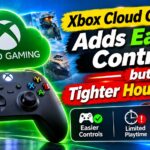




Playing a console game on a television without owning a console is about to become more approachable—and more complicated. Two Xbox Cloud Gaming previews reduce the need for conventional hardware: one turns a compatible Android phone or iPhone into a TV controller, while the other lets the Xbox Nano Controller connect to a cloud server over Wi-Fi. At the same time, Microsoft has announced monthly cloud-playtime allowances tied to Game Pass tiers, making it important to understand not only how players can connect, but also how long they may be able to play.
The short version is that the new controls could make cloud games easier to launch in more places, especially when no full-size gamepad is nearby. However, both control features are previews with limited device, game, and regional availability. The announced time allowances—15 hours for Ultimate, 10 for Premium, and 5 for Essential per monthly period—also should not be mistaken for a restriction already active for every subscriber worldwide. Rollout and purchasing availability depend on Microsoft’s schedule, account, and market.
What is changing for Xbox Cloud Gaming?
Microsoft’s cloud strategy is tackling two different barriers. The first is hardware: even if a television has an Xbox app, a player traditionally needs a compatible Bluetooth controller. The second is usage management: as cloud access reaches more Game Pass tiers and devices, Microsoft is introducing defined monthly allowances in applicable markets.
The two control previews address the hardware problem in different ways:
- Phone controller preview: A compatible Android phone or iPhone provides on-screen controls for selected cloud games running through the Xbox experience on a supported smart TV.
- Xbox Nano Controller cloud connect preview: The compact controller uses Wi-Fi to communicate directly with the cloud service rather than sending every input through the TV first.
Neither announcement means that any phone can control every Xbox game on every television, or that the Nano Controller’s direct cloud connection works in every country. Microsoft labels these features as previews because compatibility, performance, and availability remain subject to change.
Using a phone as an Xbox controller on a smart TV
The phone-controller preview is designed for moments when the Xbox app is available on a television but a conventional gamepad is not. Instead of pairing an Xbox Wireless Controller over Bluetooth, the player follows the pairing instructions displayed by the TV and uses a phone-based control interface.
What the setup requires
Exact prompts can vary by television platform and preview version, but the basic requirements are straightforward:
- Open the Xbox cloud-gaming experience on a supported smart TV.
- Sign in with an eligible Microsoft account and Game Pass membership.
- Select a game identified as supporting the phone-controller preview.
- Use a compatible Android phone or iPhone to scan the displayed pairing code or follow the on-screen connection instructions.
- Keep the phone connected and use the on-screen buttons, sticks, and other controls while the game streams to the television.
A current mobile operating system, reliable network connection, and supported browser or companion experience may be required. Players should follow the setup screen shown on their television rather than assuming that a third-party controller app will work. The phone and TV may also need to be on compatible networks during pairing.
Supported TVs, games, and regions
This preview is not a blanket feature for all smart TVs. It is limited to television models and streaming platforms included in Microsoft’s current compatibility list, and access may be released in stages. A TV that can run the Xbox app does not automatically qualify for the phone-controller preview.
Game support is also selective. Phone controls are most practical when a title has a suitable touch layout, and Microsoft identifies eligible games inside the interface. If a game does not display the relevant phone-control option, players should expect to use a supported physical controller instead.
Regional availability is narrower than simply having internet access. The account must be in an Xbox Cloud Gaming-supported market, and that market must also be included in the preview. Microsoft maintains general eligibility information on its Xbox cloud-gaming support page, but the option presented on the TV and account remains the most reliable indicator of current preview access.
Where phone controls make sense—and where they do not
Using a phone as Xbox controller hardware is well suited to slower games, menu-driven adventures, turn-based titles, and quick sessions away from a primary setup. It also gives curious players a way to try a supported game without first buying a controller.
It is less convincing for games that depend on precise stick movement, multiple shoulder buttons, or long sessions. Touch controls provide no physical button boundaries, occupy the phone, and can drain its battery. The preview expands access, but it does not make a touchscreen equivalent to a traditional gamepad for every genre.
How the Xbox Nano Controller’s cloud connect feature works
The Xbox Nano Controller takes a different approach. Its preview cloud connect mode uses Wi-Fi to communicate more directly with the Xbox cloud server handling the game session. The television still displays the video stream, but controller input does not have to rely solely on the TV’s local Bluetooth connection and processing path.
That design is intended to simplify movement between supported screens and reduce avoidable input overhead. It does not eliminate internet latency: responsiveness still depends on the player’s broadband connection, Wi-Fi quality, distance from Microsoft’s infrastructure, network congestion, and the game itself.
Setup and compatibility requirements
Players need an Xbox Nano Controller with firmware that supports cloud connect, an eligible Microsoft account, and a reliable Wi-Fi network. Initial configuration may require the current Xbox mobile experience to associate the controller with the network and account. The controller must then be placed in its cloud connection mode before starting a compatible session.
As with the phone preview, support is not universal. Direct server connectivity applies only where Microsoft has enabled the feature, and the screen receiving the stream must still support the relevant Xbox cloud experience. Standard Bluetooth or wired controller modes may remain necessary for local console games, unsupported devices, or regions outside the preview.
Players should check for controller firmware updates before troubleshooting. They should also avoid interpreting the word “direct” as meaning the controller works without a TV app, streaming device, active membership, or internet connection. Cloud connect changes the input route; it does not turn the controller into a standalone game-streaming system.
Xbox Game Pass cloud limits: the announced allowances
Alongside the control previews, Microsoft has announced monthly cloud-playtime allowances for its current Game Pass tiers. The stated allowances are:
- Game Pass Ultimate: 15 cloud gaming hours per monthly allowance period.
- Game Pass Premium: 10 cloud gaming hours per monthly allowance period.
- Game Pass Essential: 5 cloud gaming hours per monthly allowance period.
These are cloud-streaming allowances, not limits on games installed locally on a console or PC. A person can continue playing an owned or included game locally, subject to the game’s licensing and membership requirements, without using cloud hours.
Microsoft has also announced an option to purchase additional cloud playtime after the included allowance is exhausted. However, buyers should verify the price, size of each time package, expiration terms, and local availability at checkout. Those purchasing details may differ by account or market and should not be assumed to be a single worldwide offer.
Rollout timing needs careful interpretation
The allowance policy has been announced for rollout, but that does not mean all Game Pass accounts immediately receive the same meter on one worldwide date. Microsoft is staging availability, and the applicable start or enforcement date should appear in the account, subscription notice, or regional Xbox communication before it affects the subscriber.
That distinction matters because preview controls and announced Xbox Game Pass cloud limits are separate developments. A player might receive one control preview without yet being subject to a time allowance, while another market may show allowance information without supporting the same television or Nano Controller features. Before publication or a purchase decision, readers should confirm the latest rollout notice through Xbox Wire and their own Game Pass account.
Who benefits—and who may feel constrained?
Casual and occasional players
Five to 15 hours can cover several short sessions for someone who uses cloud gaming while traveling, tests a game before installing it, or occasionally plays on a second television. Phone controls make those brief sessions easier because there is less equipment to carry or pair.
Casual users still need to watch the meter. A few lengthy sessions can consume a lower-tier allowance quickly, particularly in open-world games where travel, cutscenes, and menus remain part of the streamed session.
Frequent cloud players
People who use Xbox Cloud Gaming as their primary way to play face the clearest trade-off. Fifteen hours per month averages only about 30 minutes a day. Even the highest included allowance may be insufficient for a long campaign, regular multiplayer sessions, or a new release played intensively.
Buying additional playtime could preserve access, but it changes the cost calculation. Frequent players should compare the recurring cost of extra hours with alternatives such as installing games on existing hardware, purchasing a console, or using another streaming plan.
Households sharing screens
The phone controller can be convenient in a household because nearly everyone already has a compatible mobile device. The Nano Controller may also move between supported televisions more smoothly than a controller that must be repeatedly paired.
Cloud hours, however, are tied to the eligible account rather than the number of screens in a home. Several family members using one subscribed account could consume an allowance faster than expected. Families should also follow Microsoft’s account and household rules rather than sharing credentials outside permitted use.
How to prepare for the changes
- Check the feature label: Treat anything marked preview as limited and subject to change.
- Confirm the exact TV model: Brand compatibility alone is not enough; model year, operating system, and region can matter.
- Look for a game-level phone-control indicator: Do not assume the full cloud catalog supports touchscreen input on a TV.
- Update the Nano Controller: Cloud connect may require current firmware and account setup.
- Monitor cloud hours: Review the account meter before beginning a long session.
- Read the extra-time offer: Check pricing, expiration, and renewal behavior before purchasing more playtime.
The bigger trade-off: access versus limits
These changes show two sides of Microsoft’s cloud-gaming direction. Turning a phone into a temporary controller and routing Nano Controller input over Wi-Fi can make console-quality games accessible on more screens without a console. That is meaningful for travelers, new players, and households that do not want another box under every television.
Monthly limits make that convenience more measurable. For occasional use, the allowances may be sufficient and the easier control options could remove the final barrier to trying the service. For dedicated cloud players, the hour cap and cost of additional time may matter more than the convenience gained.
The key is to separate possibility from availability. Microsoft has previewed useful new ways to control Xbox Cloud Gaming and announced tier-based playtime allowances, but neither development should be treated as universal across every device, game, subscriber, and region. The options visible on a player’s TV and Microsoft account are the practical source of truth.
Frequently asked questions
Can I use any phone as an Xbox controller on my TV?
No. The preview requires a compatible Android phone or iPhone, a supported smart TV experience, an eligible region and account, and a game enabled for phone controls. Availability should be confirmed through the pairing option shown on the TV.
Does the Xbox Nano Controller connect directly to a television?
It can use conventional local connection methods where supported, but its preview cloud connect feature is different: it uses Wi-Fi to send input toward the cloud service. The TV or streaming device still needs to run a supported Xbox cloud-gaming experience.
Do the monthly allowances limit installed games?
No. The announced 15-hour Ultimate, 10-hour Premium, and 5-hour Essential allowances apply to cloud playtime in markets where the policy rolls out. Playing an installed game does not consume cloud-streaming hours.
Can subscribers buy more cloud gaming hours?
Microsoft has announced that additional playtime can be purchased where the allowance system is offered. Pricing, package size, expiration, and market availability should be checked in the account purchase prompt because they may not be identical worldwide.
Are the previews and hour limits already active everywhere?
No. Preview support is limited by device, game, account, and region, while the allowance policy is being introduced according to Microsoft’s rollout schedule. Subscribers should rely on current Xbox Wire notices and the terms displayed in their own accounts.