








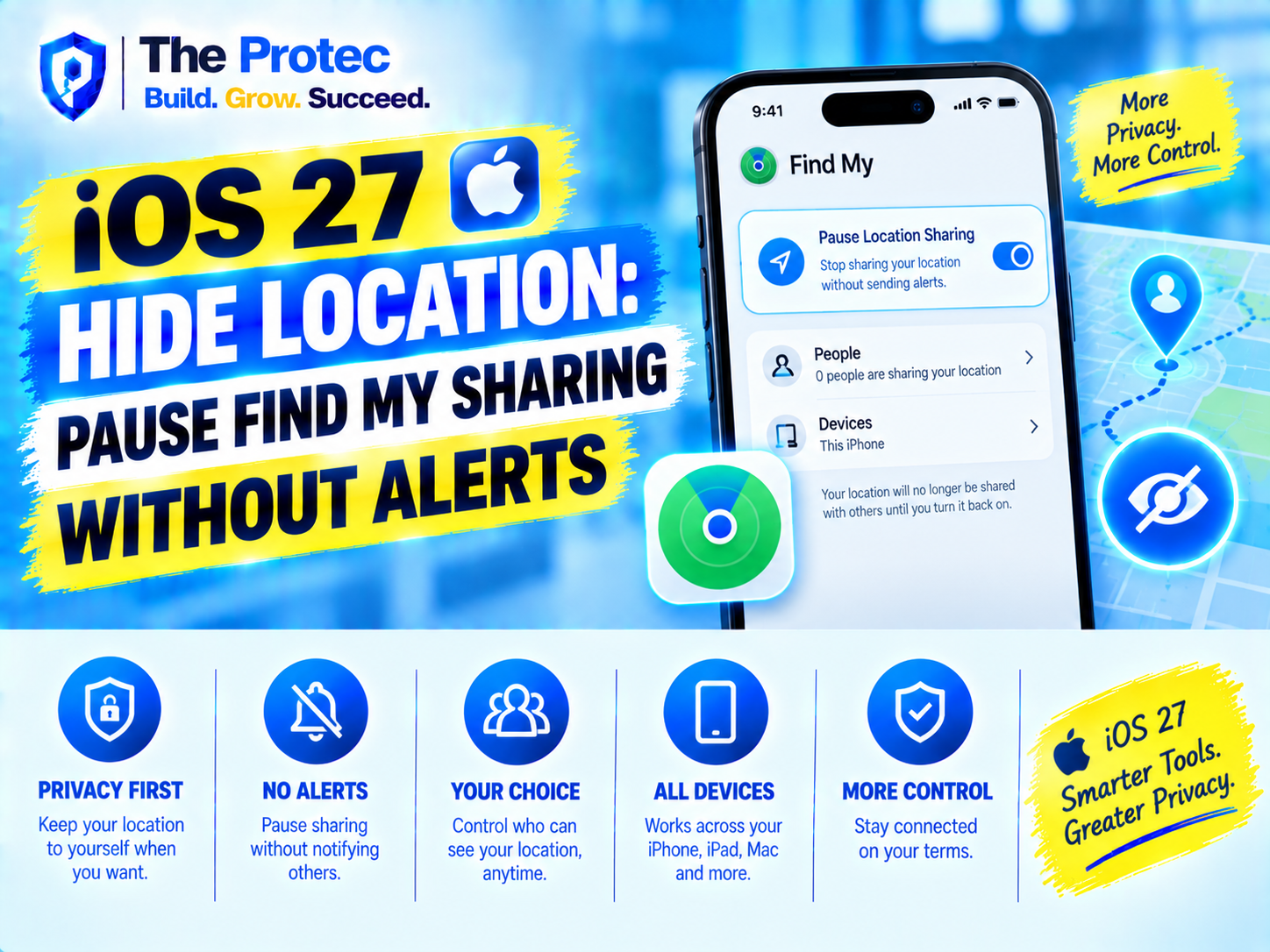
Location sharing can be useful when meeting friends, coordinating with family, or letting someone know that you arrived safely. It can also feel overly revealing when you simply need a little privacy. Apple iOS 27 is addressing that tension with an important addition to Find My: the ability to temporarily hide your location from a specific person without sending that person a notification.
The iOS 27 Hide Location feature gives iPhone users a middle ground between sharing continuously and ending a location-sharing relationship altogether. Instead of using the older Stop Sharing My Location option, you can pause access for a selected period and allow sharing to resume later. The other person is not sent a push notification or message announcing the change, although they may still notice that your location is unavailable if they actively check Find My.
Here is how iOS 27 location sharing works, where to find the new control, how long the pause lasts, and what it does—and does not—mean for iPhone location privacy.
What Is Hide Location in iOS 27 Find My?
Hide Location is a person-specific privacy control inside the People section of Find My. It temporarily prevents one selected contact from viewing your current location while preserving the existing sharing connection. When the selected period ends, or when you manually resume sharing, that person can see your location again without requiring a new invitation.
This is different from switching off Location Services for the entire iPhone. It also does not disable Find My device tracking, affect every person with whom you share, or create a false location. The feature is designed as a targeted pause for one sharing relationship.
Apple’s documented Find My functionality remains the best reference because menu labels and availability can change with regional settings or iOS 27 point releases. The company explains its location-sharing controls in the official iPhone User Guide.
How to Hide Your Location From One Person
On an iPhone running iOS 27, the control is available from the contact’s card in Find My. To pause location sharing:
- Open the Find My app.
- Select the People tab at the bottom of the screen.
- Tap the person from whom you want to hide your location.
- Scroll through the person’s location-sharing options.
- Tap Hide Location.
- Choose the available duration and confirm the pause.
The change applies to that person rather than to everyone in your Find My network. If you share your location with several family members or friends, the remaining contacts continue to receive your location unless you pause or stop sharing with them separately.
To restore access early, return to the same contact card and select the option to resume location sharing. Because Hide Location keeps the sharing relationship intact, there is no need to send another request or wait for the other person to accept it.
How Long Does iOS 27 Hide Your Location?
iOS 27 presents duration choices when you activate Hide Location. These include a short timed pause, an end-of-day option, and a pause that remains active until you manually resume sharing. The exact wording shown on an iPhone can vary by software version, but the confirmation sheet tells you when automatic sharing will return.
A timed pause ends automatically. If you choose the manual option, the location remains hidden until you go back into Find My and turn sharing on again. Restarting the iPhone does not necessarily cancel the pause, so users should not assume that rebooting restores access.
Before confirming, read the selected expiration time carefully. That is especially important when location sharing is part of a travel, caregiving, or personal-safety arrangement.
What Does the Other Person See?
Apple does not send the selected person a dedicated alert saying that you used Hide Location. There is no push notification announcing the pause and no automatic request for that person to approve it.
However, “without alerting anyone” does not mean that the pause is impossible to detect. If the person opens Find My, Messages, or another Apple interface that normally displays your shared location, they may see that your location is unavailable or cannot currently be updated. The presentation can depend on their operating system and device.
Hide Location does not place your pin at a fake address. It also does not intentionally show a fabricated journey. A previously loaded position may remain visible briefly with an older timestamp because of caching or network delays, but it should not be interpreted as a live location.
The practical distinction is important: iOS 27 avoids proactively announcing the change, but it does not promise that another person will never realize sharing has been paused.
Hide Location vs. Stop Sharing My Location
The older Stop Sharing My Location command is intended to end location access for a person. Once stopped, the contact can no longer see your live position, and restoring the arrangement generally requires you to share again. Depending on the devices and operating systems involved, the end of sharing may also be apparent in Find My or a Messages conversation.
Hide Location is designed for a temporary boundary. It retains the underlying sharing relationship while suspending access. Timed sharing can resume automatically, and a manual pause can be reversed without creating a new sharing invitation.
- Hide Location pauses access while keeping the contact connected.
- Stop Sharing My Location ends that person’s access until sharing is established again.
- Turn off Share My Location is a broader setting that can affect everyone.
- Turn off Location Services affects apps and system functions beyond Find My.
For someone who needs privacy during a surprise event, confidential appointment, gift-shopping trip, or short personal break, Hide Location is less disruptive than terminating the sharing relationship.
Why Apple Added More Flexible Location Controls
Apple location sharing has evolved from an occasional convenience into an always-on social feature for many users. People may start sharing during a trip or emergency and leave it enabled for months. That can create an expectation of continuous visibility even when circumstances change.
With iOS 27 privacy features, Apple is making location consent more adjustable. Sharing does not have to be treated as a permanent all-or-nothing decision. A person can maintain a trusted connection while setting a temporary boundary, much as users can limit an app’s location access without deleting the app.
The change also reduces friction. Previously, an iPhone owner might disable all location sharing, turn off the phone, or use Airplane Mode to gain temporary privacy. Those methods can interfere with navigation, communication, device recovery, and emergency functions. A contact-specific pause is more precise.
Legitimate Reasons to Pause Location Sharing
There are many ordinary reasons to use Find My hide location controls. Someone organizing a surprise party may not want the guest of honor to see the venue. A partner buying a gift may want to conceal a store visit. A user might also want privacy during a medical appointment, counseling session, job interview, religious service, or personal meeting.
Temporary privacy does not automatically suggest dishonesty. Continuous location access can reveal sensitive information about health, beliefs, relationships, work, and daily routines. Giving users a clear pause button recognizes that people can value both trusted sharing and periods of independence.
At the same time, Apple documents how the feature operates; it does not define every possible motive for using it. Claims that Hide Location is specifically designed to enable deception go beyond its technical function. Like other privacy controls, it can be used in different personal contexts.
Privacy and Safety Implications
Hide Location can provide useful breathing room for people who feel over-monitored. Because it works with a specific contact, it may be safer and less disruptive than disabling every location function. It can also help users review whether a person still needs continuous access.
Nevertheless, a silent pause is not a complete safety plan. Someone who regularly monitors Find My may notice an unavailable location and react. People experiencing stalking, coercive control, or domestic abuse should consider whether changing a setting could escalate their situation. Apple offers additional guidance through its Personal Safety User Guide, including Safety Check and Emergency Reset.
Safety Check can help review people, apps, account access, and devices connected to an Apple Account. Emergency Reset provides a faster way to stop sharing broadly when immediate separation is needed. Those tools serve a different purpose from Hide Location, which is a temporary, narrowly targeted control.
Users should also remember that hiding a Find My location does not erase other digital traces. Shared photos, social posts, calendar access, third-party apps, vehicle systems, mobile carrier records, and physical trackers may reveal location independently.
What Hide Location Does Not Change
Pausing Find My location sharing with one person does not automatically prevent Apple or authorized apps from using Location Services. Navigation, weather, camera geotagging, emergency features, and device-finding functions may continue according to their individual permissions.
It also does not remove someone from Family Sharing, block messages, disable cellular service, or prevent calls. If the goal is to audit all access rather than temporarily hide from one contact, review Settings, Privacy & Security, Location Services, Safety Check, connected devices, and third-party app permissions.
Best Practices for iPhone Location Privacy
- Review the People tab in Find My and remove access that is no longer necessary.
- Use Hide Location for a temporary pause and Stop Sharing for a permanent change.
- Check the expiration time so sharing does not resume earlier or later than intended.
- Audit third-party apps with Always location permission.
- Use Safety Check when broader account or personal-security concerns exist.
- Keep iOS updated so the latest privacy controls and security fixes are installed.
Frequently Asked Questions
Does iOS 27 notify someone when I hide my location?
No dedicated notification is sent when you use Hide Location for a selected person. That person may still notice that your position is unavailable if they check Find My or another Apple service that normally displays it.
Can I hide my iPhone location from only one person?
Yes. Open Find My, select People, choose the contact, and use Hide Location. Other contacts continue seeing your position unless their access is changed separately.
Does Hide Location show a fake or frozen location?
No. The feature pauses access rather than spoofing your GPS position. An older cached location may appear temporarily with a previous timestamp, but it is not presented as a newly generated live location.
Will location sharing resume automatically?
It will resume automatically if you select a timed duration. If you choose the option that remains active until resumed, you must return to the person’s Find My card and restore sharing manually.
Is Hide Location the same as turning off Find My?
No. Hide Location limits what one person can see. It does not turn off Find My for your devices, disable Activation Lock, or shut down Location Services across the iPhone.
A More Practical Approach to Location Consent
iOS 27 Hide Location makes Apple location sharing more flexible without pretending that a pause is completely invisible. It gives iPhone owners a way to step back from continuous sharing, retain an existing connection, and resume access without sending a new invitation.
The feature is most useful when its limits are understood. It prevents a selected person from receiving your current Find My location and avoids a proactive alert, but that person can still notice that location data is unavailable. Used thoughtfully, it is a meaningful improvement for temporary privacy, surprise planning, and healthier control over who can see where you are.