







USB4 v2 Explained: Is It Worth Upgrading Your Laptop, SSD, and Docking Station?
USB standards rarely create excitement outside of tech circles, but USB4 v2 is different. It is one of the most significant connectivity updates in years, bringing much higher bandwidth, better support for advanced displays, and a clearer path for high-performance peripherals. If you’ve been waiting for a reason to upgrade your laptop, external SSD, or docking station, USB4 v2 may be it. But like most interface upgrades, the answer depends on what you use today, what you plan to buy next, and whether your workflow can actually take advantage of the extra speed.
This guide breaks down what USB4 v2 really is, how it compares with USB4 vs Thunderbolt 5, where the real-world USB4 speed gains show up, and which devices are worth upgrading first. If you create content, move large files, use multiple high-resolution displays, or work from a single-cable dock, this is the upgrade to understand before you spend money.
What Is USB4 v2?
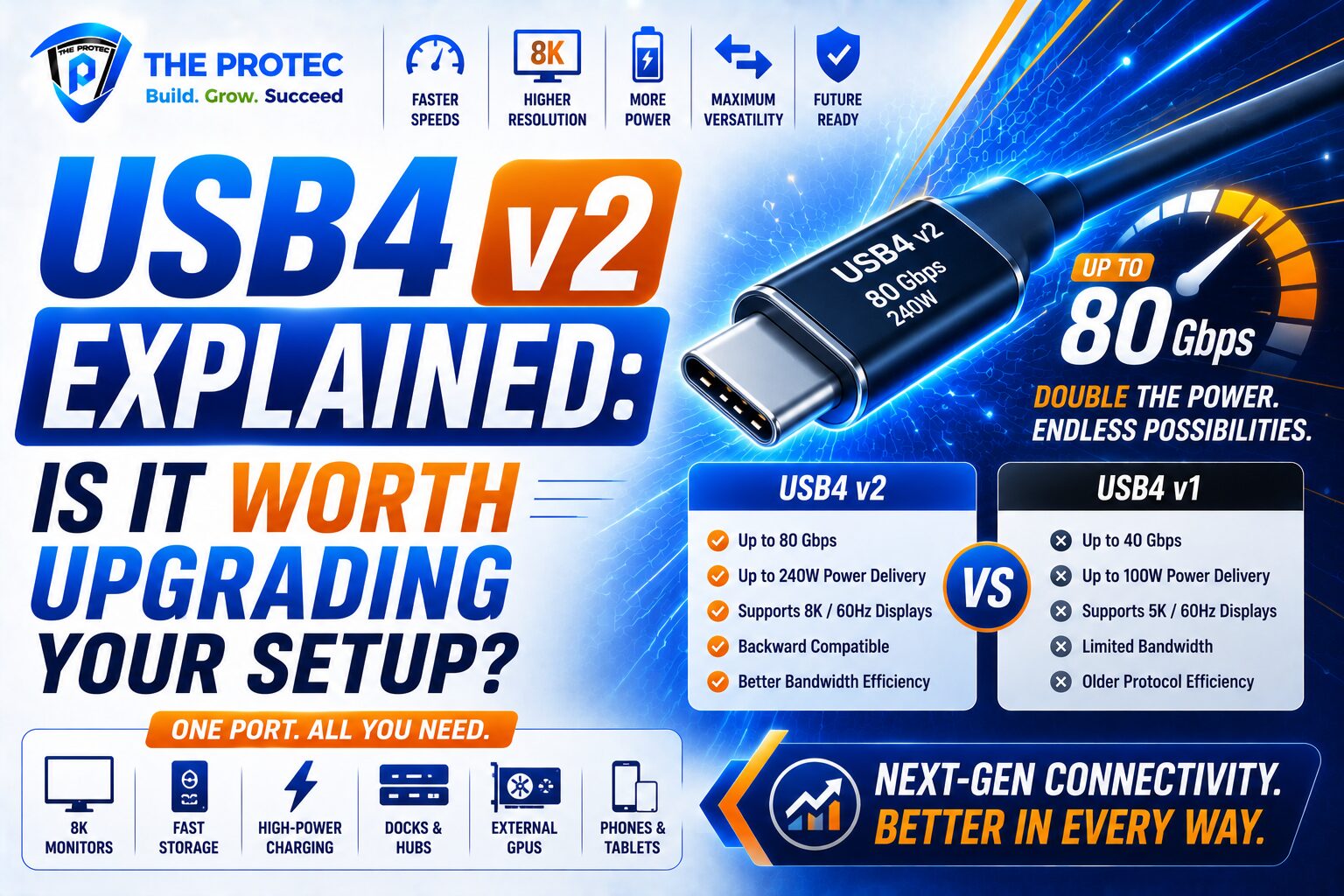
USB4 v2 is the latest major revision of the USB4 specification. The biggest headline is bandwidth: it introduces support for up to 80Gbps in both directions and, in certain asymmetric modes, even higher effective downstream throughput for display and data scenarios. In practical terms, that means more room for fast storage, high-resolution monitors, and demanding accessory chains without the bottlenecks that affected earlier USB-C ecosystems.
USB4 v2 still uses the USB-C connector, which is good news because it keeps the physical port familiar while improving what the port can do. That said, the presence of USB-C does not guarantee USB4 v2 performance. As always, the port, cable, controller, and connected device all need to support the same high-speed mode for you to see the benefit.
The standard is also designed to improve protocol tunneling and efficiency. That matters because USB4 is not just about raw transfer rate. It is about how data, video, and peripheral traffic are managed through a single connection. For users who rely on docks, external displays, fast SSDs, and network adapters, the added headroom can translate into a noticeably smoother setup.
USB4 Speed: What Changes in Real Use?
The phrase USB4 speed can be misleading if you only look at the theoretical maximum. Real-world performance depends on the type of device attached, the cable quality, the controller design, and whether traffic is competing with display output. Still, the jump from previous USB4 generations is meaningful.
Earlier USB4 implementations commonly topped out at 40Gbps. That was already fast enough for many users, but it could become crowded when you combined a fast external SSD with one or more high-resolution monitors and a dock full of accessories. USB4 v2 raises the ceiling, which gives manufacturers more flexibility and users more breathing room.
Where this matters most:
- External SSDs: Fast NVMe enclosures can sustain higher sequential transfer rates, especially for large media files and backups.
- Docking stations: More bandwidth helps reduce compromises when connecting displays, Ethernet, audio, and storage through one hub.
- High-resolution monitors: USB4 v2 is better positioned for multiple 4K displays or very high-refresh-rate panels, depending on the implementation.
- Professional workflows: Video editing, 3D work, and large dataset transfers benefit from reduced congestion and higher throughput.
It is important to keep expectations realistic. USB4 v2 does not magically turn every accessory into a speed demon. A basic external hard drive will still be limited by its own mechanics, and a budget dock will not suddenly rival a premium workstation-class solution. The biggest gains come when the entire chain is designed for the new standard.
USB4 v2 vs Thunderbolt 5: What’s the Difference?
One of the most searched questions right now is USB4 vs Thunderbolt 5. That makes sense because both standards are closely related in capability, both use USB-C, and both are aimed at high-performance laptops and accessories. But they are not identical, and the differences matter depending on the ecosystem you buy into.
Thunderbolt 5 pushes the envelope with very high bandwidth and strong display support, and it tends to be tightly integrated into premium laptops and docks. USB4 v2 aims to bring many of those benefits into the broader USB ecosystem, which is crucial because USB devices are far more common and more widely adopted across brands and price points.
Here is the practical way to think about it:
- Thunderbolt 5 is often the more tightly controlled premium option, especially on top-tier laptops and professional docks.
- USB4 v2 is the broader standard that can deliver similar high-end connectivity in a more open ecosystem.
- Compatibility matters more than branding alone. A fast port still needs a fast device, a certified cable, and the right controller support.
For buyers, the best choice is not always the fastest spec on paper. It is the one that matches your laptop, your dock, and your peripherals without forcing unnecessary adapters or compromises. If your workflow already depends on Thunderbolt accessories, Thunderbolt 5 may be the smoother route. If you want wider USB-C compatibility with next-generation performance, USB4 v2 is extremely compelling.
For a current technical overview of the USB4 ecosystem, the USB Implementers Forum provides useful background: USB4 on usb.org.
Should You Upgrade Your Laptop?
Upgrading your laptop just for USB4 v2 is only worth it if your current machine is already limiting your workflow. For many users, the answer is no. If you primarily browse, stream, attend meetings, and do light productivity work, a faster port will not change your daily experience much.
However, if you regularly do any of the following, a USB4 v2 laptop can make sense:
- Move huge video, photo, or project files between internal and external storage
- Run multiple external displays from one cable
- Use a dock as your main desk connection
- Work with external capture devices or fast network adapters
- Need a more future-proof system for the next several years
The bigger question is whether your laptop is otherwise due for replacement. If you are already shopping for a new model, choosing one with USB4 v2 support is a smart move because it extends the useful life of the machine and reduces the chance you’ll outgrow the port before the laptop itself.
One caution: not every laptop that has a USB-C port supports USB4 v2, and some may support older USB4 or only certain high-speed features. Always check the exact port specification rather than assuming that USB-C equals next-generation speed.
Should You Upgrade Your SSD?
Among all accessories, external SSDs are the clearest beneficiary of USB4 v2. Storage is where bandwidth improvements are easiest to feel. If you work with large media files, game libraries, VM images, or backup sets, a faster enclosure and a faster port can reduce waiting time in a very real way.
That said, the SSD upgrade decision depends on the drive itself. If your external storage is based on a slower SATA drive or an older enclosure, simply moving to a USB4 v2 port will not unlock dramatic gains. You need a drive and enclosure that can actually exceed older interface limits. In other words, the bottleneck must be the connection, not the storage media.
USB4 v2 is especially attractive for:
- NVMe-based portable SSDs
- High-speed scratch disks for editing workflows
- Fast backup drives for large datasets
- Pro users who offload heavy assets between machines
If you already own a good NVMe external SSD, upgrading to a USB4 v2-capable host can improve peak transfers and reduce contention when other devices are connected. If you are buying new, pairing a USB4 v2 enclosure with a quality NVMe drive is one of the most future-proof portable storage setups available.
The best results come from a balanced configuration: a capable SSD, a well-designed enclosure, a certified high-speed cable, and a host device with full USB4 v2 support. Remove any one of those elements and the speed advantage may shrink quickly.
Should You Upgrade Your Docking Station?
Docking stations are where USB4 v2 can have the most visible impact in everyday use. Many people want a dock because they want simplicity: one cable to charge the laptop, drive one or more monitors, connect peripherals, and keep storage and networking active. The challenge is that older docks sometimes run out of bandwidth when multiple high-demand devices are attached.
USB4 v2 gives dock makers more room to design robust single-cable stations that are less likely to bottleneck under pressure. This is especially useful for people who combine:
- Dual monitors
- Fast external storage
- Ethernet
- Audio interfaces
- Webcams and capture devices
If your current dock already does everything you need without display drops, random disconnects, or slow file transfers, you may not need to replace it immediately. But if you have ever had to choose between display quality and storage performance, or if your dock feels overloaded, USB4 v2 is worth a closer look.
For professionals and power users, the right dock can improve desk ergonomics as much as it improves speed. A stable USB4 v2 dock reduces cable clutter and can make it easier to move between home and office setups without unplugging a dozen accessories every day.
Compatibility: What You Need to Know Before Buying
Compatibility is the most common source of confusion with any new USB standard. The key rule is simple: the system performs only as well as its weakest link. A USB4 v2 laptop connected to an older cable or a budget dock may not deliver the full experience. Likewise, a premium dock attached to an older host may fall back to lower speeds or reduced display support.
Before buying, check these details carefully:
- Host support: Your laptop must explicitly support USB4 v2, not just USB-C or older USB4.
- Device support: The dock or SSD enclosure should also be designed for USB4 v2 or another compatible high-speed mode.
- Cable rating: Use a cable certified for the data and video mode you want.
- Display needs: Verify the dock can handle your monitor setup at the refresh rate and resolution you expect.
Mixed-generation setups can still work well, but speed and features often scale down to the lowest common denominator. That does not make USB4 v2 useless; it just means the upgrade value is strongest when you refresh the whole path, not just one component.
Who Should Upgrade Now, and Who Can Wait?
Not everyone needs USB4 v2 right away. For many people, waiting is the smarter decision because prices will continue to normalize and more devices will support the standard over time. But some users will immediately benefit.
Upgrade now if you are:
- A video editor handling large source and cache files
- A photographer moving massive image libraries
- A developer or engineer working with large builds or virtual machines
- A remote worker who depends on a single powerful dock
- A user planning a full laptop refresh anyway
Wait if you are:
- Using your laptop mainly for browsing and office tasks
- Happy with your current dock and storage speeds
- Not ready to replace both the host and accessories
- Buying a device where USB4 v2 support is unclear or limited
In short, USB4 v2 is a strong upgrade for people who already push their devices hard. For everyone else, it is best viewed as a future-proofing feature rather than a must-have purchase.
USB4 v2 Buying Tips
If you are planning to upgrade, focus on the whole setup instead of the spec sheet alone. A well-matched system will outperform a mismatched collection of expensive parts.
- Prioritize a laptop with explicit USB4 v2 support if you want the most visible gains.
- Choose an SSD enclosure that matches the performance class of your NVMe drive.
- Buy a dock that clearly lists display support, charging wattage, and bandwidth capabilities.
- Use certified cables from reputable brands.
- Check firmware and driver support from the manufacturer if your workflow is mission-critical.
These choices matter because many performance issues blamed on USB are actually caused by mismatched accessories, weak cables, or incomplete implementation. The best USB4 v2 experience comes from a carefully planned chain, not just one impressive number on a spec sheet.
FAQ: USB4 v2, Speed, and Upgrade Value
Is USB4 v2 backward compatible?
Yes. USB4 v2 is designed to work with earlier USB-C and USB4 devices, but performance will fall back to the capabilities of the connected hardware and cable.
Will USB4 v2 make my external SSD much faster?
It can, but only if the SSD, enclosure, host, and cable all support the higher bandwidth. Fast NVMe-based drives benefit the most.
USB4 vs Thunderbolt 5: which should I buy?
Choose based on your ecosystem. Thunderbolt 5 is often best in premium, tightly integrated setups, while USB4 v2 offers broad compatibility and strong next-gen performance across more devices.
Do I need USB4 v2 for dual 4K monitors?
Not always, but it helps. Dual high-resolution displays can consume significant bandwidth, so USB4 v2 gives docks and laptops more room to handle display traffic cleanly.
Is it worth buying a USB4 v2 dock now?
If you use a dock every day and need high-speed storage, multiple displays, or a cleaner single-cable desk setup, yes. If your current dock works well, you can wait until more devices and better prices arrive.
Final Verdict: Is USB4 v2 Worth It?
USB4 v2 is not a gimmick. It is a meaningful step forward that makes the USB-C ecosystem more capable for demanding users. The biggest gains show up in real workflows: faster file transfers, stronger dock performance, better multi-display support, and a more future-ready laptop port. If you are a professional creator, power user, or someone building a high-performance desk setup, the upgrade can absolutely be worth it.
But if your current laptop, SSD, and dock already meet your needs, there is no urgent reason to replace everything at once. The smartest move is to upgrade when the whole chain can benefit. That means checking compatibility, choosing certified accessories, and buying devices that truly support the standard rather than simply advertising a USB-C port.
For buyers who want the fastest practical USB4 speed and a cleaner path into the next generation of peripherals, USB4 v2 is one of the most important connectivity upgrades to watch. The standard is here, the ecosystem is growing, and the right setup can make your laptop feel noticeably more capable.
For more technical background, you can also review the official USB-IF specification resources at usb.org documents.