








A phone that barely reaches dinner can be frustrating, but improving it requires understanding two different goals. Learning how to make your phone battery last longer can mean extending today’s runtime or slowing the permanent capacity loss that happens over several years. Screen and app settings mostly address daily battery life, while temperature and charging habits have a greater influence on long-term smartphone battery health.
Fortunately, lithium-ion batteries do not need complicated rituals. The most useful habits are straightforward: avoid excessive heat, use built-in charging protections, choose partial charging when practical, and stop treating every charge as an emergency. Modern phones manage much of the process automatically, so there is no need to obsess over an exact percentage.
Battery life and battery lifespan are not the same
Battery life is how long your phone operates between charges. Brightness, cellular signal quality, gaming, navigation, background apps, and refresh rate can all change it dramatically from one day to the next.
Battery lifespan, also called battery health, describes how well the battery retains its original capacity as it ages. A degraded battery stores less energy, so a phone that once lasted all day may need an afternoon charge even when your usage has not changed. Software settings can stretch the remaining charge, but they cannot restore capacity lost through battery degradation.
Replacing the battery is the practical way to restore capacity when its condition has declined significantly. Before reaching that point, sensible phone charging habits can reduce avoidable stress.
How lithium-ion batteries age
A lithium-ion battery gradually ages through several overlapping processes:
- Charge-cycle aging: A cycle represents cumulative use equal to 100% of capacity, not necessarily one trip from 100% to 0%. Using 40% today and 60% tomorrow adds up to roughly one cycle.
- Calendar aging: Chemical changes continue with time even when a phone is used lightly. Storage at high temperatures or a very high state of charge can accelerate them.
- Heat: High temperature speeds unwanted chemical reactions. Heat during charging, gaming, navigation, or direct sun exposure is one of the most important controllable risks.
- Charging conditions: Repeatedly remaining at very high charge levels or draining deeply can add stress, although the phone’s battery-management system limits dangerous extremes.
No habit prevents aging entirely, and a particular charging percentage cannot guarantee a certain lithium-ion battery lifespan. The goal is to reduce unnecessary stress without making the phone inconvenient to use.
How to make your phone battery last longer with better charging habits
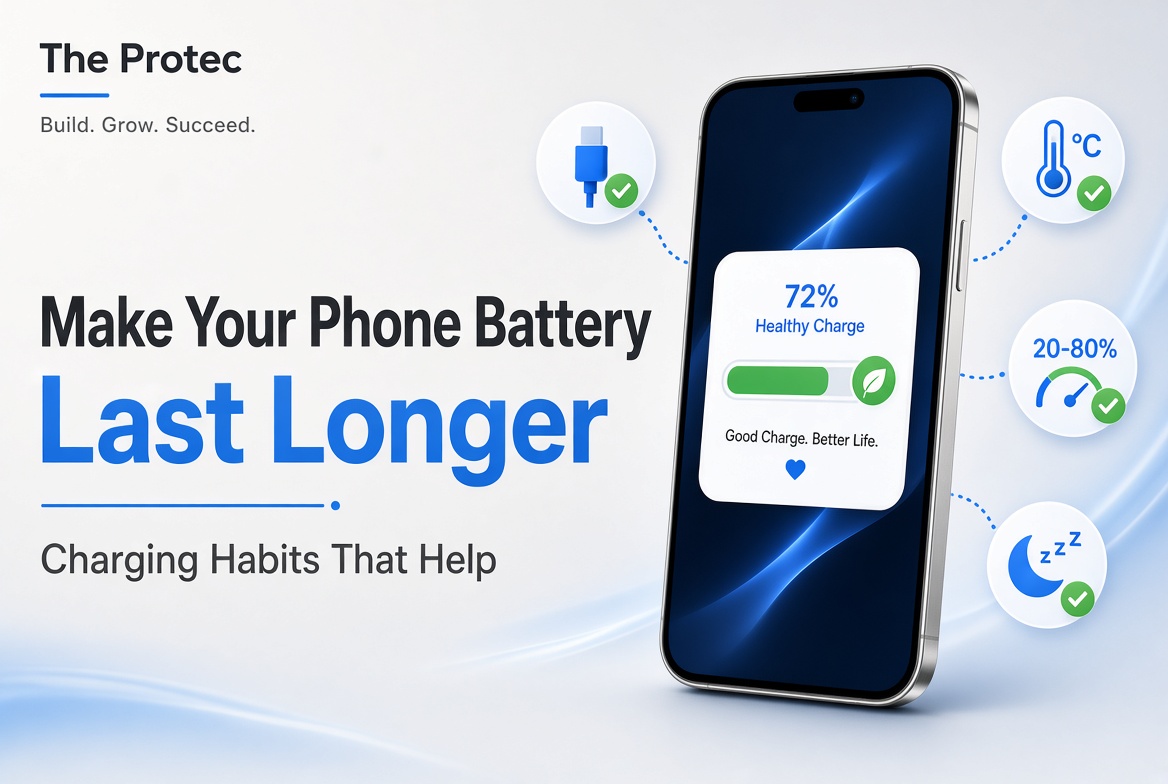
Keep the phone cool
Avoid charging on a hot dashboard, beneath bedding, or in direct sunlight. If the phone becomes unusually warm while charging, pause demanding activities such as gaming, video editing, or hotspot use. A thick case can retain heat on some devices; removing it temporarily may help if the manufacturer recommends doing so.
Use the phone in a ventilated area and never try to cool it rapidly in a refrigerator or freezer. Condensation and extreme temperature changes can cause additional damage. If the device displays a temperature warning, disconnect it when safe and let it return to a normal temperature naturally.
Enable optimized or adaptive charging
Optimized battery charging learns routines or adjusts charging behavior to reduce the time a phone remains completely full. Depending on the model, it may delay charging beyond approximately 80% until closer to when the phone is expected to be unplugged.
Leave this feature enabled unless it regularly conflicts with an unpredictable schedule. Because learning-based features depend on routines, location, alarms, or usage patterns, they may not activate every night.
Use an 80% charge limit when it suits your day
Many recent phones offer a charge limit, often around 80%, under names such as Charge Limit, Battery Protection, or Charging Optimization. Spending less time near full charge can reduce long-term stress, especially for a phone that remains connected to power for hours.
An 80% limit is optional, not a universal rule. Charge to 100% before travel, emergencies, or a demanding day if you need the runtime. Consistently avoiding heat matters more than hitting a perfect number.
Avoid repeatedly draining the battery to 0%
You do not need to wait for an empty battery before plugging in. Frequent partial charging is generally acceptable for lithium-ion batteries, and topping up from 45% to 70% does not create the harmful “memory effect” associated with much older battery chemistries.
An occasional low charge is not a crisis, but repeated deep discharges can add wear and leave you vulnerable to unexpected shutdowns. Recharge when convenient rather than deliberately forcing the percentage to zero.
Use compatible chargers and cables
Choose the phone maker’s charger or a reputable accessory that supports the required USB-C Power Delivery, wireless charging, or proprietary charging standard. A higher-rated adapter does not normally force excessive power into a properly designed phone; the devices negotiate supported power levels. Poorly made or damaged accessories, however, may charge unreliably, overheat, or lack appropriate safeguards.
Replace cables with loose connectors, exposed wiring, scorching, or persistent overheating. Also inspect the charging port for debris, but do not insert metal objects into it.
Does overnight charging damage a phone battery?
Overnight charging does not automatically ruin a modern battery. Phones monitor voltage, current, and temperature, then reduce or stop active charging when appropriate. They may occasionally top up the battery while connected rather than continuously forcing power into it.
The nuance is that heat and extended time at a high state of charge can contribute to aging. Use optimized battery charging, keep the phone uncovered on a stable surface, and consider a charge limit if you do not need maximum morning capacity. Do not place a charging phone under a pillow, where heat can become trapped.
Fast charging effects: useful, but temperature matters
Fast charging is designed to work within the limits supported by the phone and its battery-management system. Charging speeds commonly taper as the battery fills or temperature rises. Used with a compatible charger under normal conditions, fast charging is a legitimate feature rather than something owners must always avoid.
However, faster charging can generate more heat, and the effect on battery aging depends on the device design, ambient temperature, battery condition, charger, and what the phone is doing. Use fast charging when its convenience matters. If the device is already hot or will remain plugged in for hours, a slower compatible charger may reduce heat, but it is not mandatory for every charge.
Find battery health and charging tools on iPhone
On an iPhone, open Settings > Battery to review battery usage by app and activity. Battery health controls are generally under Settings > Battery > Battery Health & Charging or a similarly named menu. Compatible models may provide Optimized Battery Charging and a selectable Charge Limit.
Apple explains that optimized charging reduces the time an iPhone spends fully charged and that feature availability can depend on the model and software version. Consult Apple’s official Optimized Battery Charging guidance for current device-specific instructions.
Maximum Capacity is an estimate of capacity relative to when the battery was new. A service recommendation, noticeably reduced runtime, or degraded peak-performance capability may justify professional evaluation. Menu wording and available limits vary among iPhone models and iOS versions.
Find battery and charging settings on Android
Android menus differ considerably by manufacturer and operating-system version. Start with Settings > Battery, then look for Battery Usage, Battery Saver, Adaptive Charging, Charging Optimization, Battery Protection, or a charge-limit option. The Settings search box is often the quickest route.
Pixel phones and devices from Samsung and other manufacturers may use different names and may not offer identical controls. Some adaptive features learn when you normally unplug; others apply a fixed limit or adjust charging according to battery condition. Google’s official Android battery-saving guidance covers core runtime controls, while your phone manufacturer’s support documentation should be used for model-specific charging features.
Battery-health estimates are not displayed on every Android model. If the operating system does not provide one, avoid relying on an unverified app as a definitive capacity test. A manufacturer or authorized technician can perform a more reliable diagnostic.
Settings that improve daily Android and iPhone battery life
These adjustments primarily extend runtime; they do not repair a chemically degraded battery.
- Check battery usage: Review which apps consumed the most power over the last day or several days. High usage may be legitimate for maps or games, but an unfamiliar app running heavily in the background deserves attention.
- Limit background activity: Disable unnecessary background refresh, unrestricted battery access, automatic uploads, or frequent syncing. Avoid aggressively restricting messaging, navigation, health, or security apps you depend on.
- Review location access: Set nonessential apps to use location only while in use. Turn off precise location where an approximate position is sufficient.
- Manage the display: Reduce brightness, shorten the screen timeout, and use automatic brightness. Lowering a 120Hz refresh rate can save power when maximum smoothness is unnecessary.
- Prefer efficient connections: Stable Wi-Fi often uses less energy than struggling with a weak cellular signal. In a no-service area, Airplane Mode can prevent repeated network searches if you do not need connectivity.
- Use power-saving modes: Low Power Mode on iPhone and Battery Saver on Android reduce selected background processes and performance. They are useful during long days or when the charge is low.
Troubleshooting drain, shutdowns, and overheating
For sudden battery drain, restart the phone, install stable operating-system and app updates, and inspect battery-usage charts. Recent setup, photo syncing, file indexing, navigation, weak signal, or a newly updated app can temporarily raise consumption. Remove or restrict an app only when the usage report supports that conclusion.
Unexpected shutdowns at 10% or 20%, sharp percentage jumps, very short runtime, slow charging, or repeated overheating can indicate battery deterioration or another hardware problem. Back up important data and arrange a professional diagnostic if basic troubleshooting does not help.
Stop using and charging the phone if the battery swells, the display lifts, the casing separates, there is a chemical smell, or the device becomes dangerously hot. Do not puncture or press a swollen battery. Contact the manufacturer, an authorized repair provider, or an appropriate battery-recycling service.
Frequently asked questions
Is charging a phone several times a day bad?
No. Partial charging is generally suitable for lithium-ion batteries. Total energy throughput, temperature, time, and charging conditions matter more than the number of times you connect the cable.
Should I always stop charging at 80%?
No. An 80% limit can reduce time spent at high charge, but it is a convenience trade-off. Use it when 80% comfortably covers your day and charge higher whenever you need additional runtime.
Can battery-saving settings restore battery health?
No. They reduce current power use and may make a charge last longer, but they cannot reverse chemical aging or restore lost capacity. A worn battery must eventually be replaced to regain capacity.
Is wireless charging worse for battery health?
Wireless charging is supported by many modern phones, but inefficient alignment can create extra heat. Use a reputable compatible pad, align the phone correctly, and move it to a cooler environment if it becomes unusually warm.
A practical approach to healthier charging
The simplest answer to how to make your phone battery last longer is to separate daily runtime from long-term health. Control apps, connectivity, and the display for more hours today; manage heat, deep discharges, and time at full charge to reduce avoidable aging. Use optimized charging and charge limits when convenient, but let your phone serve your schedule rather than turning battery care into a rigid ritual.