





Testing a WordPress idea traditionally means starting a local environment, selecting a PHP version, configuring a database, installing WordPress, and resolving setup problems before writing useful code. The WordPress Playground Terminal removes much of that initial friction: it provides command-line access to a disposable WordPress installation running inside the browser, where you can execute supported PHP and WP-CLI commands without installing a conventional server stack.
That does not turn a browser tab into an unrestricted Linux server. Playground uses PHP compiled to WebAssembly, a browser-managed virtual filesystem, and a database integration designed for this environment. Its Terminal is an interface to that contained runtime—not a shell connected to your computer, hosting account, or production server.
What Is WordPress Playground?
WordPress Playground is an official WordPress project that runs a working WordPress site in modern browsers. PHP executes through WebAssembly, while site files and database state are held in browser-accessible storage. This makes browser-based WordPress development possible without installing PHP, MySQL, Apache, Nginx, Docker, XAMPP, MAMP, or another local stack.
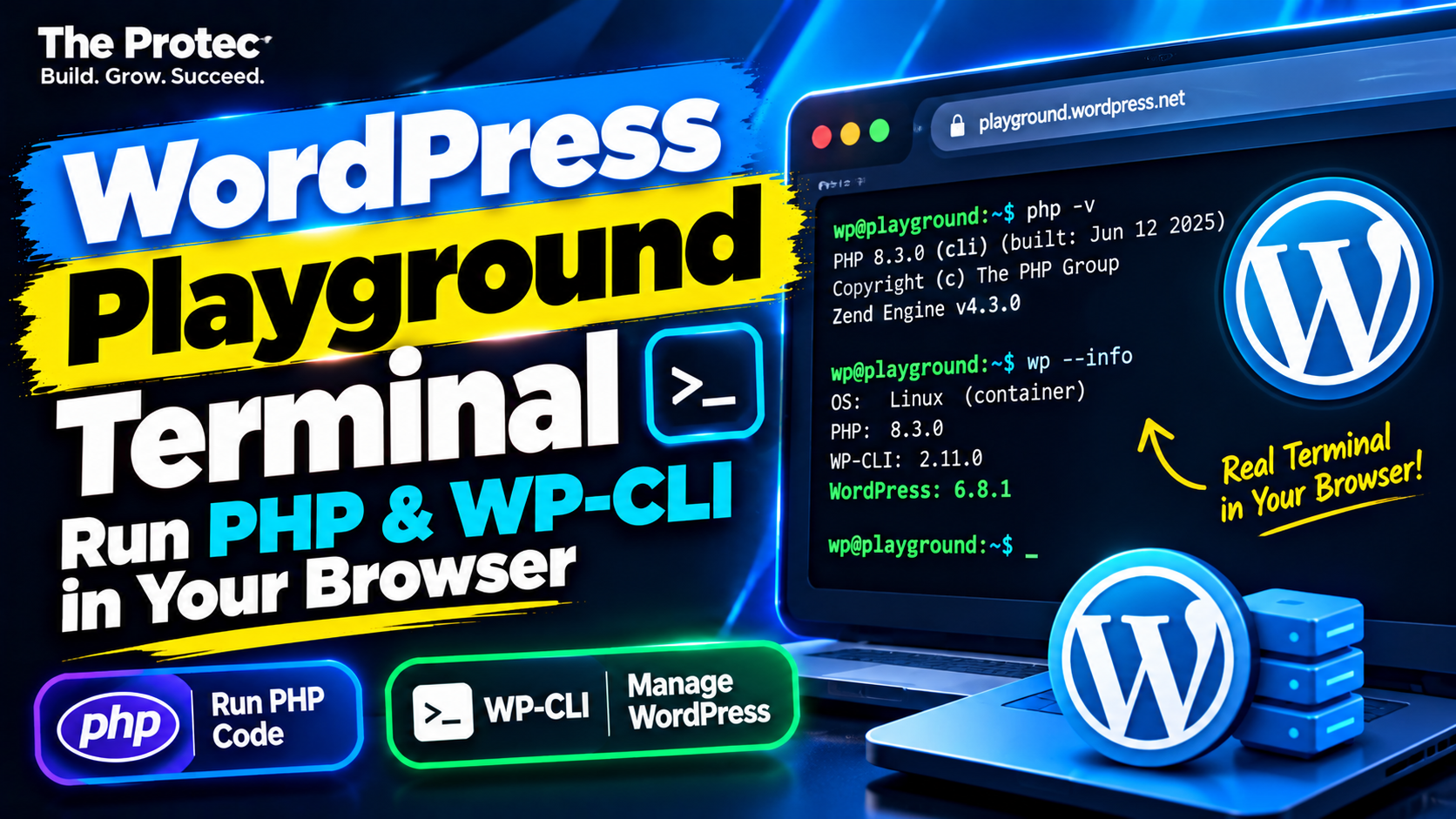
The public Playground interface includes a Terminal panel for interacting with the active site. In the current public experience, the Terminal supports the PHP command-line interface and a browser-compatible WP-CLI implementation. It also exposes limited filesystem and terminal behavior needed by those tools. It should not be treated as a complete Bash environment: operating-system services, unrestricted networking, privileged commands, and arbitrary native executables are outside its normal scope.
No WordPress.org account is required for a temporary public Playground session. The Terminal control is available from the current Playground toolbar or its tools/overflow menu; its exact icon and placement can change as the interface evolves. Embedded Playground builds and older cached versions may omit the control. The official Playground documentation is the best reference for interface and version changes.
Prerequisites
- A current desktop browser with WebAssembly support.
- JavaScript and browser storage enabled for Playground.
- The public Playground site, or an integration that includes the Terminal UI.
- No local PHP runtime, web server, database server, or WP-CLI installation.
The examples below use commands supported by the public Terminal implementation as of October 2026. Installed WordPress, plugin, theme, PHP, and WP-CLI versions can vary with the selected Playground configuration.
WordPress Playground Terminal: Step-by-Step Setup
- Open the official Playground entry point and wait for WordPress to finish loading.
- Open the Terminal from the toolbar. On compact screens, look in the tools or overflow menu.
- Click inside the prompt and enter
php -vto confirm that the browser-based PHP CLI responds. - Enter
wp core versionto verify that WP-CLI can reach the current WordPress installation. - Before making substantial changes, use Playground’s Save options to preserve the site in browser storage or export it, where offered by the current interface.
If the Terminal option is absent, reload the official site without an old cached build and confirm that you are not using an embed configured to hide development tools. There is no experimental setting or account sign-in required for the Terminal in the current public app, although custom deployments can expose a different feature set.
Run PHP in the Browser
Start with a short PHP expression that has no WordPress dependency:
php -r 'echo 6 * 7, PHP_EOL;'The expected result is 42. The -r option tells the PHP CLI to evaluate the supplied code without opening a file. Do not include PHP opening tags inside the quoted expression.
This command executes inside Playground’s WebAssembly PHP runtime. It does not invoke a PHP installation on your computer, read arbitrary files from your disk, or inherit your operating system’s PHP configuration. Available extensions, filesystem paths, resource limits, and networking behavior are determined by the selected Playground runtime.
You can also run PHP with WordPress loaded through WP-CLI:
wp eval 'echo get_bloginfo("name") . PHP_EOL;'wp eval boots the active WordPress site and evaluates the expression in that context. It should print the current site’s title. This is more appropriate than plain php -r when testing WordPress functions, hooks, options, or APIs.
Useful WordPress Playground WP-CLI Workflows
Check the WordPress installation
wp core is-installed
wp core version
wp core is-installed primarily communicates through its exit status, so a successful command may produce little or no text. wp core version prints the installed WordPress version. The value depends on the Playground build or Blueprint used to create the site.
Inspect commands and installed extensions
wp help
wp plugin list
wp theme list
wp help lists command groups available in that WP-CLI build. The other commands display installed plugins and themes, including status and version information. This is safer than assuming a particular default plugin or theme exists.
Help output can be long. If a command shown in general WP-CLI documentation is absent from wp help, do not assume Playground supports it. Commands supplied by a plugin also appear only after that plugin is installed and loaded.
Read and safely update a test option
wp option get blogdescription
wp option update blogdescription 'Playground terminal test'
wp option get blogdescription
The first command reads the current tagline. The second changes it in the active test site’s database, and the third confirms the stored value. Refresh the site’s front end to see the change if the active theme displays the tagline.
Although this operation is harmless in a disposable site, it demonstrates that WP-CLI is modifying the same WordPress instance displayed in the browser. Commands that delete posts, reset a database, change URLs, or alter configuration deserve more caution. Save or export anything important first.
Investigate a plugin or theme issue
Upload or install the extension through WordPress administration, then inspect its state:
wp plugin list
wp plugin activate my-plugin
wp plugin deactivate my-plugin
Replace my-plugin with the actual slug shown by wp plugin list. For a theme, use wp theme list and wp theme activate theme-slug. Activation can execute extension code, change options, or trigger an error, so use only code you trust and keep the browser console or Playground logs available.
This workflow helps isolate an activation failure: reproduce it on a clean site, check whether the extension is recognized, activate it from WP-CLI, and compare behavior before and after deactivation. Installing a package from the public repository may depend on the current Playground networking configuration, so uploading a known ZIP is often more predictable.
What Can You Do With WordPress Playground Terminal?
- Run rapid PHP experiments: Evaluate syntax, arrays, string handling, dates, and other small expressions without a local PHP installation.
- Test WordPress snippets: Use
wp evalto inspect functions, options, users, posts, and hook behavior in a disposable site. - Inspect configuration: Query the WordPress version, active theme, installed plugins, and non-sensitive option values.
- Try WP-CLI without a local server: Learn command structure and practice safe content or configuration operations.
- Reproduce lightweight bugs: Create a clean site, add one plugin or theme, and test a minimal sequence of actions.
- Test WordPress plugins online: Check recognition, activation, deactivation, and basic configuration behavior before moving to a fuller test matrix.
- Teach WordPress development: Students can explore WordPress internals without spending a lesson configuring operating-system software.
These uses make Playground one of the most approachable WordPress development tools for short experiments and reproducible demonstrations. Plugin testing in Playground is not, however, comprehensive compatibility testing. It cannot by itself validate every PHP version, database engine, web server, permission model, multisite configuration, traffic pattern, security condition, or third-party integration.
Playground vs. Local Development vs. Staging
| Area | Playground Terminal | Conventional local setup | Remote staging |
|---|---|---|---|
| Setup effort | Very low for a temporary site | Requires tools and configuration | Requires hosting and deployment |
| Browser access | Native browser experience | Usually browser plus local tools | Accessible through a remote URL |
| PHP and WP-CLI | Supported within the browser runtime | Broad control over installed tools | Depends on host and SSH access |
| Persistence | Temporary by default; save or export explicitly | Normally persistent on disk | Persistent until reset or redeployed |
| Filesystem access | Sandboxed virtual filesystem | Direct local filesystem access | Remote permissions apply |
| Debugging | Logs and browser tools; environment-dependent | Can support IDEs, Xdebug, and profilers | Production-like logging may be available |
| External integrations | Networking and browser restrictions apply | Usually configurable | Often closest to hosting behavior |
| Performance testing | Not production-representative | Useful but hardware-dependent | Better when infrastructure resembles production |
| Best use | Experiments, learning, demos, bug isolation | Ongoing implementation and automated testing | Integration checks and deployment validation |
Limitations and Persistence
A default Playground is disposable. A page reload, reset, expired browser data, or newly created session can replace the environment, depending on how it was launched. The public interface provides save and export choices that may include persistent browser storage and downloading the site. Browser-saved sites remain tied to that browser profile and can disappear if site data is cleared. An exported package is the safer choice for work that must be archived elsewhere.
Blueprints can define a reproducible starting state—such as WordPress and PHP versions, plugins, themes, and setup steps—but sharing a Blueprint is not necessarily the same as sharing every subsequent database and filesystem change.
The Terminal is not unrestricted Bash or direct operating-system access. Do not assume commands such as sudo, apt, service managers, background daemons, or arbitrary native binaries are available. Basic terminal and virtual-filesystem behavior can change between builds. Use wp help for available WP-CLI commands and test any workflow before documenting it for a team.
PHP extensions and networking are also runtime-dependent. Outbound requests may be affected by Playground’s networking layer, proxies, browser security policies, CORS rules, or the target service. Native Composer workflows, large dependency trees, scheduled workers, email delivery, image-processing edge cases, and complex build pipelines often require a conventional environment.
Resource limits and browser performance make Playground a poor source of production benchmarks. Large imports, memory-intensive plugins, concurrent requests, object caches, queues, cron behavior, and infrastructure-specific failures need testing elsewhere.
Security and a Sensible Workflow
Use disposable test posts, users, media, and API values. Never paste production passwords, private keys, payment credentials, customer records, or confidential database exports into an experimental browser environment. Treat downloaded plugins and scripts with the same caution you would use locally: activation runs their PHP inside the Playground site.
Review exported code and data before committing or deploying them. A snippet that works in Playground can behave differently under another PHP version, extension set, database configuration, filesystem permission model, web server, cache, or external API. After a quick Playground experiment succeeds, validate the change in a controlled local environment and then on staging before production.
Troubleshooting Tips
- Terminal control missing: Use the current official Playground URL, check the overflow menu, and rule out an older embed or cached application build.
wpreports an unknown command: Runwp help. The command may require a plugin, package, or capability not included in that build.- A plugin cannot be downloaded: Networking may be unavailable or restricted. Upload a trusted ZIP through WordPress administration instead.
- Changes disappeared: Temporary sessions are not durable. Select a persistence option or export before resetting, closing, or clearing browser data.
- PHP behaves differently from hosting: Compare PHP versions, enabled extensions, memory limits, database behavior, and filesystem permissions in a local or staging environment.
Final Recommendation
This WordPress Playground tutorial demonstrates why the Terminal is so useful: it shortens the path from an idea to a working PHP or WP-CLI experiment. It is excellent for learning, quick snippet tests, lightweight bug reproduction, extension activation checks, and shareable demonstrations with minimal setup.
Use it as a complementary tool, not a universal replacement for Local, Docker, XAMPP, MAMP, a custom development stack, or remote staging. Projects involving extensive dependencies, production-like infrastructure, external services, advanced debugging, performance analysis, or deployment automation still benefit from environments developers can fully control.
Frequently Asked Questions
Can WP-CLI run in a browser?
Yes. WordPress Playground WP-CLI runs inside Playground’s browser-based PHP environment and operates on the active Playground site. Supported commands work without installing WP-CLI on your computer, but not every command or package designed for a conventional server is guaranteed to work.
Does WordPress Playground require a local server?
No. The public experience runs WordPress and PHP in the browser, so it does not require a traditional local web or database server. Your browser still downloads the application and must provide the required WebAssembly and storage capabilities.
Can I test PHP snippets online?
Yes. Use php -r for standalone expressions or wp eval when the snippet needs WordPress loaded. The code runs in the Playground sandbox rather than directly on your operating system.
Do WordPress Playground changes persist?
Do not assume they do. Temporary sessions can be reset or replaced. Use the current interface’s browser-persistence or export options for work you want to retain, and remember that clearing browser data can remove browser-saved sites.
Can the Terminal replace a full development environment?
Not for every project. It is ideal for fast experiments and education, but local and staging environments provide greater control over server software, databases, dependencies, debugging, background processes, integrations, performance testing, and deployment workflows.