







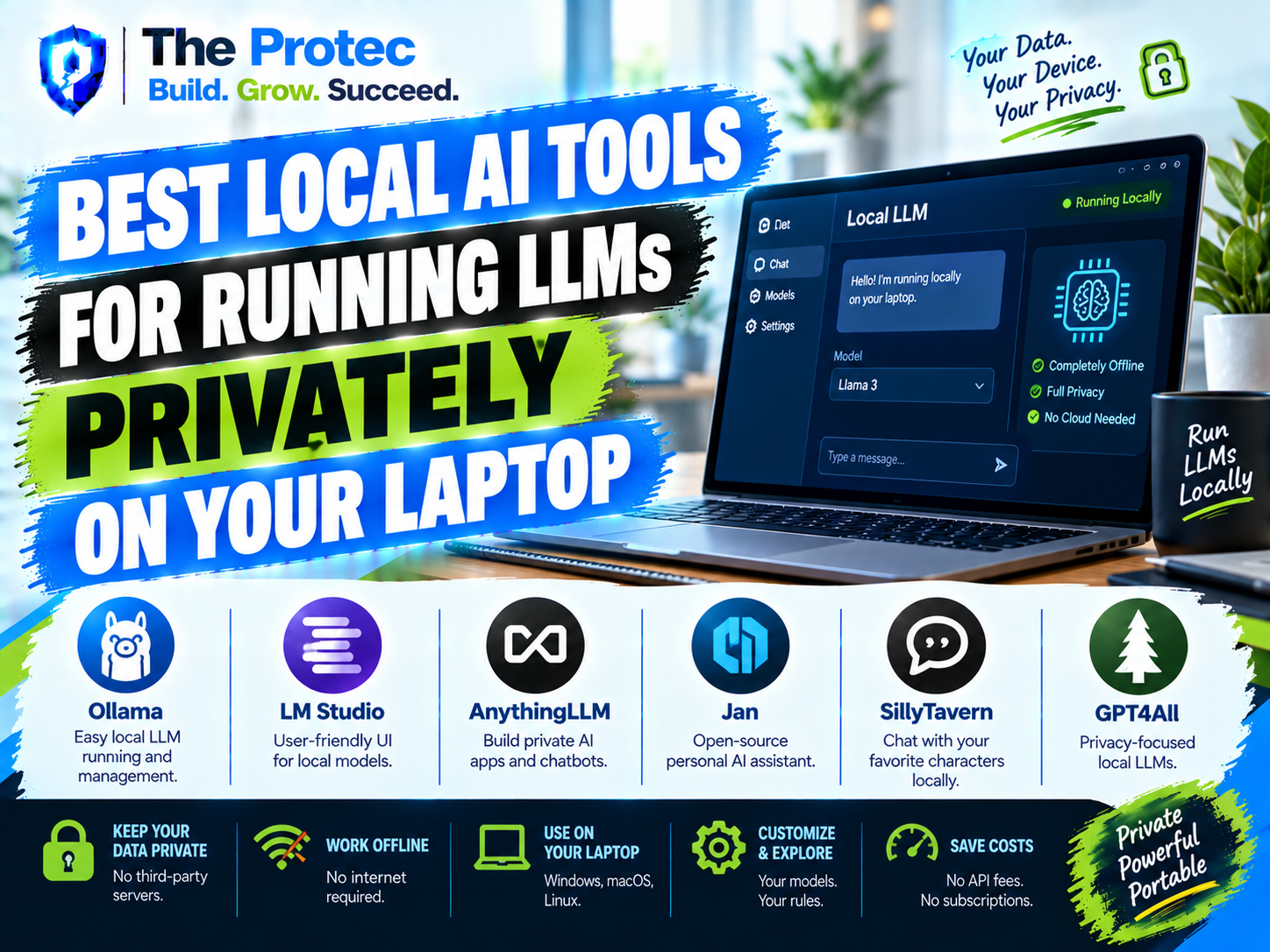
Running a capable AI assistant no longer requires sending every prompt, document, or line of code to a cloud service. The Best Local AI Tools LLM solutions can download and run compact large language models directly on a Windows laptop, MacBook, or Linux machine. Once the model is stored on your device, many tasks work without an internet connection, subscription, or usage-based API bill.
The experience has improved substantially. As of September 2026, applications such as LM Studio, Ollama, Jan, GPT4All, AnythingLLM Desktop, and llamafile make local inference practical for people who do not want to assemble a machine-learning environment manually. Quantized models from families such as Llama, Qwen, Gemma, Phi, Mistral, and DeepSeek can deliver useful writing, coding, research, and document-analysis capabilities on consumer hardware.
However, the best tool depends on more than model quality. Setup difficulty, memory, accelerator support, privacy controls, model compatibility, and interface design all affect the result. This guide compares the best local LLM tools and explains how to run AI locally on a laptop without choosing software that overwhelms your hardware.
What to Look for in the Best Local LLM Tools
A local AI application is usually a front end, an inference engine, or a combination of both. The front end provides chat, model management, document import, and settings. The inference engine performs the calculations needed to generate an answer. Tools built around llama.cpp commonly use compact GGUF model files, while other applications may support Apple MLX, ONNX, CUDA, Vulkan, or platform-specific acceleration.
Five factors matter most when comparing offline AI tools:
- Setup difficulty: A desktop app with an integrated model catalog is easier than a command-line runtime that requires separate configuration.
- Hardware requirements: Model size, quantization, context length, and available RAM or VRAM determine whether inference feels responsive.
- Privacy: The application should perform inference locally and clearly disclose any optional online features, telemetry, or external integrations.
- Model support: Broad support makes it easier to test new open-weight models rather than remain tied to one vendor.
- Performance: Efficient GPU, NPU, or unified-memory utilization can make the difference between a smooth conversation and a frustrating wait.
Local does not automatically mean private in every situation. A model can run on-device while optional search, API connectors, extensions, or update checks still access the internet. Review the settings and use an operating-system firewall if a workflow requires strict network isolation.
LM Studio: Best Overall Desktop Experience
LM Studio is one of the most approachable ways to run AI locally on a laptop. It combines model discovery, downloads, chat, hardware configuration, and a local API server in a polished desktop interface. Users can search compatible model repositories, compare quantization options, and load a model without learning command-line syntax.
Its major advantage is balance. Beginners receive a guided graphical experience, while developers can expose an OpenAI-compatible local endpoint for applications and experiments. Support for common GGUF models is strong, and available runtimes can take advantage of Apple silicon, NVIDIA GPUs, and supported Windows or Linux acceleration paths.
Setup difficulty is low, although selecting a model still requires some judgment. A 7B- or 8B-class model at four-bit quantization is generally a sensible starting point for laptops with 16GB of memory. Systems with 32GB or more can explore larger models, longer contexts, or less aggressive quantization. Performance is particularly good on recent Apple silicon because the CPU and GPU can share unified memory.
LM Studio is best for users who want a polished local chat application, convenient model management, and an optional development server. Its main limitation is that it is a desktop application rather than a minimal background runtime, so automation-focused users may prefer Ollama.
Ollama: Best for Developers and Local Integrations
Ollama packages model downloading, execution, configuration, and serving into a concise command-line workflow. A single command can retrieve and launch a supported model, while the local service provides an API that works with coding tools, web interfaces, note applications, and custom software.
Ollama is among the best local LLM tools for developers because it behaves like infrastructure rather than only a chat client. Model configuration files make it possible to define system instructions, parameters, templates, and reusable variants. Its broad ecosystem also means many third-party applications offer Ollama as a built-in provider.
Setup difficulty is moderate. Installation is straightforward, but users should be comfortable with a terminal and understand that a separate interface may be needed for a refined chat experience. Hardware utilization is strong across supported macOS, Windows, and Linux configurations, though exact performance depends on the model and acceleration backend.
Privacy is excellent when requests remain on localhost. Nevertheless, integrations connected to web search, hosted embeddings, or cloud APIs should be audited separately. Ollama is the strongest choice for software development, local agents, editor integrations, and anyone who wants one model service shared by several applications.
Jan: Best Open-Source Chat Alternative
Jan offers a familiar desktop chat interface while emphasizing open-source software and local-first operation. It is designed for people who want an experience resembling a hosted AI chatbot but prefer to control their models and conversation data.
Setup is relatively easy: install the application, choose a compatible model, and begin chatting. Jan can run local models through supported inference components and can also connect to external providers when users deliberately configure them. That flexibility is convenient, but privacy-conscious users should confirm which provider is active before sharing sensitive information.
Jan stands out for interface clarity, extensibility, and transparency. It is a good fit for general writing, summarization, brainstorming, and lightweight coding. Model support is broad enough for mainstream open-weight releases, although the newest architectures may require runtime updates before they work perfectly. Performance is comparable to other tools using the same underlying model and backend, so model selection matters more than minor interface differences.
GPT4All: Best for Simple Offline Document Chat
GPT4All helped make local AI accessible before desktop LLM applications became crowded. It remains appealing for users who want a straightforward interface, downloadable models, and local document features without constructing a separate retrieval system.
Its LocalDocs workflow can index supported files and retrieve relevant passages for use in answers. This is useful for searching manuals, notes, policies, transcripts, and research material while keeping source documents on the laptop. No local model should be trusted to quote documents perfectly, so important answers still need to be checked against the retrieved text.
Setup difficulty is low, and CPU operation makes GPT4All viable on machines without a discrete GPU. The trade-off is speed: CPU-only generation can be noticeably slower, especially with larger models or long prompts. Model availability may also feel more curated than the broad catalogs exposed by some alternatives. Choose GPT4All when offline document question answering and simplicity matter more than maximum configurability.
AnythingLLM Desktop: Best for Private Knowledge Workspaces
AnythingLLM Desktop focuses on workspaces built around files, notes, websites, and other knowledge sources. Instead of providing only a blank chat window, it helps users organize material into separate collections and apply retrieval-augmented generation, commonly called RAG.
This approach is valuable for consultants, researchers, students, and small teams handling confidential information. The application can use local models and local embedding components, but it also supports external services. To maintain a fully offline workflow, both the chat model and embedding provider must be configured locally. Otherwise, document-derived content could be sent to a remote endpoint.
Setup difficulty ranges from low to moderate. Basic desktop use is approachable, while advanced agent, database, and provider settings introduce more complexity. Hardware needs also extend beyond the language model because document indexing uses storage, memory, and an embedding model. AnythingLLM is the best option in this group when structured document workspaces are more important than raw model experimentation.
Mozilla llamafile: Best Portable Local AI Runtime
Llamafile packages a model and the software needed to run it into a highly portable executable. Its unusual design can simplify distribution because users do not always need a separate Python environment, dependency manager, or conventional installer.
For technically confident users, llamafile is an elegant way to keep a self-contained model on a laptop or external drive. It can provide a local web interface and server functionality while benefiting from the efficient llama.cpp ecosystem. Privacy is strong because inference can remain entirely on the device.
The main drawback is model management. A large executable is less convenient to update, compare, or swap than models managed through LM Studio or Ollama. Operating-system security controls may also require additional steps before an unfamiliar executable can run. Llamafile is best for portable demonstrations, reproducible offline deployments, and minimal installations rather than maintaining a large model library.
Quick Comparison of Local AI Applications
- LM Studio: Lowest-friction choice for a polished desktop experience, model discovery, and a local API.
- Ollama: Best for developers, automation, coding integrations, and running a shared local model service.
- Jan: Strong open-source option for users who want a familiar private chatbot interface.
- GPT4All: Practical for CPU-friendly offline chat and simple document retrieval.
- AnythingLLM Desktop: Best for private knowledge bases, RAG, and organized document workspaces.
- llamafile: Best for portable, self-contained models and reproducible offline use.
No interface can make an oversized model run well on limited hardware. When two applications use the same model, quantization, context, and inference backend, their output quality should be similar. The meaningful differences are usability, runtime efficiency, privacy configuration, and integration options.
Hardware Needed to Run AI Locally on a Laptop
Memory matters more than marketing
For most users, available memory is the first constraint. An 8GB laptop can run very small quantized models, but the operating system leaves little room for long contexts or other applications. A 16GB system is the practical entry point for many 3B-to-8B models. With 32GB, larger models and more ambitious document workflows become feasible. Laptops with 64GB or more can attempt substantially larger quantized models, although generation speed may still be limited by memory bandwidth and compute performance.
Choose the right quantization
Quantization reduces model size and memory consumption by representing weights at lower precision. Four-bit GGUF variants often provide the best compromise for laptop use. Higher-precision files may improve quality slightly but demand more memory, while extremely compressed variants can weaken reasoning, instruction following, or writing consistency. Download only formats supported by the selected application.
GPU and NPU support varies
NVIDIA GPUs generally offer strong acceleration when enough VRAM is available. Apple silicon performs well because unified memory can be shared between processing components. Integrated AMD and Intel graphics continue to improve through Vulkan and platform-specific backends, but compatibility varies by tool. NPUs are increasingly common in AI PCs, yet local LLM software does not use every NPU equally. Check the application’s current runtime support rather than assuming an AI-branded processor guarantees faster generation.
Context length has a cost
A model advertised with a very long context window may technically accept large inputs, but memory usage and prompt-processing time rise as context grows. Start with a modest context, close unnecessary applications, and expand only when a task requires it. For document analysis, retrieval is often more efficient than placing an entire library into one prompt.
How to Choose and Set Up an Offline Model
- Define the job: Choose whether the model will handle writing, coding, document search, translation, or general chat.
- Check available memory: Leave room for the operating system and other applications instead of selecting a model that barely fits.
- Start small: Test a well-regarded 3B-to-8B instruction model before downloading a much larger file.
- Use four-bit quantization: It is typically the most practical starting point for consumer laptops.
- Test representative prompts: Compare accuracy, generation speed, first-token delay, and memory use with your actual workload.
- Verify offline behavior: Disconnect networking after downloading the model and confirm that chats, embeddings, and document retrieval still function.
- Protect local data: Use full-disk encryption, operating-system account security, and encrypted backups. Local storage is private from cloud providers, not from someone who gains access to the laptop.
Current Trends Shaping Offline AI Tools
The local AI market is moving toward smaller models that achieve better results per parameter. Distillation, improved training data, mixture-of-experts designs, and better quantization are making compact models more useful for coding and reasoning. Multimodal support is also expanding, allowing compatible tools to interpret images and documents alongside text.
Another major trend is standardized local APIs. Applications increasingly connect to a localhost endpoint using interfaces modeled after popular cloud APIs. This lets users move an existing workflow from a hosted model to a laptop with fewer code changes. Tool calling and local agents are improving as well, but they introduce risk: an autonomous model with file or shell access can cause damage even when it never contacts the cloud. Permissions should remain narrow and consequential actions should require approval.
Model licenses also deserve attention. Open-weight does not always mean open source, and some licenses restrict commercial use, redistribution, or particular applications. Businesses should review the model license separately from the license of the desktop tool.
Frequently Asked Questions
Can I run AI locally on a laptop without a dedicated GPU?
Yes. Small quantized models can run on a modern CPU, although responses may arrive more slowly. GPT4All, LM Studio, Ollama, Jan, and llamafile all have configurations suitable for CPU inference. A capable integrated GPU or Apple silicon can improve speed when supported.
What is the easiest local LLM tool for beginners?
LM Studio is the easiest all-around starting point because it combines model search, downloads, chat, and hardware settings in one graphical application. GPT4All is also approachable, particularly for users interested in offline document chat.
Which local AI tool is best for developers?
Ollama is usually the best choice for development because it provides a simple command-line workflow and local API. LM Studio is a strong alternative for developers who prefer graphical model management with an OpenAI-compatible server.
Are offline AI tools completely private?
They can be highly private when the model, embeddings, files, and inference all remain on the device. Optional cloud providers, web search, telemetry, plug-ins, and remote APIs can still transmit data. Confirm settings and test the application while disconnected if strict privacy is required.
Which model size should I use with 16GB of RAM?
A four-bit model in the 3B-to-8B range is the safest starting point. Some larger models may load, but available context and overall system responsiveness can suffer. The best choice depends on the operating system, background memory use, and whether the tool can offload work efficiently.
Final Verdict
LM Studio is the best overall choice for most laptop users, while Ollama leads for development and integrations. Jan provides an appealing open-source chat experience, GPT4All simplifies offline document use, AnythingLLM Desktop excels at private knowledge workspaces, and llamafile offers unusual portability.
The smartest approach is to begin with a smaller quantized model and evaluate it using real tasks. Local AI now offers a credible combination of privacy, predictable cost, offline availability, and control—but the right application is the one that fits both your workflow and your laptop’s memory limits.